Creating an order
Every job in Intelliform Pro is a sale: an RFQ, a quote, an order or an invoice are the same record at different stages (its Status). This article walks through entering a new order from scratch.
Start the order
-
On the Sales screen, click the + button at the top right.
-
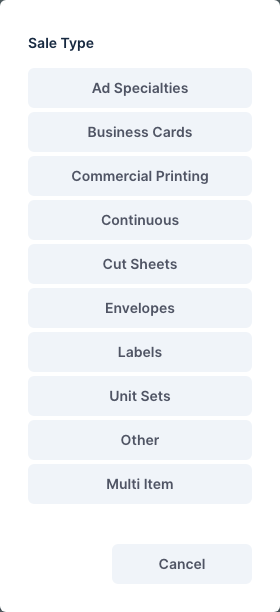
Pick the product type: Ad Specialties, Business Cards, Commercial Printing, Continuous, Cut Sheets, Envelopes, Labels, Unit Sets, Other or Multi Item. The type decides which specification fields the order has.
-
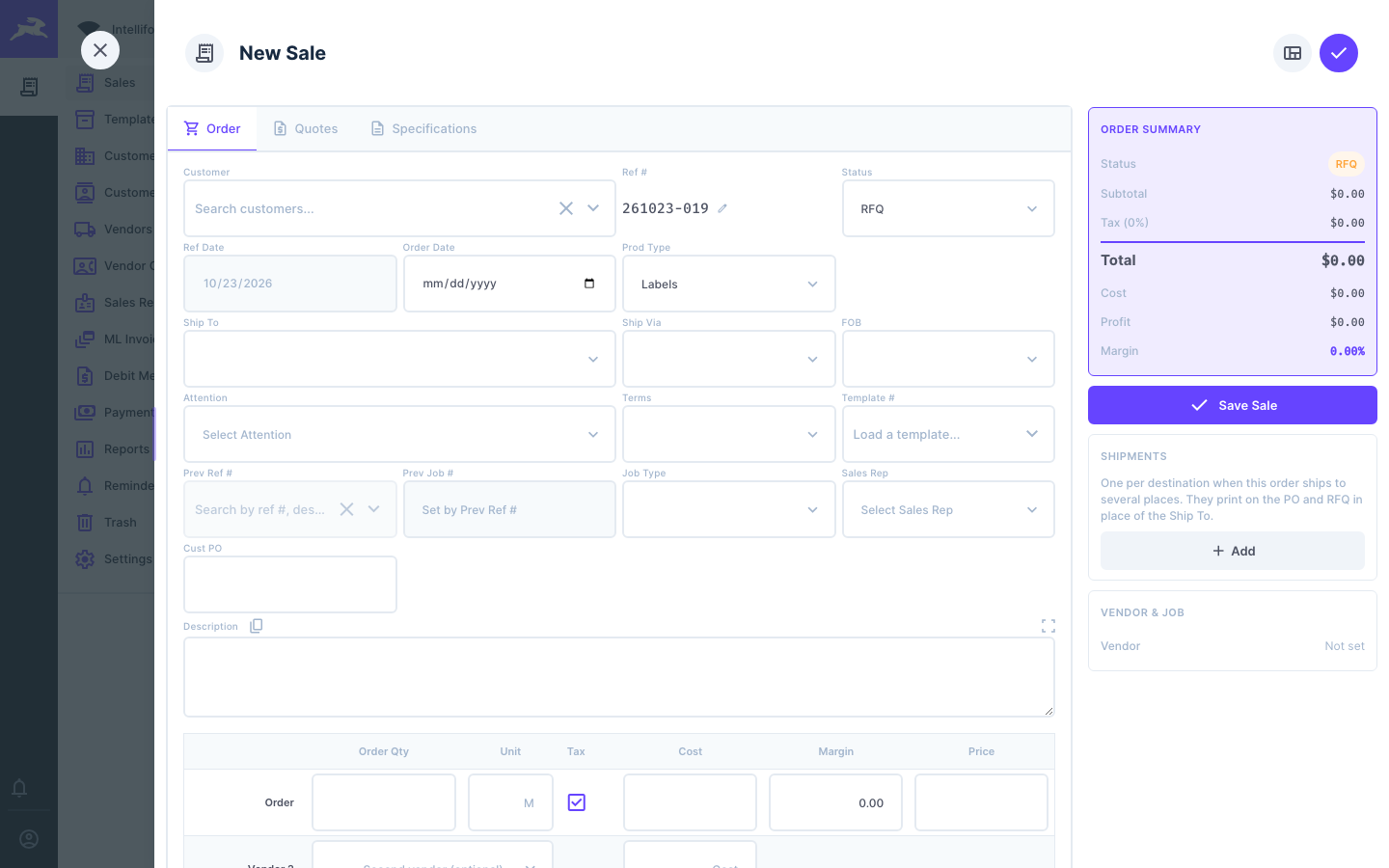
The new order opens. Intelliform has already given it the next Ref #.
Pick the customer
-
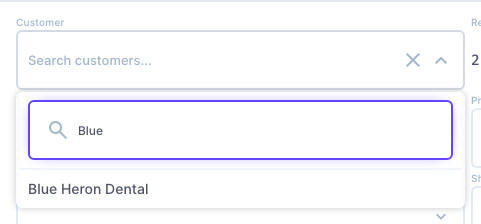
Click Customer and type part of the name. Click the customer in the list.
-
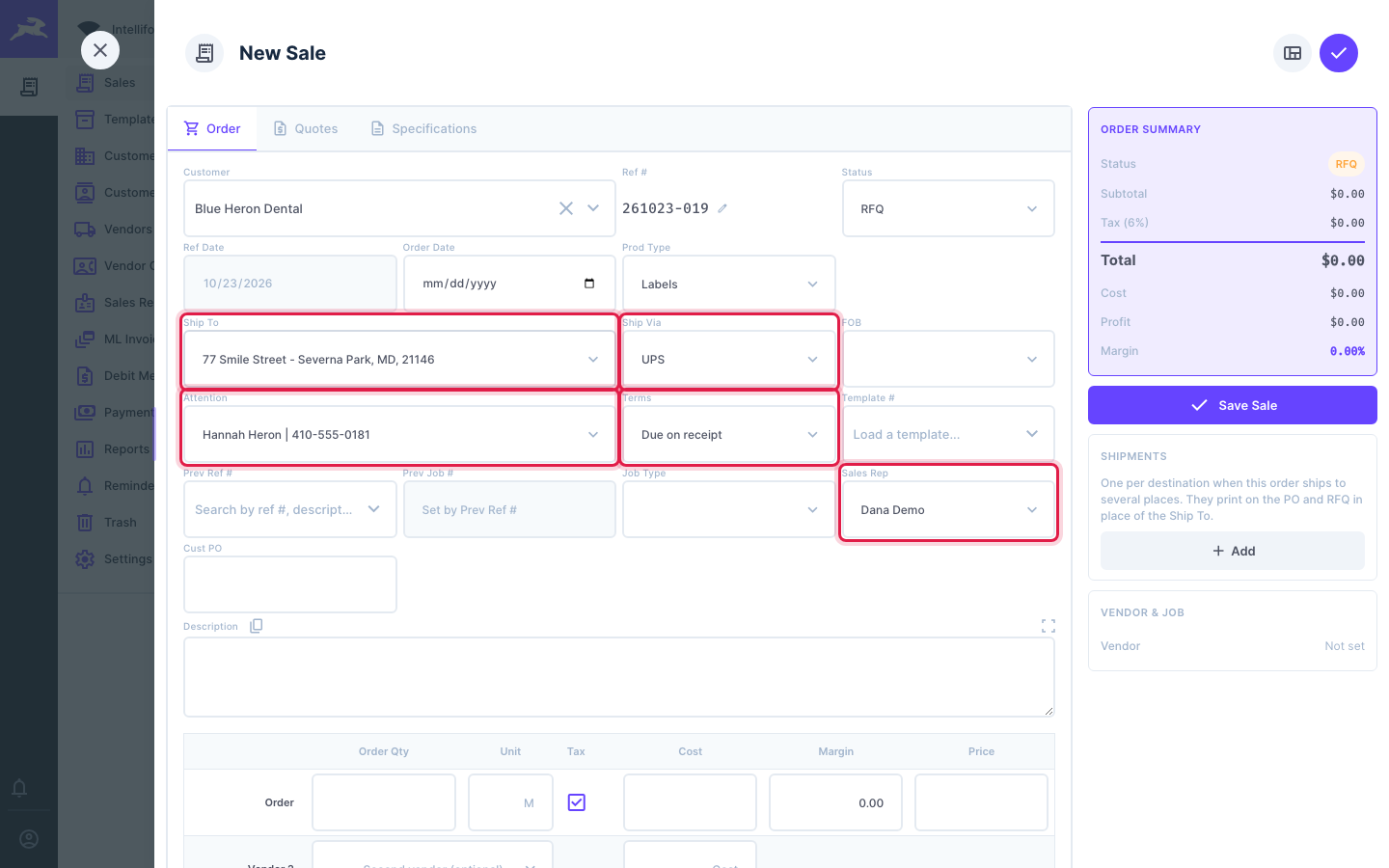
Intelliform fills in what it knows about the customer: Ship To (the main address), Ship Via, Attention (the default contact), Terms, Sales Rep and the sales tax. Change any of them for this order if you need to.
Set the status
A new order starts with your company's default status (Settings > Defaults > Default Sale Status). Click Status to change it:

- RFQ: you are asking vendors for prices. See Quotes and RFQs.
- Quote: you have priced it for the customer.
- Order: the customer said yes.
- Invoice: billed. See Invoicing and payments.
- Dead: the customer said no.
Then type the Description (it prints on every document) and the customer's PO number in Cust PO.
Enter quantity, cost and price
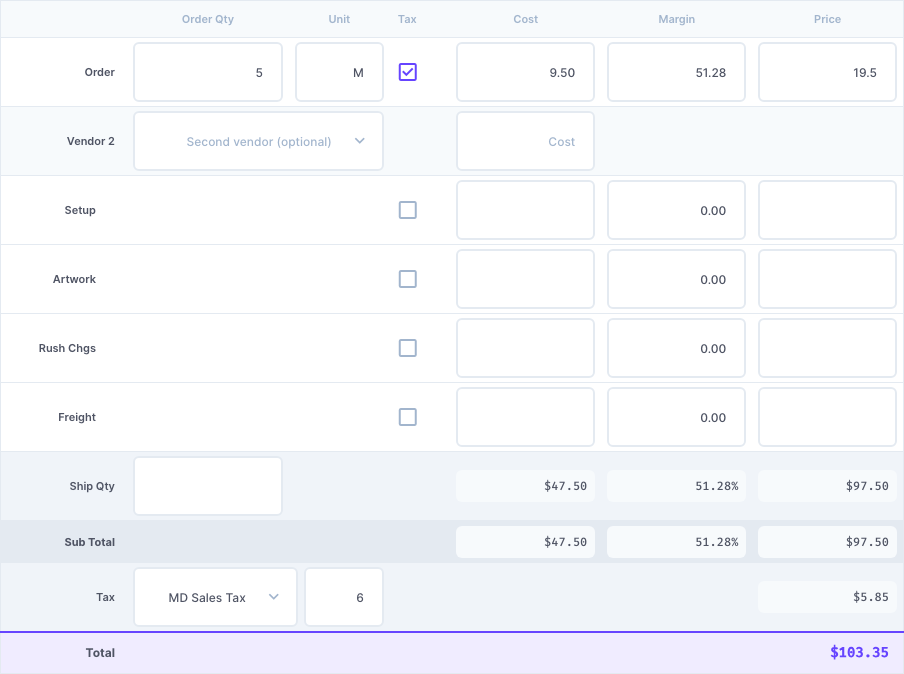
On the Order row of the pricing table:
- Order Qty and Unit. With a unit like M (thousand), Box or EA, the cost and price are per unit and get multiplied by the quantity. With the unit Lot, the cost and price are for the whole job.
- Cost: what the vendor charges you, per unit (or for the lot).
- Price: what you charge the customer, per unit (or for the lot). Or type a Margin % and Intelliform works out the price.
- Tick Tax if the line is taxable. Setup, Artwork, Rush and Freight have their own rows, each with cost, price and tax box.
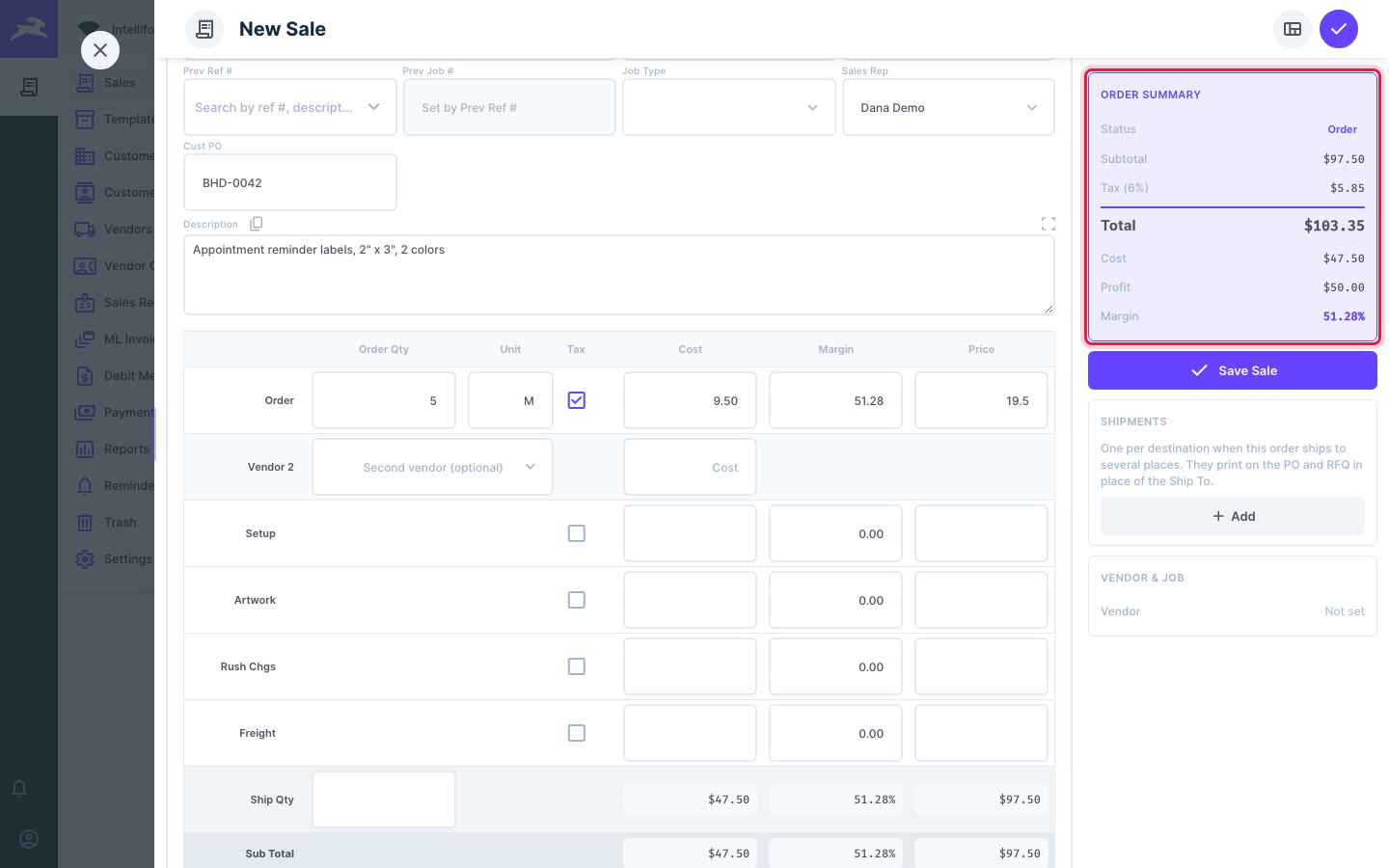
The Order Summary on the right keeps the subtotal, tax, total, cost, profit and margin up to date as you type:
The cost warning
If the cost looks like a whole-job total typed into a per-unit cost (or a per-unit price on a Lot order), a yellow warning appears under the row:

Here 950.00 was typed as the cost per M, which makes the job cost $4,750 against a $97.50 price. Either change the unit to Lot, or enter the cost per unit (9.50). The warning never stops you saving; it is there so a typing slip does not reach your reports.
Add the specifications
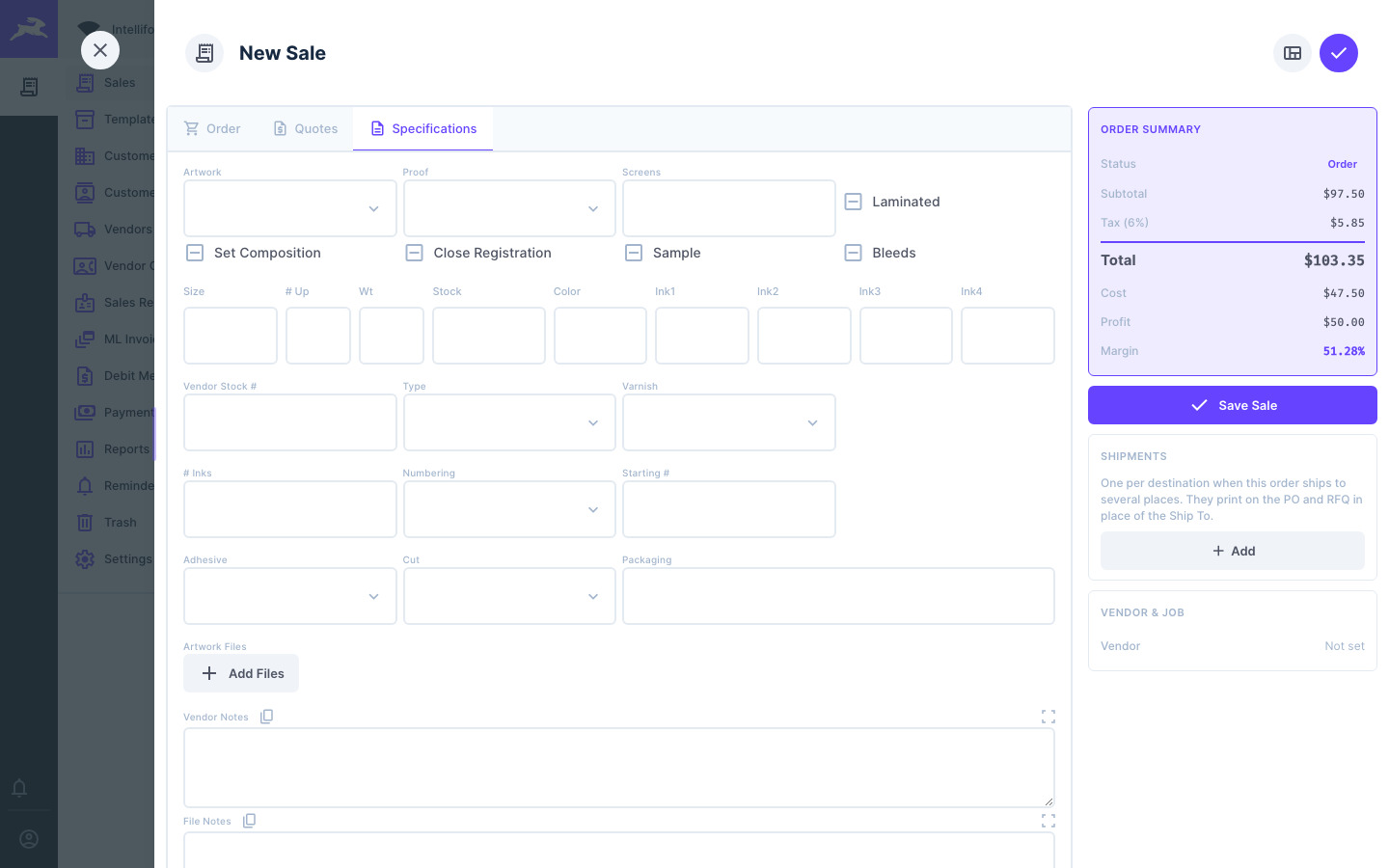
Click the Specifications tab and fill in what the vendor needs to know: size, stock, inks, numbering, packaging and so on. The fields depend on the product type. Use Vendor Notes for special instructions to the vendor and File Notes for your own records.
Pick the vendor
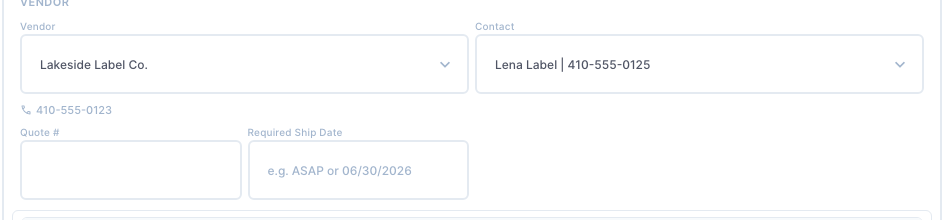
Click the Quotes tab. At the top, pick the Vendor you are buying from (and their Contact). The vendor's phone number shows under it. You can also fill in the vendor's Quote # and a Required Ship Date.
Save
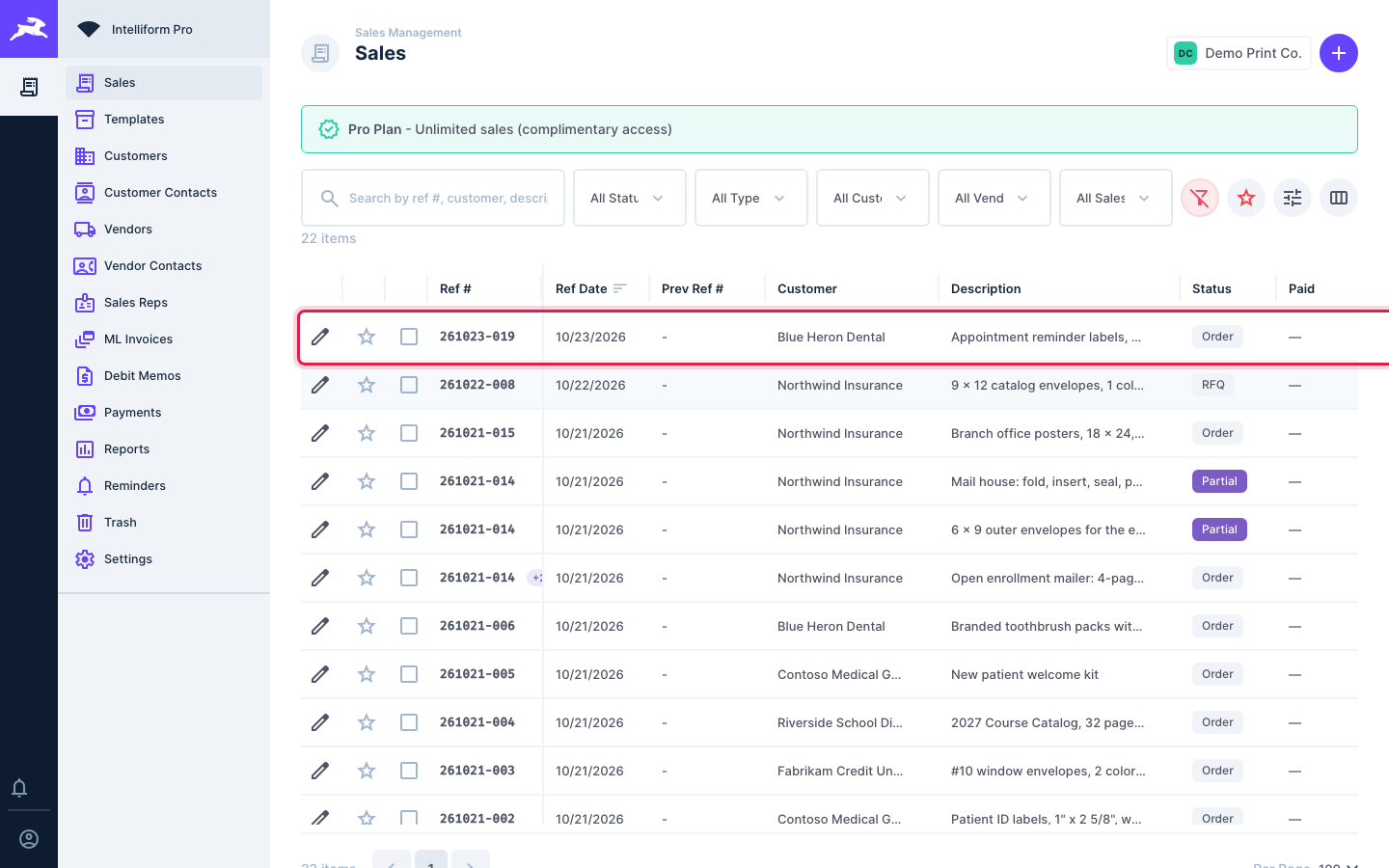
Click Save Sale (or the round check button at the top right). The order appears in the Sales list.
Tips
- Order Date: if you leave it blank, Intelliform fills in today's date when the status becomes Order (you can turn this off in Settings > Defaults > Automations).
- Ship Qty is the quantity you bill. Leave it as it is unless the job ran over or under; then type the shipped quantity and the totals follow it.
- Prev Ref # links a repeat job to the earlier order, and Template # starts the order from a saved template. Duplicate (in the order's actions) copies an order into a new one.
- Vendor 2 on the pricing table is an extra cost line. For a second vendor with its own PO, use a Partial order instead.
- Multi Item orders have a line per item instead of the single pricing row.