Getting started
This article shows you how to sign in, check your company details, find your way around the Sales screen, and choose how the order screen opens.
Sign in
-
Go to app.intelliform.net.
-
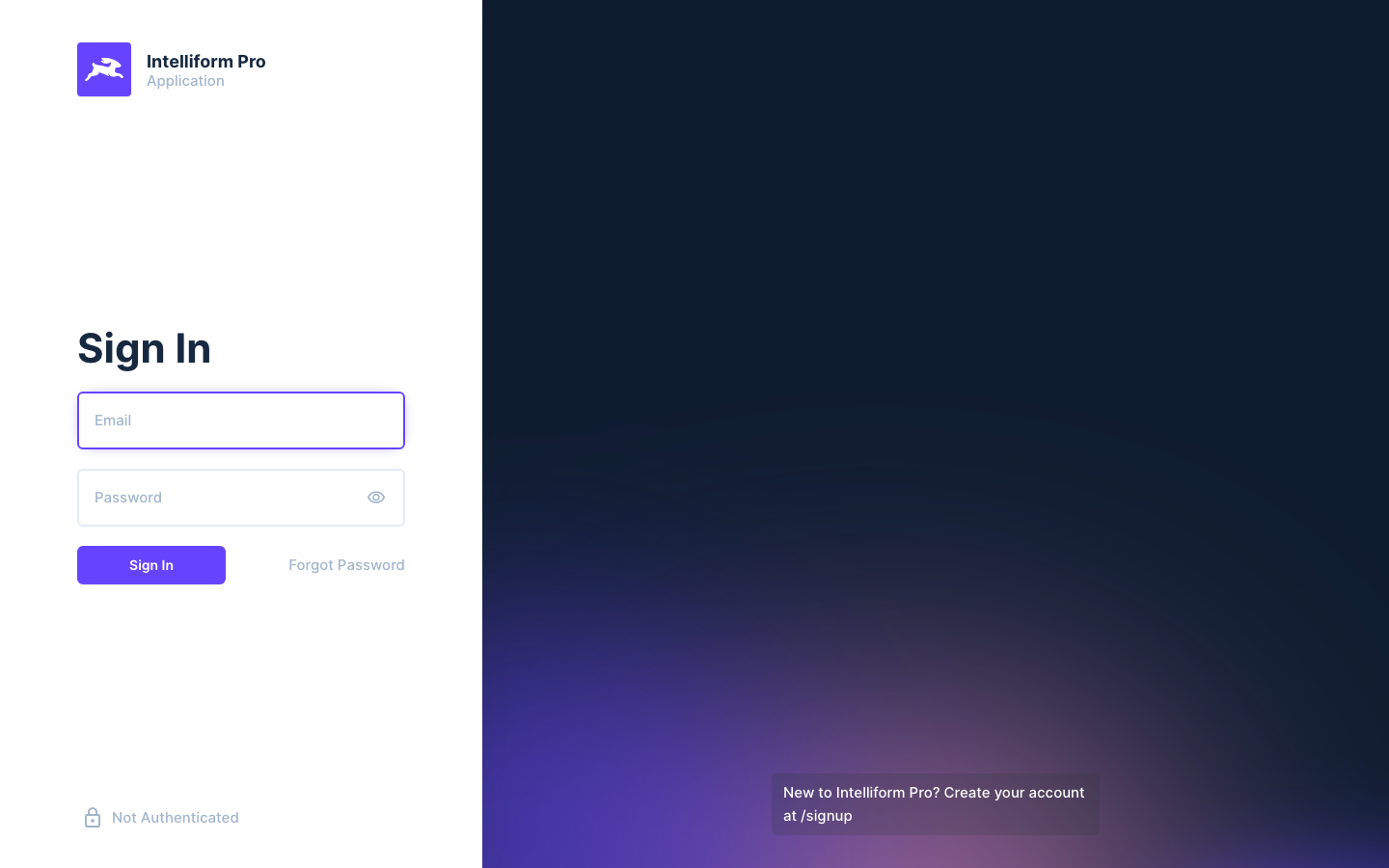
Type the email and password for your account and click Sign In.
-
Forgot your password? Click Forgot Password and follow the email we send you.
Each account can be signed in on one computer at a time. If you sign in somewhere else, the other window is signed out, and Intelliform shows a Session Notice telling you so. Click OK.
Find your way around the Sales screen
After you sign in you land on Sales, the list of all your orders, quotes, RFQs and invoices.
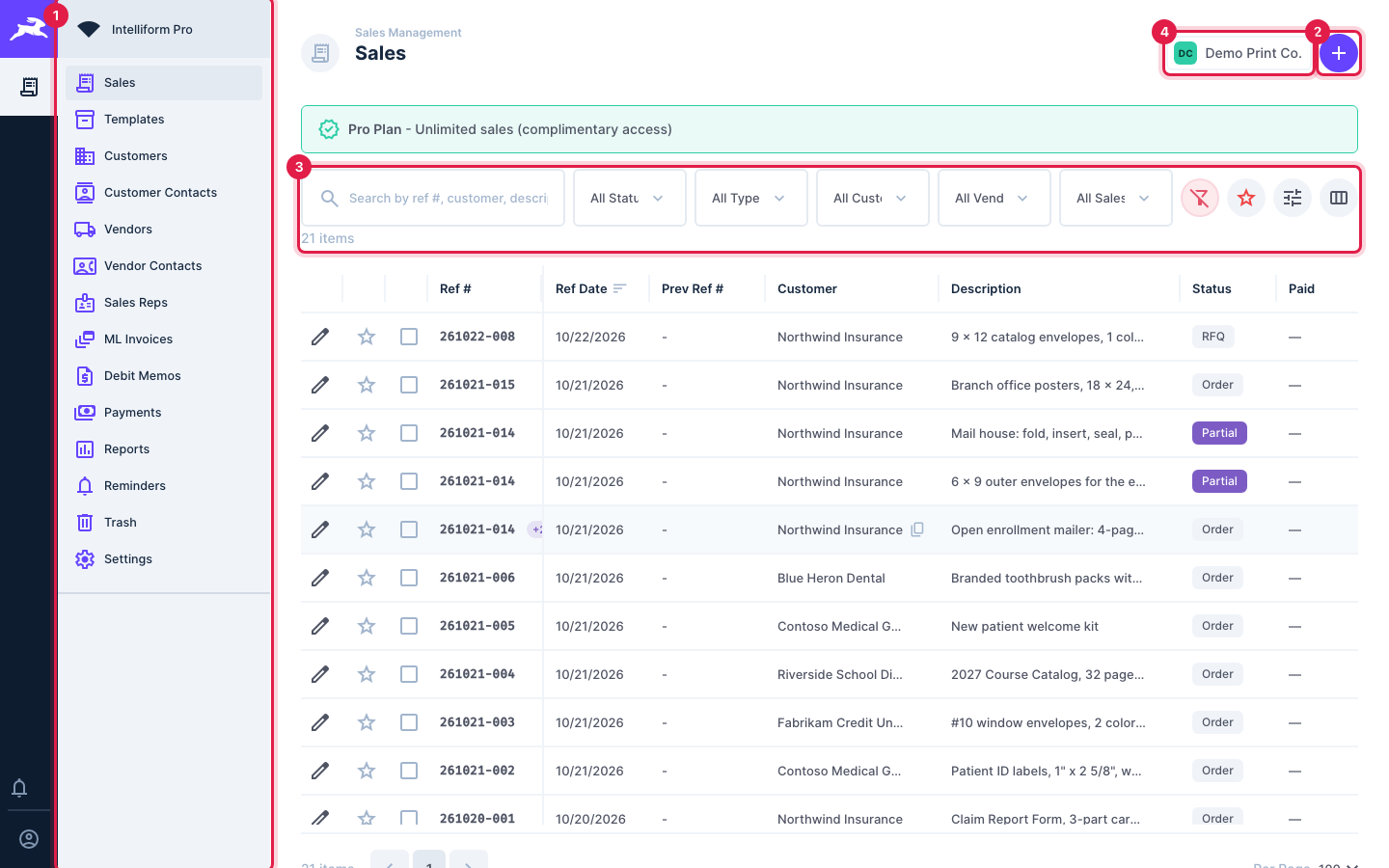
- The menu on the left: Sales, Templates, Customers, Vendors, ML Invoices, Debit Memos, Payments, Reports, Reminders, Trash and Settings.
- The + button starts a new order.
- Search and filters: type a Ref #, customer or description, or filter by status, product type, customer, vendor or sales rep.
- Your company. If you work for more than one company in Intelliform Pro, click it to switch.
Click the pencil at the start of a row to open that order.
Check your company settings
-
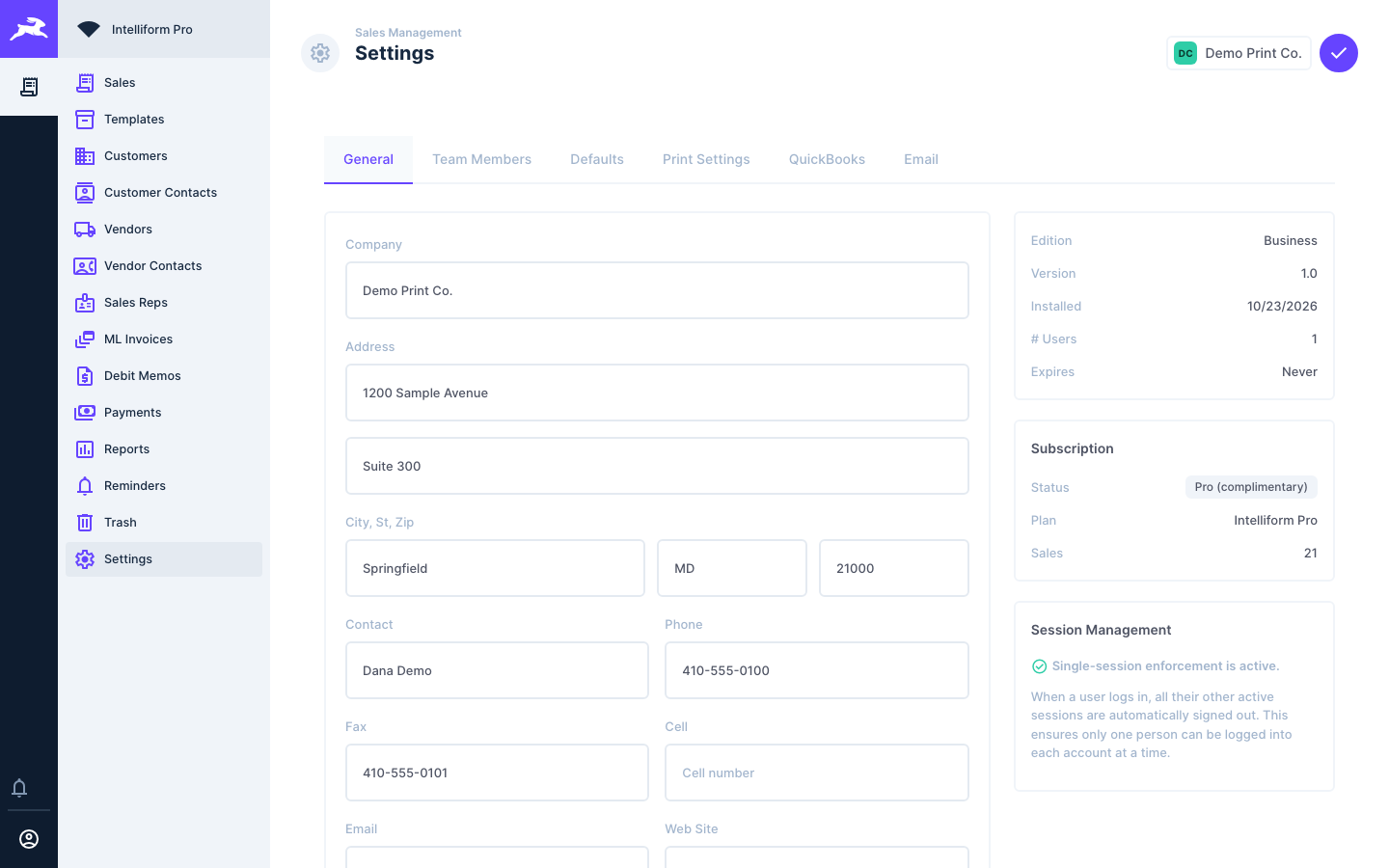
Click Settings in the menu. The General tab opens.
-
Check your company name, address, phone, fax, email and website. These print on your documents.
-
Click the round check button at the top right to save.
The other tabs:
- Team Members: who uses Intelliform Pro in your company, and invitations.
- Defaults: terms, ship via, sales tax rates, how Ref #s are numbered, and the status changes Intelliform makes for you.
- Print Settings: your logo and the notes printed on documents. See Printing and emailing documents.
- QuickBooks: see QuickBooks.
- Email: the name and address your emails come from, and the standard email text.
Choose how the order screen opens
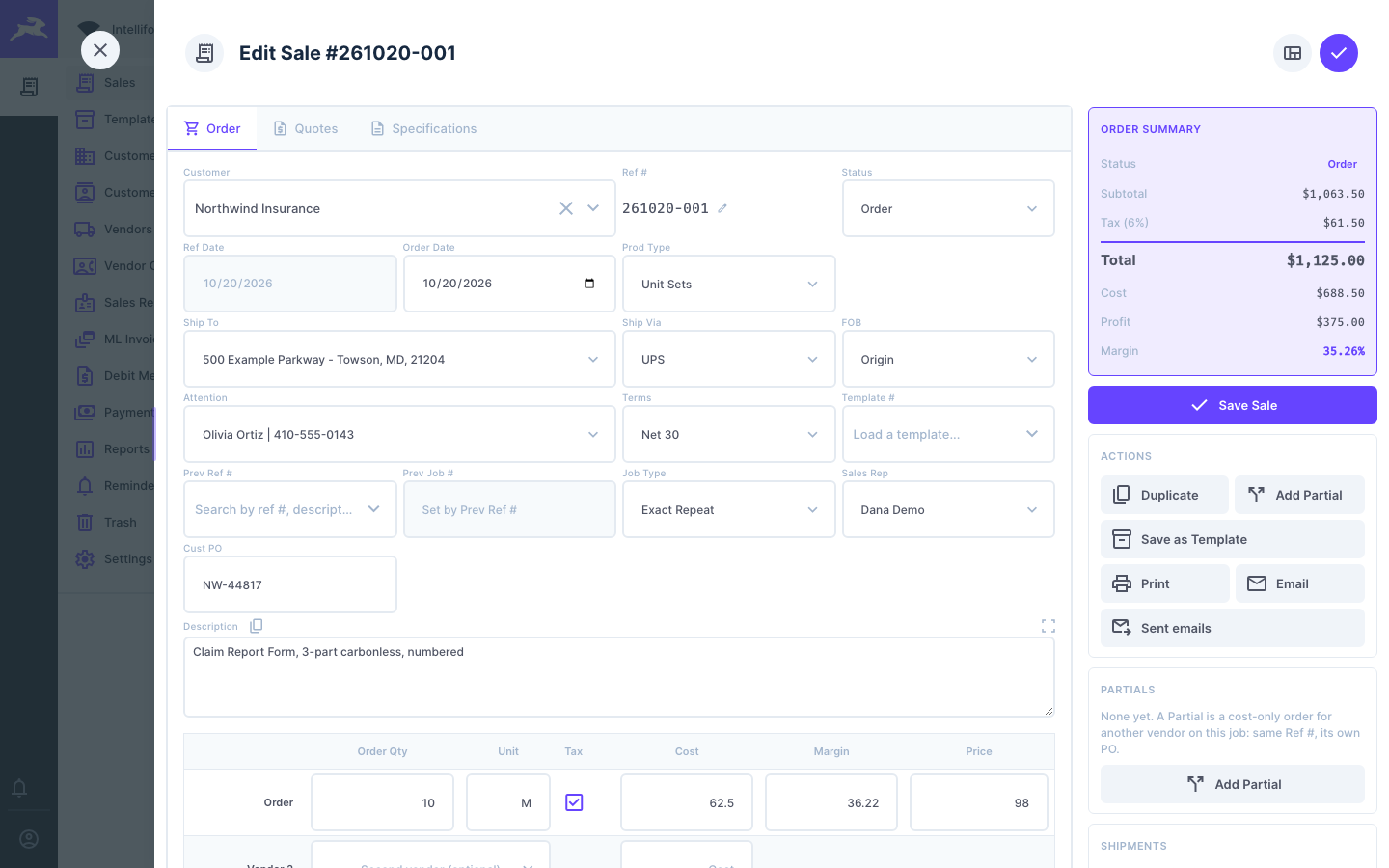
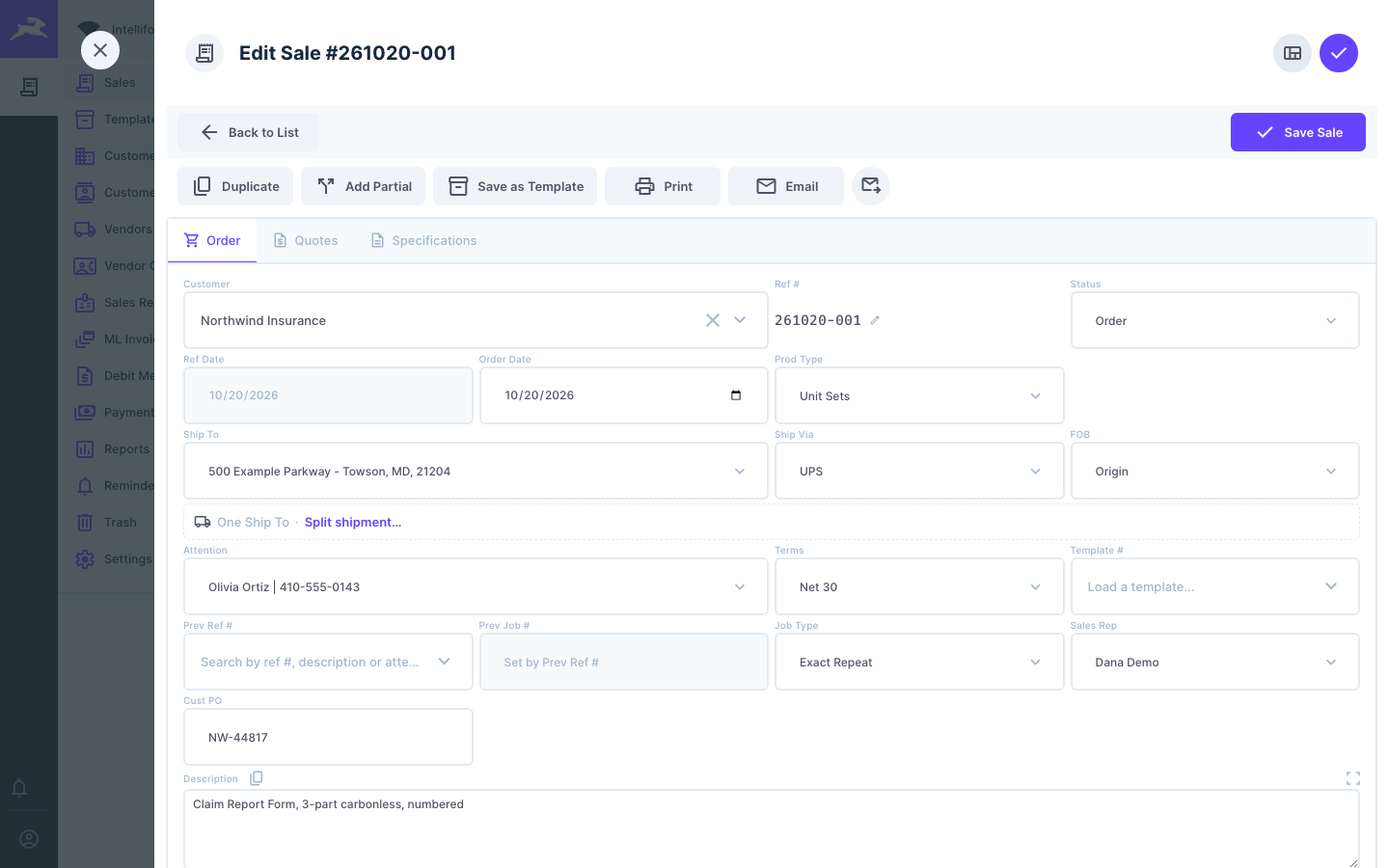
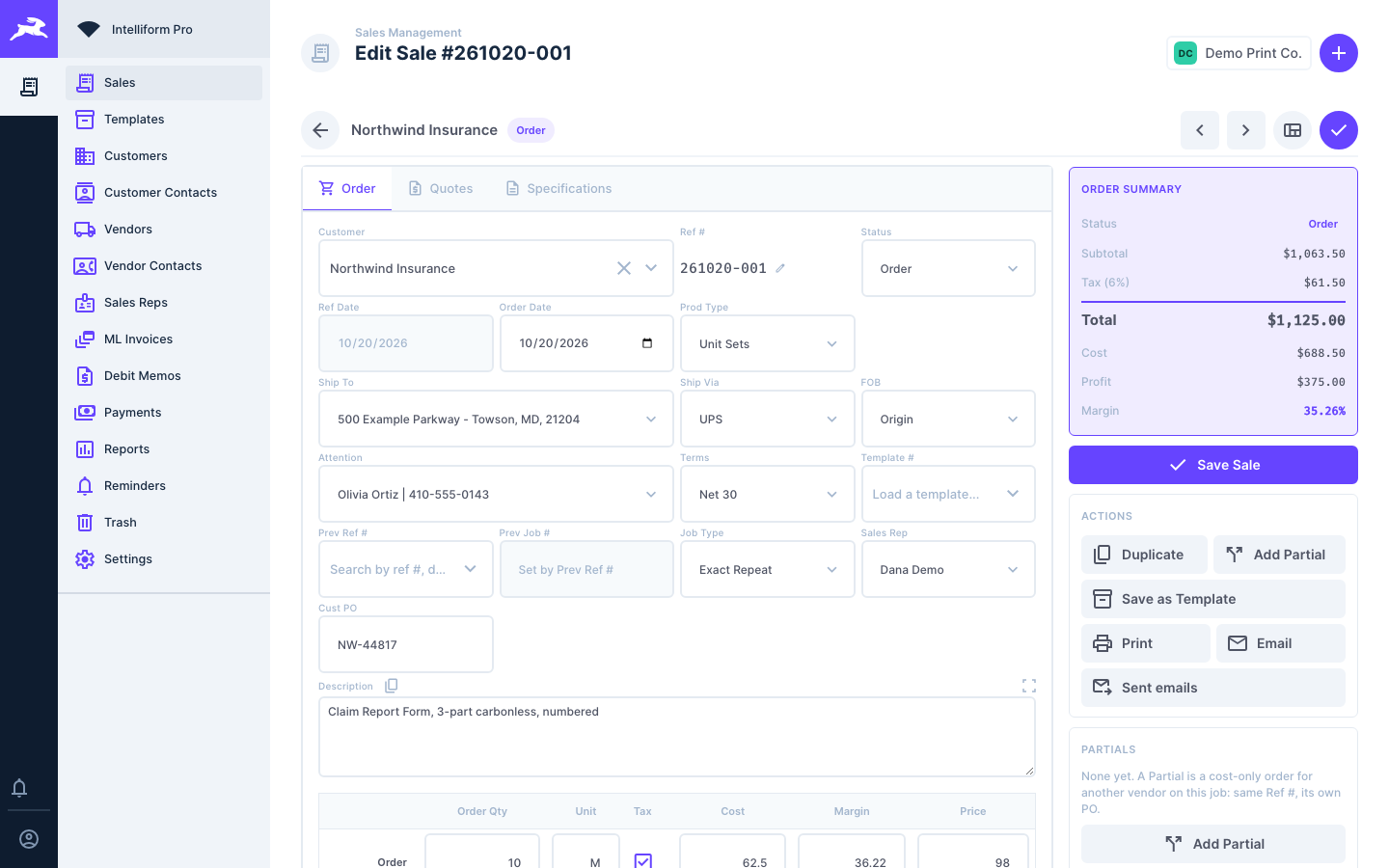
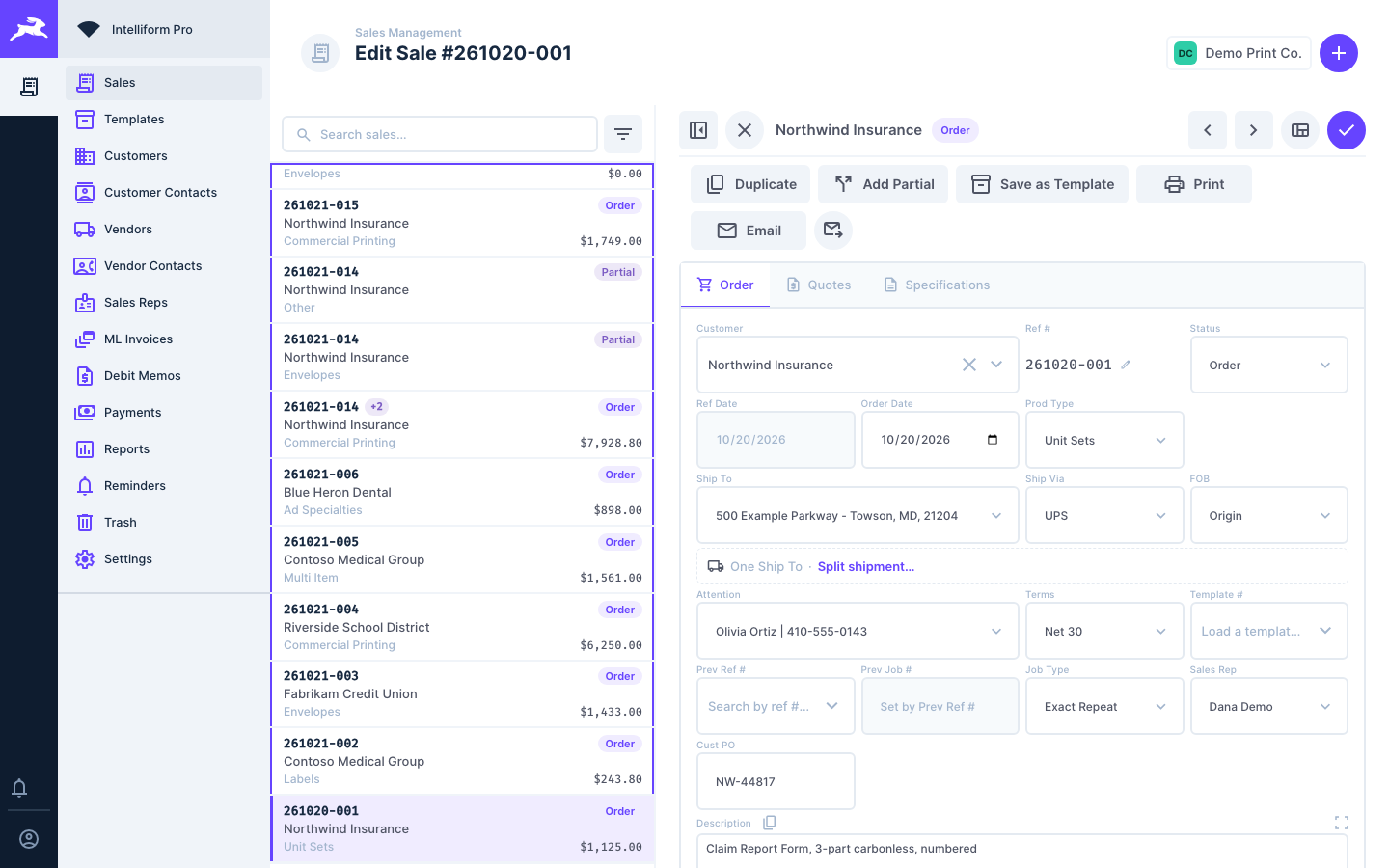
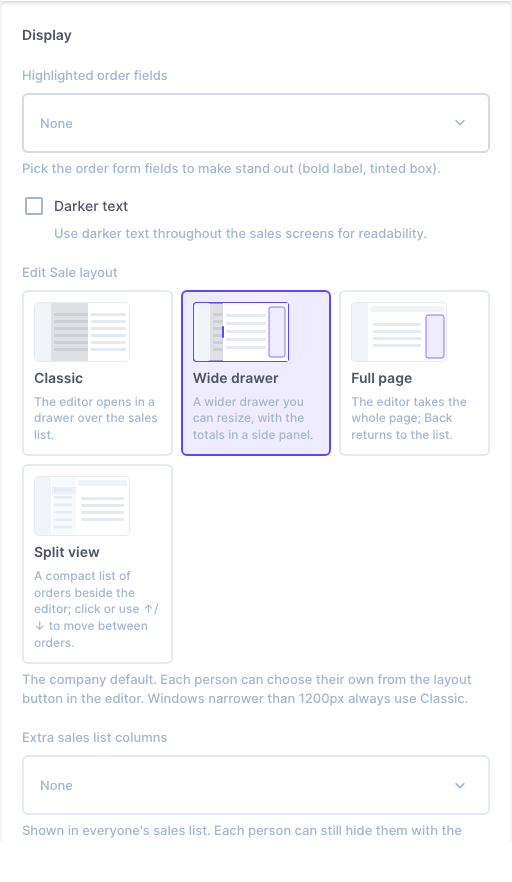
The order screen (Edit Sale) can open in four layouts. Your company picks a default, and each person can choose their own.
| Layout | What you see |
|---|---|
| Classic | The order opens in a drawer over the Sales list, with the action buttons along the top. |
| Wide drawer | A wider drawer you can resize, with the totals and actions in a panel on the right. |
| Full page | The order takes the whole page. The back arrow returns to the list. |
| Split view | A short list of orders on the left and the open order on the right. Click an order, or use the up and down arrow keys, to move between them. |
To pick your own layout:
-
Open any order.
-
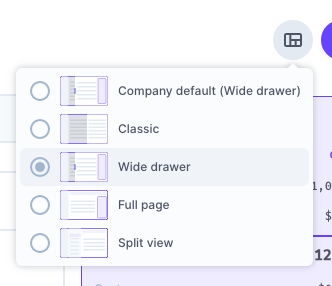
Click the layout button at the top right, next to the round check button.
-
Pick a layout, or Company default to use your company's choice.
To set the company default:
-
Go to Settings > Defaults.
-
Under Display, click a layout in Edit Sale layout.
-
Click the round check button at the top right to save.
Tips
- In a browser window narrower than 1200 pixels the order always opens in Classic, whatever you picked.
- While an order has unsaved changes you can still switch between Classic and Wide drawer; save first to move to Full page or Split view.
- In Settings > Defaults > Display you can also highlight the order fields your team uses most, and turn on darker text.