Split shipments
When one order ships to several places (branch offices, a warehouse, a mail house), add a shipment for each destination. The vendor's Purchase Order and RFQ then read "Split Shipment" in the Ship To and list every shipment with its quantity, address, ship via and note. Your customer's quote, acknowledgement and invoice do not change.
See an order's shipments
Open the order. The Shipments card on the right shows how many shipments there are, the total quantity, and each destination.
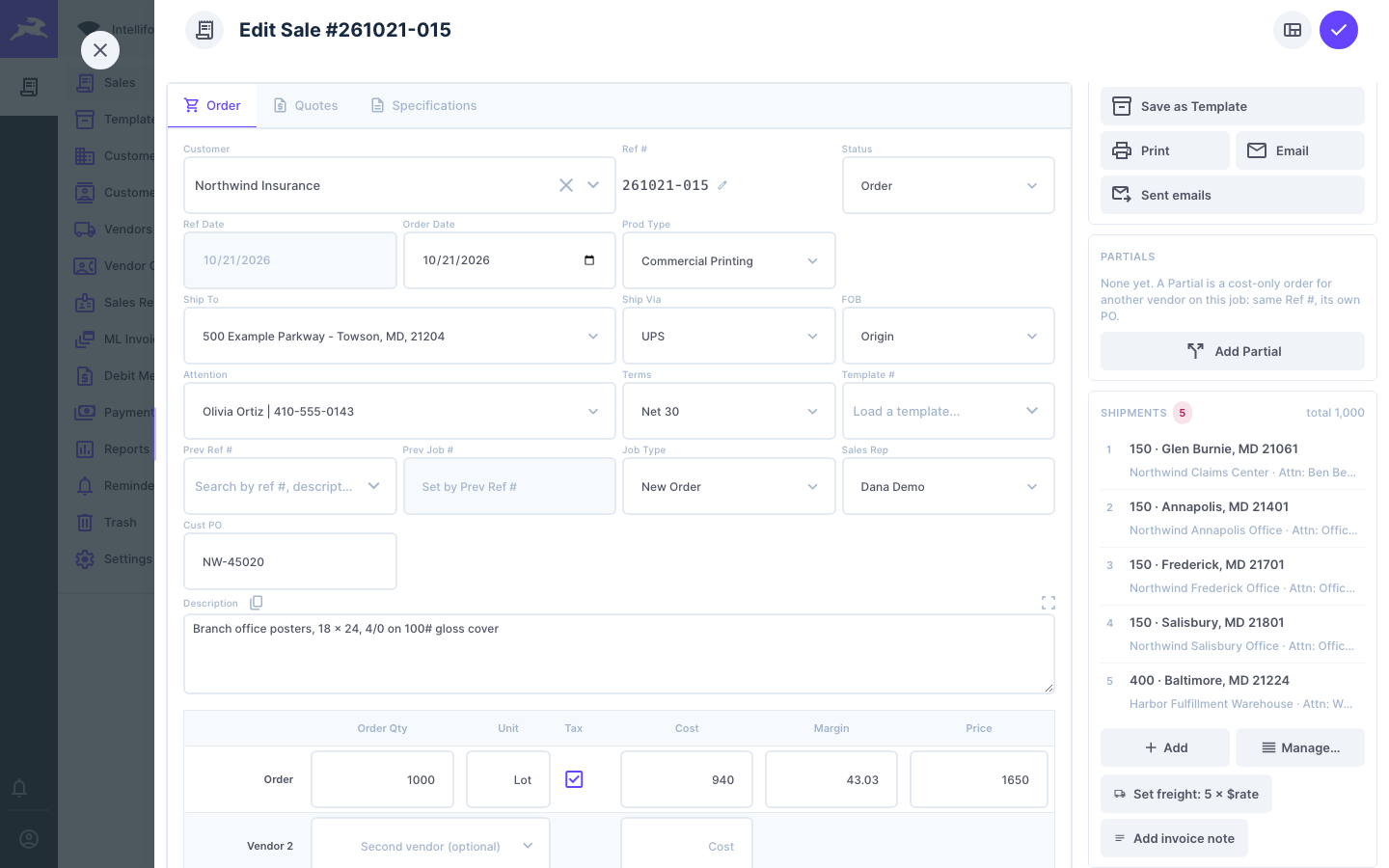
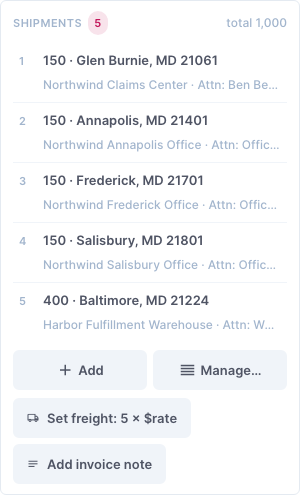
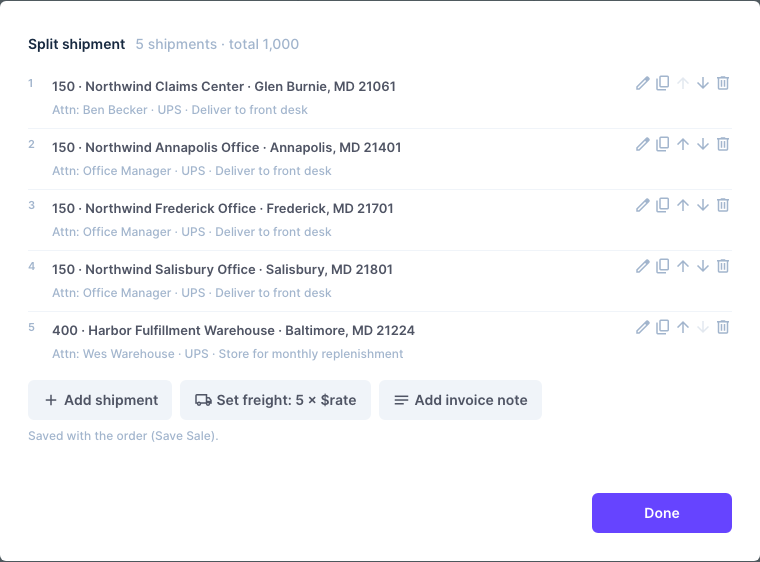
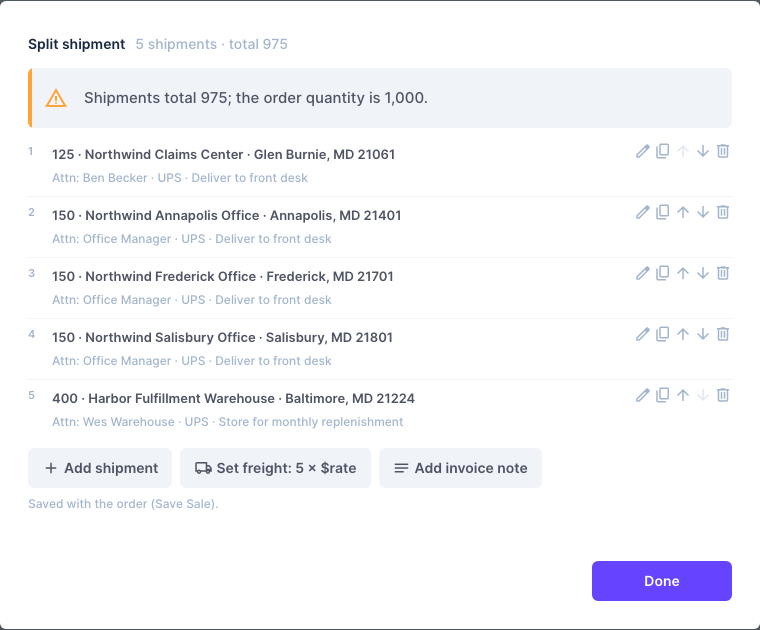
Click Manage... to see the full list. Each row has buttons to edit, duplicate, move up or down, and delete.
Add a shipment
-
Click Add on the Shipments card (or Add shipment in the list).
-
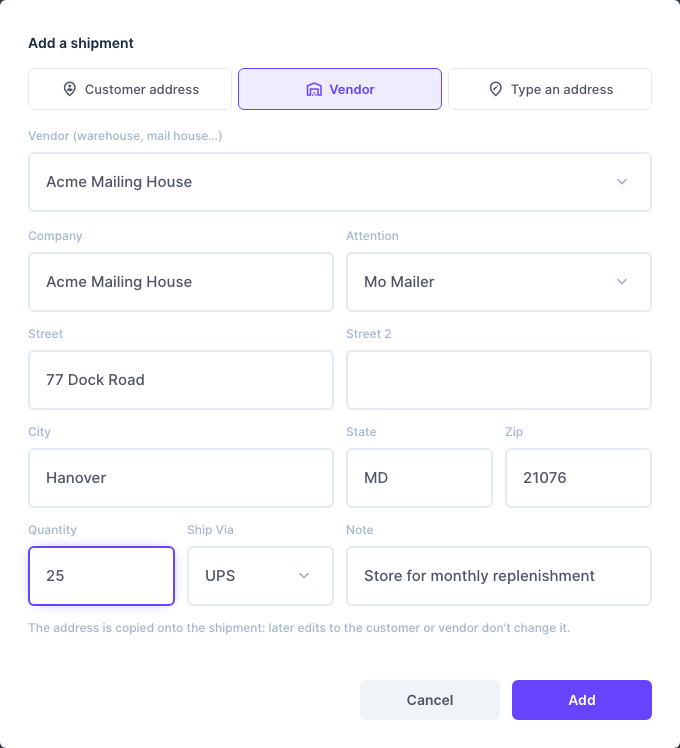
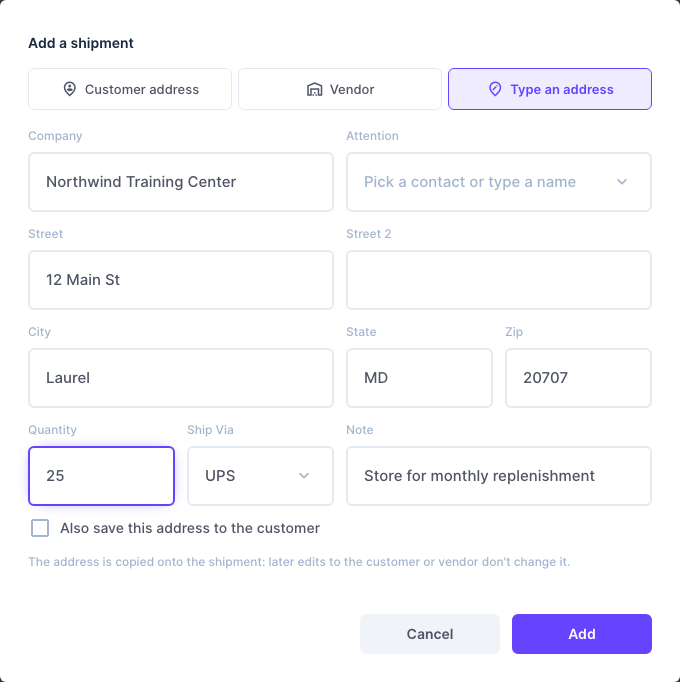
Choose where it goes:
- Customer address: pick one of the customer's addresses.
- Vendor: a vendor such as your warehouse or mail house.
- Type an address: anything else. Tick Also save this address to the customer to keep it for next time.
-
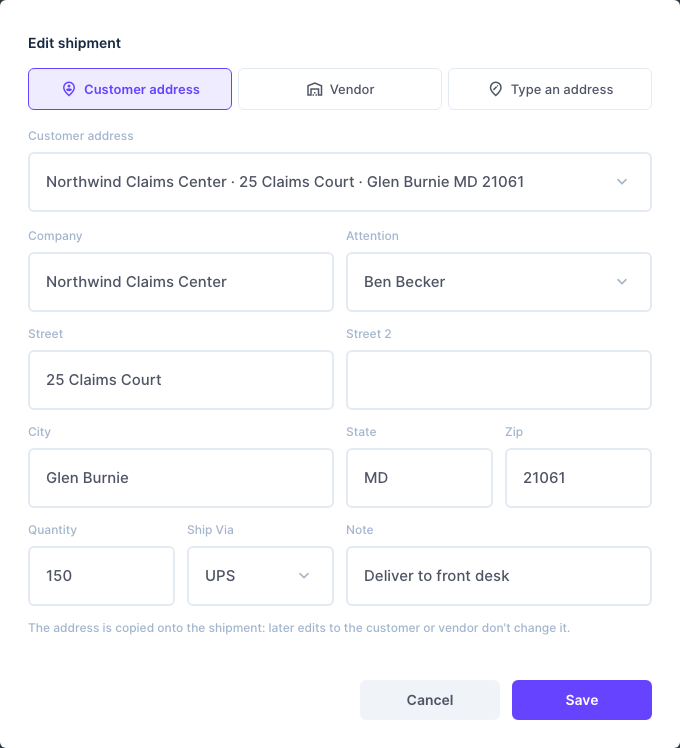
Pick the Attention contact (or type a name), and fill in the Quantity, Ship Via and a Note (for example "Use our UPS account X48181"). A new shipment starts with the order's ship via and the previous shipment's note.
-
Click Add.
-
Click Save Sale. Shipments are saved with the order.
To change a shipment, click it:
Check the quantities
If the shipments do not add up to the order quantity, the list says so. It is only a warning: you can still save (for example when some are held back).
Bill the shipping: two helpers
Under the list are two buttons that fill in the customer's side for you:
-
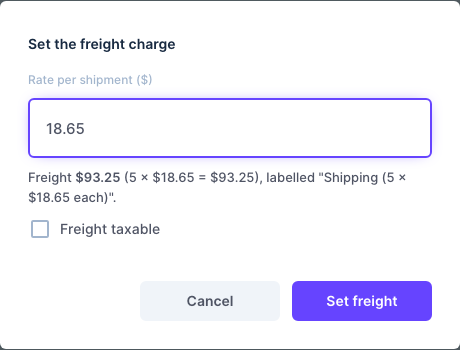
Set freight: N × $rate asks for the rate per shipment and fills the order's Freight row with the total, labelled for example "Shipping (5 × $18.65 each)". Tick Freight taxable if freight is taxed. If the order already has a freight amount, it asks before replacing it.

-
Add invoice note adds a line such as "Split shipped 975 qty. to five locations." to the order's Customer Notes, which can print on the invoice (tick Print Customer Notes when you print it).

Click Save Sale to keep the changes.
Tips
- Each shipment keeps a copy of its address. Editing the customer or vendor later does not change a PO you already sent.
- Repeat, Prev Job and Duplicate copy the shipments, which saves retyping monthly jobs to the same places. Templates and new Partials start without them.
- A Partial can have its own shipments; its PO then lists them instead of its single vendor ship-to.
- Multi Item orders have one shipments list for the whole order.