Invoicing and payments
When a job ships, you bill it: the order becomes an Invoice. You can bill several orders for the same customer on one ML (multi-line) invoice, and record the customer's payments against either.
Turn an order into an invoice
-
Open the order. At the bottom of the Order tab, the Invoicing box has Ship Date, Invc Date (invoice date), Invoice # and Job #.

-
Type the Invc Date.

-
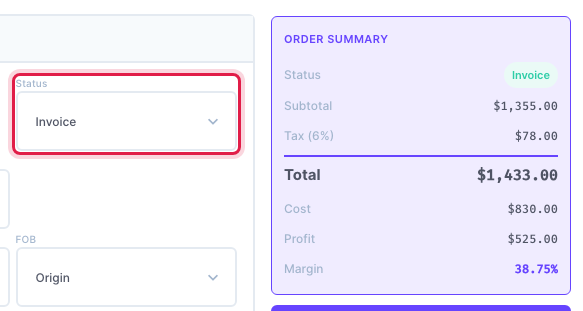
The status changes to Invoice by itself.
-
Check the Ship Qty (it is what you bill), then click Save Sale.
-
Print or email the invoice. See Printing and emailing documents.
You can also simply set the Status to Invoice: Intelliform then fills a blank order date, ship date and invoice date with today, and a blank ship quantity with the order quantity.
Record a payment on one invoice
-
Open the invoice and click Receive Payment in its actions.
-
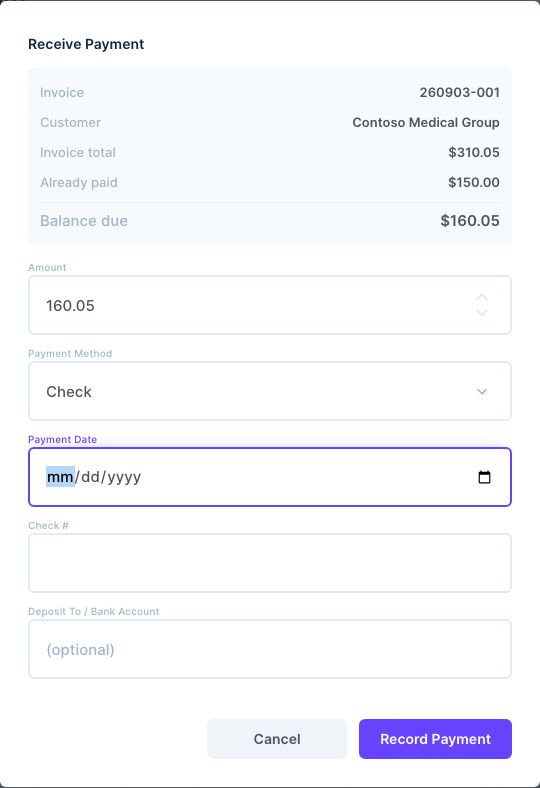
The window shows the invoice total, what is already paid and the Balance due. The Amount starts at the balance; change it for a part payment.
-
Pick the Payment Method (Check, Cash, Credit Card, ACH / Bank Transfer or Other), the Payment Date, the Check # and, if you like, the bank account it was deposited to.
-
Click Record Payment.
The Paid column of the Sales list shows which invoices are paid.
Record one payment for several invoices
When a customer pays several invoices with one check:
-
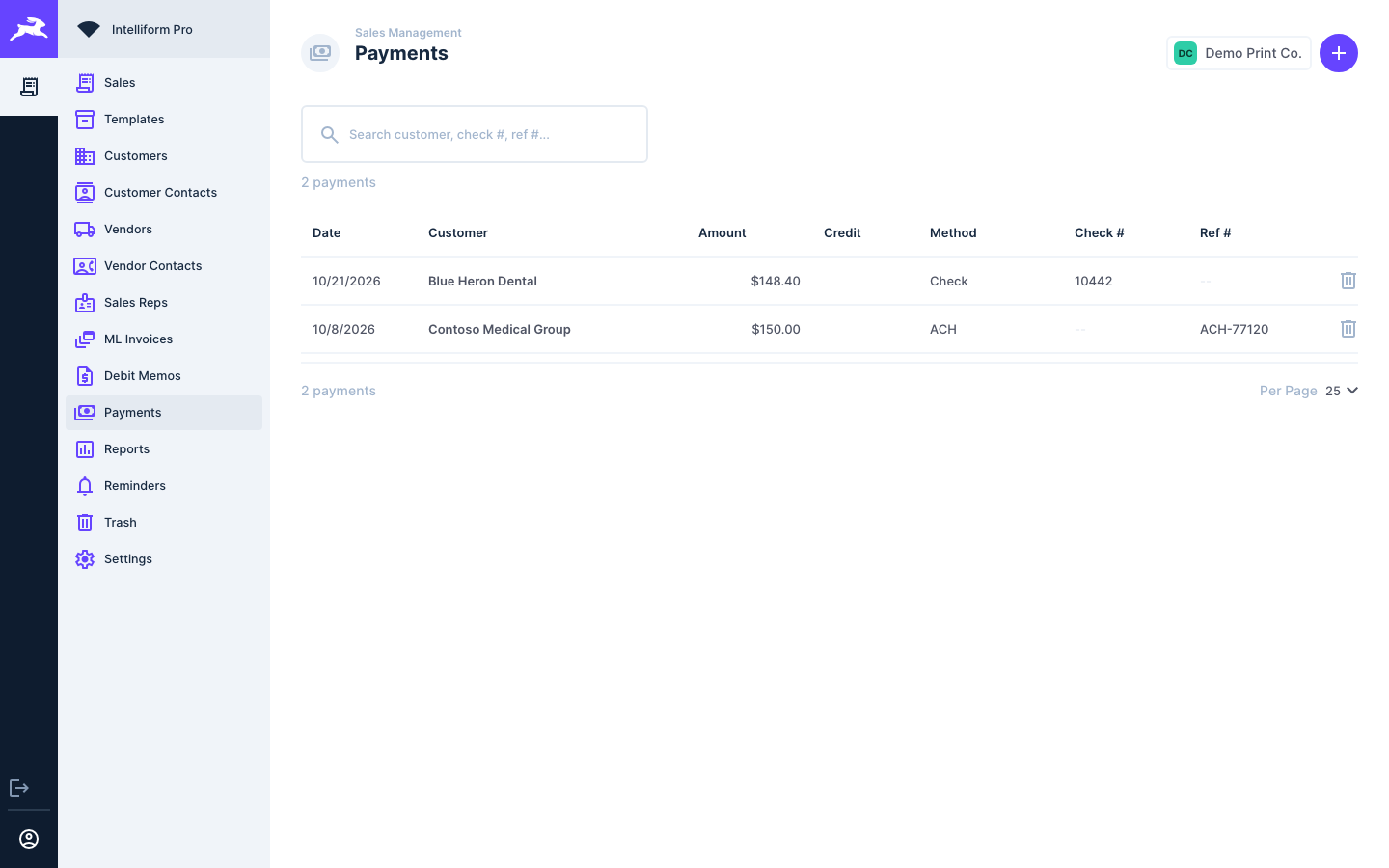
Click Payments in the menu, then the + button.
-
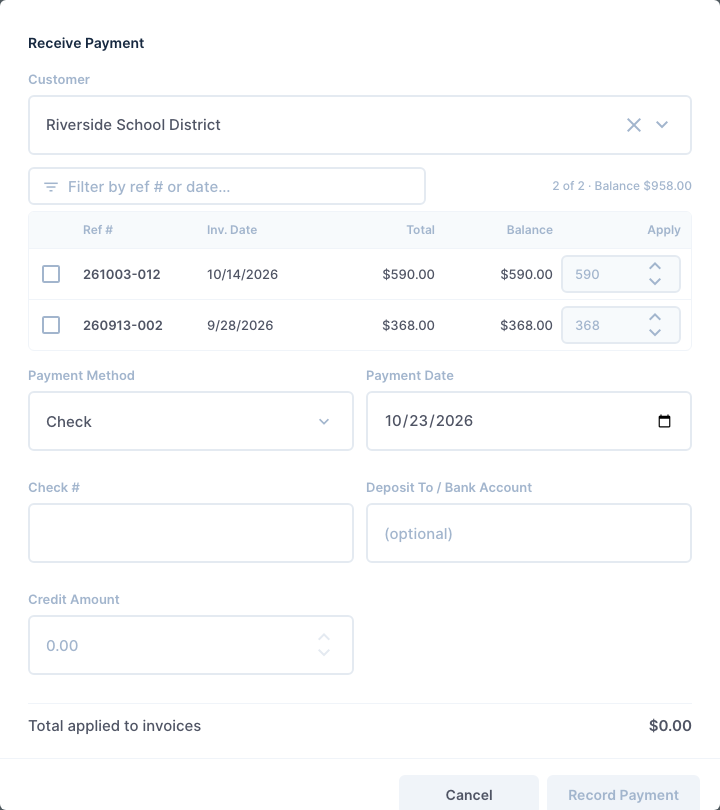
Pick the Customer. Their open invoices are listed with the balance of each.
-
Type how much goes to each invoice in Apply, and fill in the payment method, date and check #. A Credit Amount records money the customer has on account.
-
Click Record Payment.
Combine invoices into an ML invoice
An ML (multi-line) invoice bills several of a customer's invoices on one document, one line per order.
-
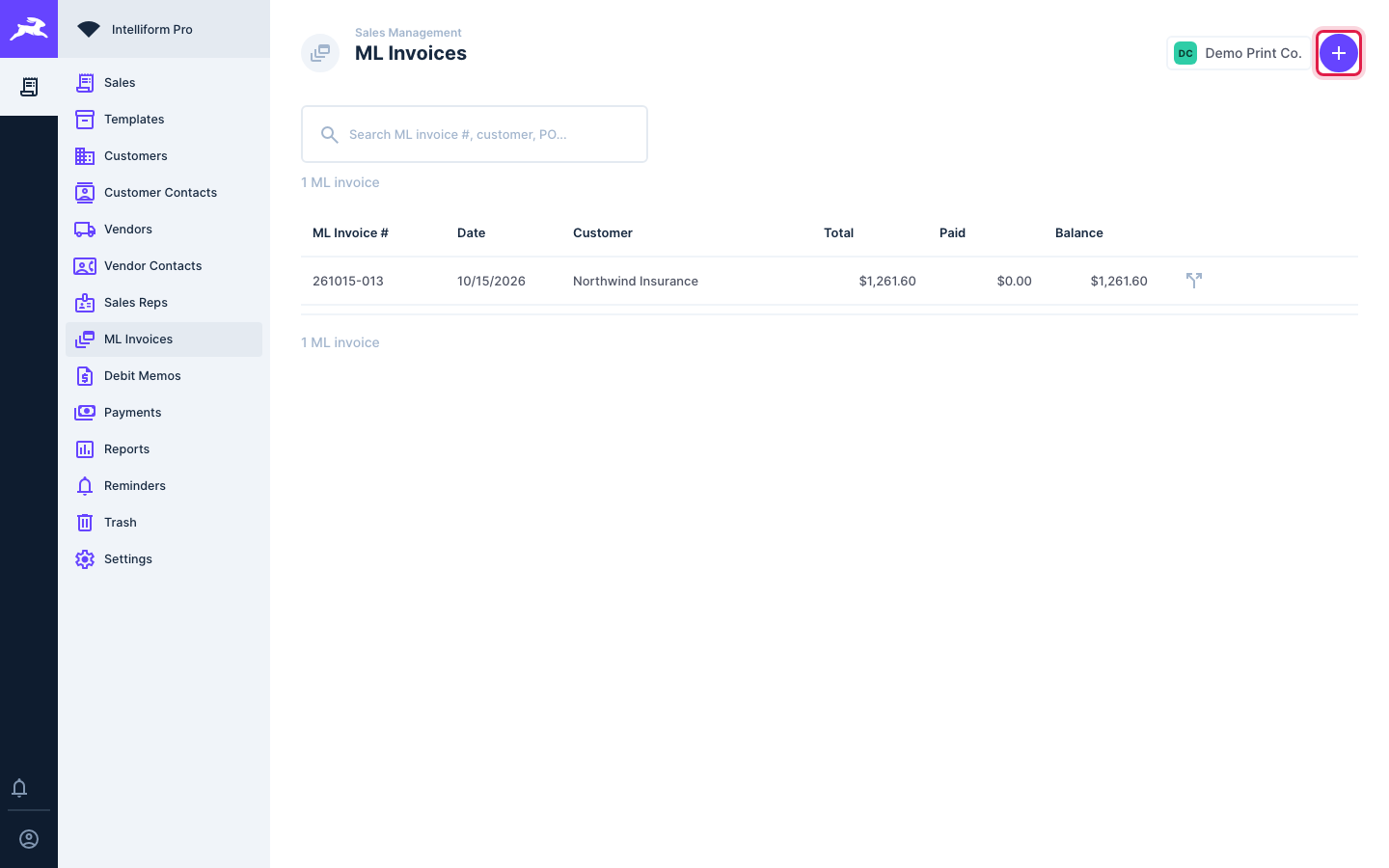
Click ML Invoices in the menu, then the + button.
-
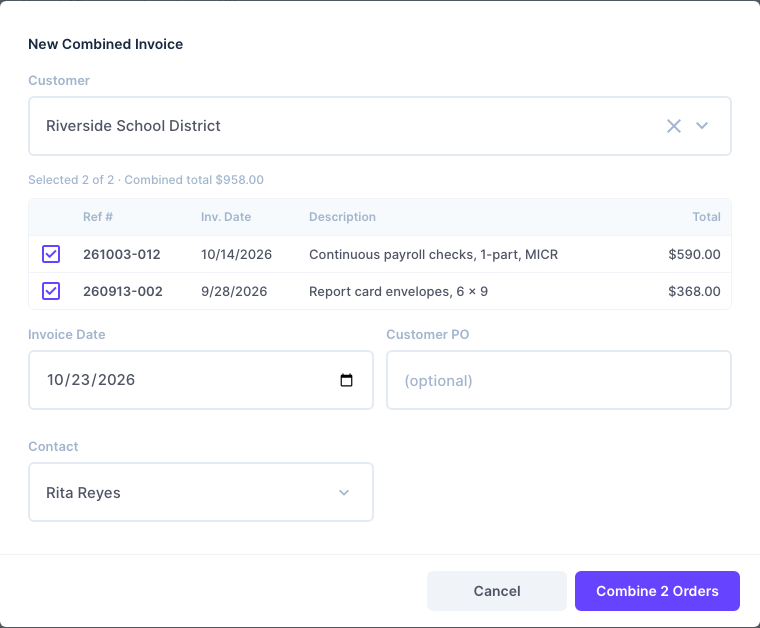
Pick the Customer. Their invoices that are not on an ML invoice yet are listed.
-
Tick the orders to combine, and check the Invoice Date, Customer PO and Contact.
-
Click Combine N Orders.
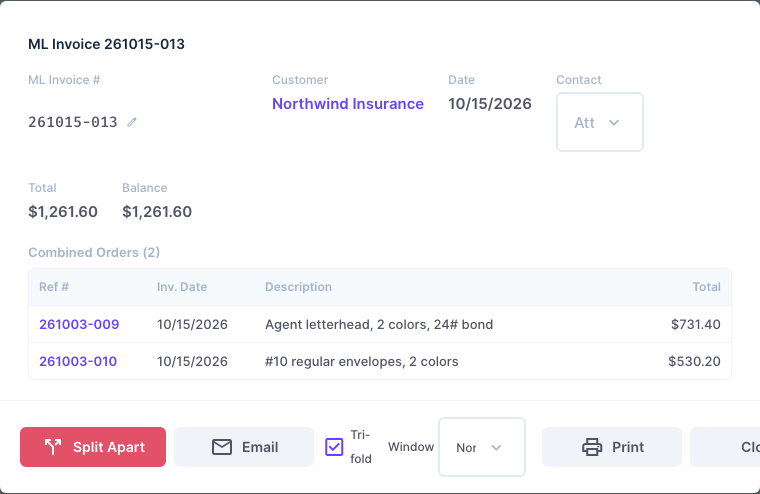
Click an ML invoice in the list to see its orders and totals, and to Print or Email it. Split Apart undoes the combination and leaves the orders as separate invoices again.
Tips
- Only invoices can be combined, and only orders of the same customer. A Partial is never billed on its own: it is part of its main order's cost.
- Invoice # can hold the vendor's invoice number or the QuickBooks invoice number. Typing a vendor invoice # also moves the order to Invoice (Settings > Defaults > Automations).
- Debit Memos in the menu is where you enter debit and credit memos for a customer.
- Reports has customer statements, A/R aging and receipts reports.