Bring your data from the old Intelliform
If you used the Intelliform program on your computer, we move your customers, vendors and order history into Intelliform Pro for you. All we need is a backup file from the old program. You can send it before you have an Intelliform Pro account, or from Settings once you do.
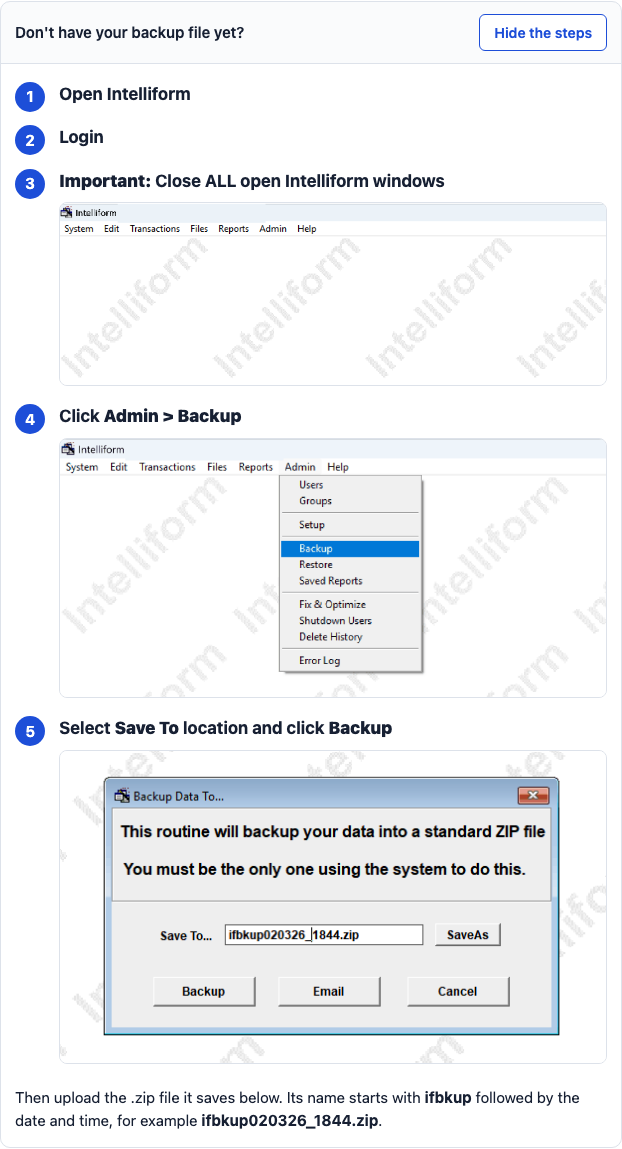
1. Make the backup in the old Intelliform
On the computer where Intelliform is installed:
- Open Intelliform and log in.
- Close all open Intelliform windows, so only the menu bar is left.
- Click Admin > Backup.
- Choose where to save it (Save To) and click Backup.
- Find the file. Its name starts with ifbkup and ends in .zip.
The upload page shows these steps with pictures: click Show me how (5 steps).
2a. Upload it (no account yet)
-
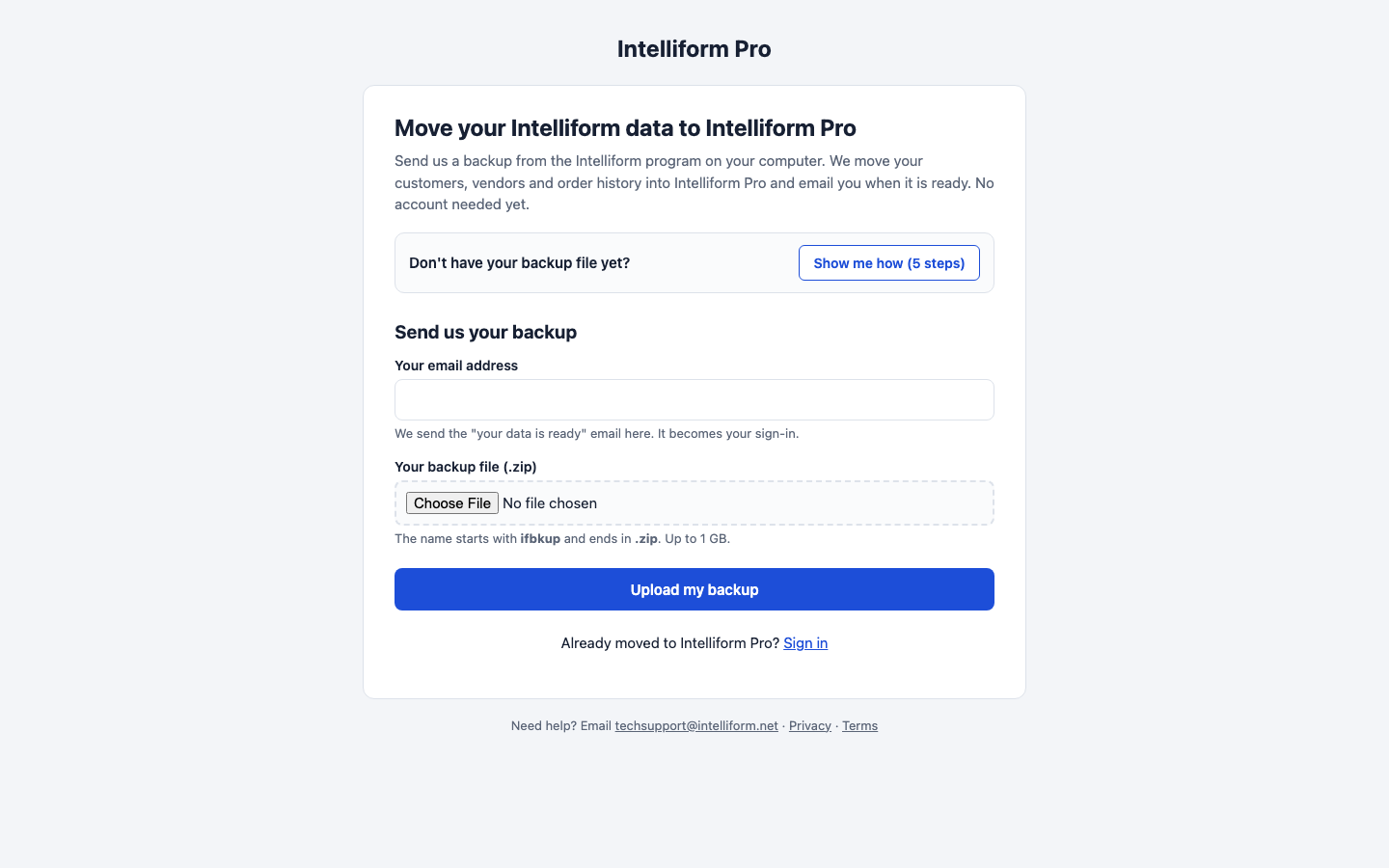
Go to app.intelliform.net/legacy/upload.
-
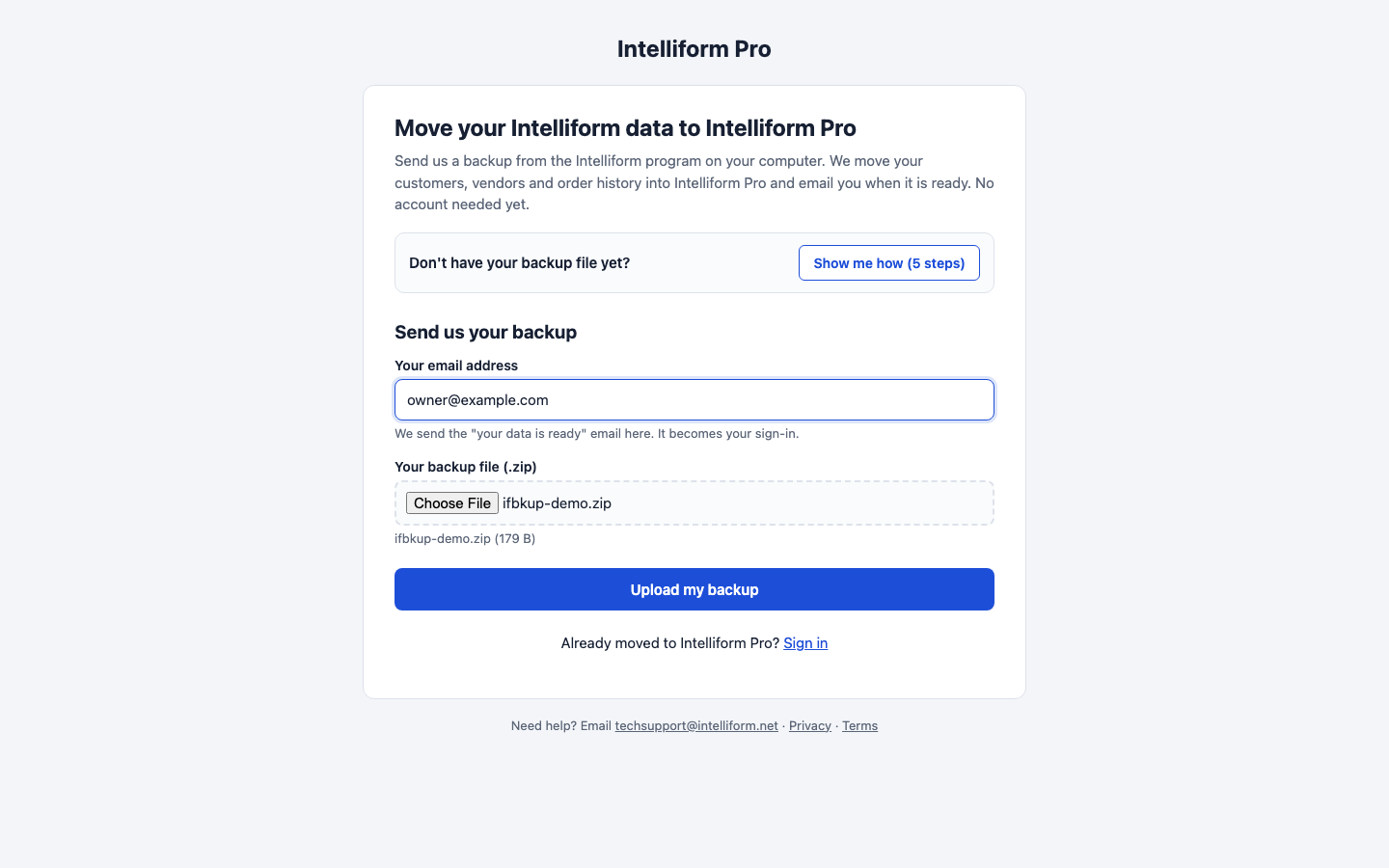
Type your email address. We send the "your data is ready" email there, and it becomes your sign-in.
-
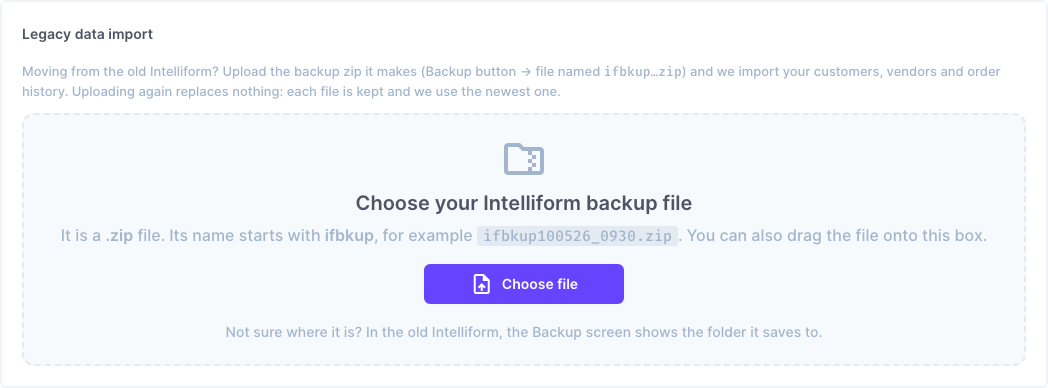
Click Choose File and pick the ifbkup...zip file (up to 1 GB).
-
Click Upload my backup and wait for the upload to finish. Large backups take a few minutes.
-
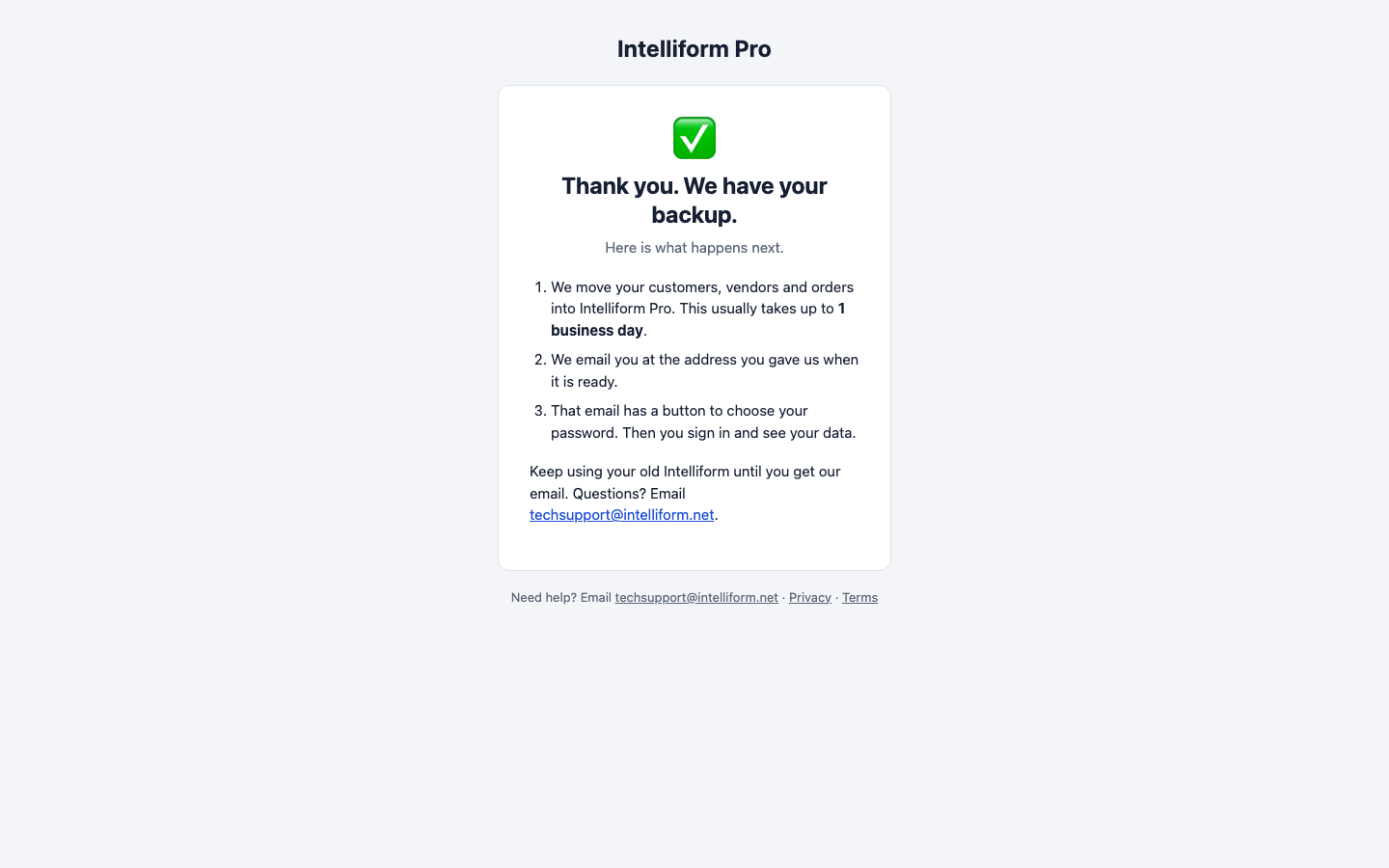
The thank-you page tells you what happens next.
2b. Upload it (you already have an account)
-
Sign in and go to Settings > General.
-
Scroll to Legacy data import and upload the ifbkup...zip file.
-
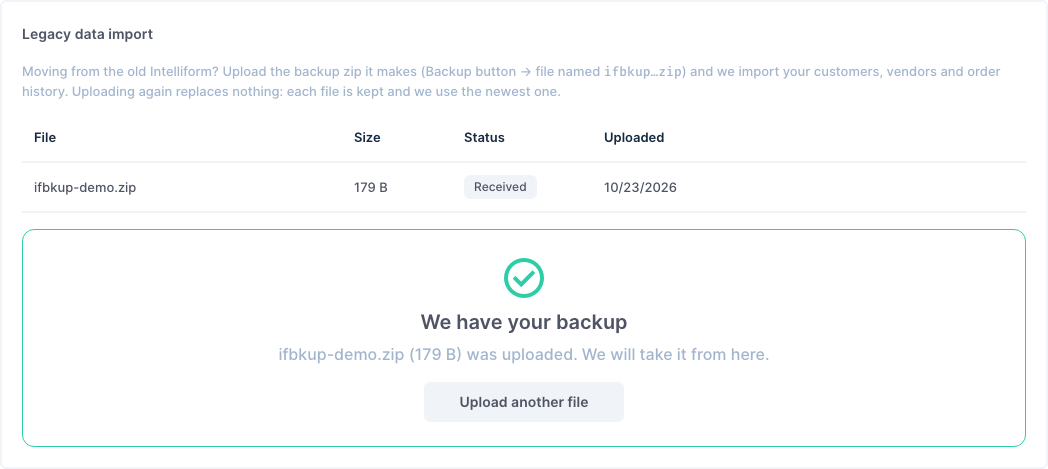
When it finishes, the file is listed with the status Received.
3. What happens next
- We move your customers, vendors and orders into Intelliform Pro. This usually takes up to 1 business day.
- We email you when it is ready. If you uploaded without an account, the email has a button to choose your password; then you sign in and see your data.
- Keep using the old Intelliform until you get our email.
Tips
- Remember step 2: close every Intelliform window before you click Admin > Backup.
- Uploading again replaces nothing: each file is kept and we use the newest one. Send a fresh backup if you kept working in the old program after the first one.
- Questions? Email [email protected].