QuickBooks
Intelliform Pro works with QuickBooks Online or QuickBooks Desktop (Pro, Premier, Enterprise). A company uses one or the other, not both. Both are set up in Settings > QuickBooks.
Click Compare Online vs Desktop to see the differences:
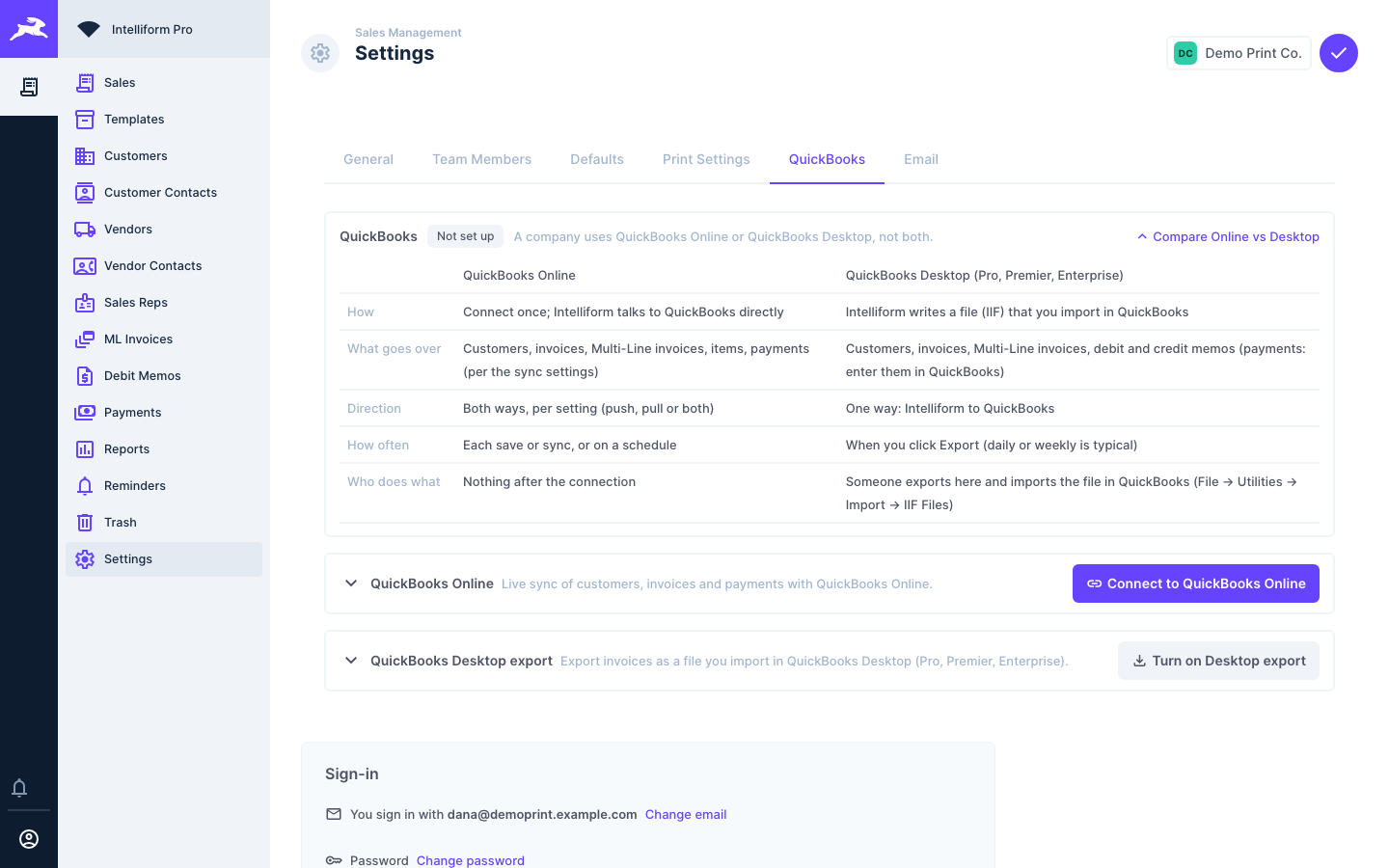
| QuickBooks Online | QuickBooks Desktop | |
|---|---|---|
| How | Connect once; Intelliform talks to QuickBooks directly | Intelliform writes a file (IIF) that you import in QuickBooks |
| What goes over | Customers, invoices, Multi-Line invoices, items, payments | Customers, invoices, Multi-Line invoices, debit and credit memos, vendor bills |
| When | Each save or sync, or on a schedule | When you click Export |
QuickBooks Online
Connect
-
Go to Settings > QuickBooks and click Connect to QuickBooks Online.

-
Sign in to QuickBooks (Intuit) with an administrator of your QuickBooks company, and pick the company.
-
You come back to Intelliform, which now shows Connected to QuickBooks Online with your QuickBooks company ID and the last sync time.
Choose what syncs
Under Sync Configuration, set each record type (customers, invoices, products, payments) to Off, push to QuickBooks, pull from QuickBooks, or both, and choose how invoice numbers and your Ref # appear in QuickBooks, which QuickBooks product/service each sale type uses, and how often the scheduled sync runs. Sync now runs a sync straight away.
Create the QuickBooks invoice from an order
On an order that is not yet an invoice, click Create QB Invoice in the order's actions. Intelliform:
- creates the invoice in QuickBooks Online,
- sets the order to Invoice with today's invoice date, and
- saves the QuickBooks invoice number in the order's Invoice #.
If Intelliform is not sure which QuickBooks customer the order's customer is, it asks you to pick the match (or create a new customer in QuickBooks) first. Sync to QuickBooks on an order or a customer sends just that record.
QuickBooks Desktop: export an IIF file
Intelliform writes an import file (IIF) like Post to QB did in the old Intelliform. You import it in QuickBooks Desktop with File > Utilities > Import > IIF Files.
Turn it on
-
Go to Settings > QuickBooks and click Turn on Desktop export.
-
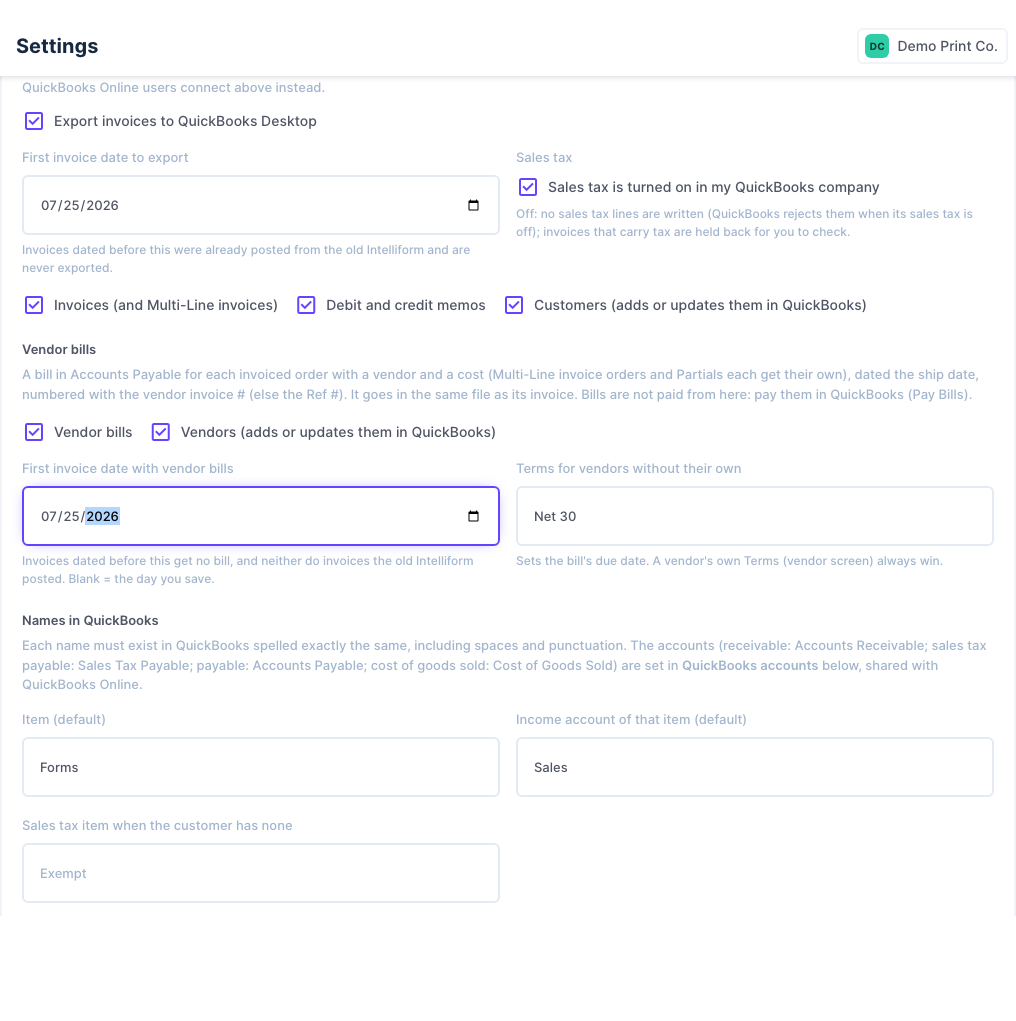
Tick Export invoices to QuickBooks Desktop and set First invoice date to export. Invoices dated earlier (already posted from the old Intelliform) are never exported.
-
Tick whether Sales tax is turned on in my QuickBooks company, and what to send: Invoices (and Multi-Line invoices), Debit and credit memos, Customers.
-
For Vendor bills: tick Vendor bills (and Vendors to add or update them in QuickBooks), and set First invoice date with vendor bills. Each invoiced order with a vendor and a cost gets a bill in Accounts Payable, dated the ship date and numbered with the vendor invoice # (or the Ref #). Terms for vendors without their own sets the due date for vendors with no terms.
-
Under Names in QuickBooks, type the item and income account to use, spelled exactly as in QuickBooks.
-
Click Save QuickBooks Desktop settings.
Export
-
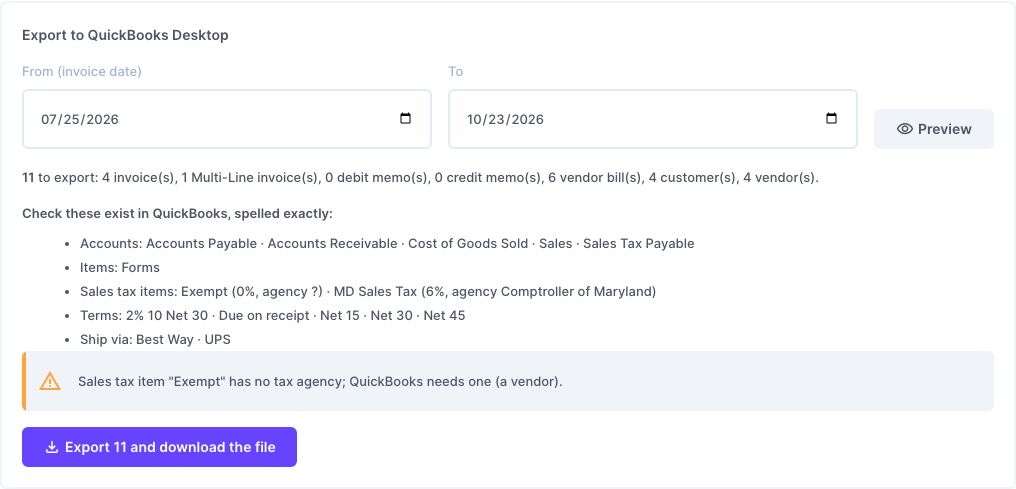
Under Export to QuickBooks Desktop, set the invoice date range and click Preview.
-
Check the counts and the list of names: every account, item, sales tax item, term and ship via must exist in QuickBooks spelled exactly the same. Anything that cannot be exported is listed as held back with the reason; warnings (like a sales tax item with no tax agency) show in yellow.
-
Click Export N and download the file. Save the .IIF file.
-
In QuickBooks Desktop: File > Utilities > Import > IIF Files, and pick the file.
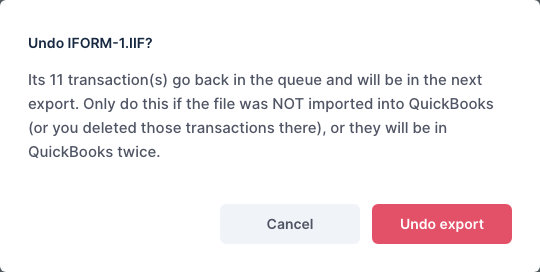
Every export is listed under Exports, with Download again and Undo:

Undo puts everything in that export back in the queue for the next export. Only use it if the file was not imported into QuickBooks (or you deleted those transactions there), or they will be in QuickBooks twice.
See an order's QuickBooks status
With the Desktop export on, each invoice shows whether it has been exported, and in which file; its vendor bill shows the same. Use Unpost to send it again in the next export, or Mark as posted for an invoice you entered in QuickBooks by hand.

Tips
- Payments are not in the Desktop file: enter them in QuickBooks (Receive Payments), and pay vendor bills there (Pay Bills).
- Partials each get their own vendor bill, and so do the orders on a Multi-Line invoice.
- Export daily or weekly; one export holds a limited number of records, and the preview tells you if there are more to do.