Customers and vendors
Customers are the companies you sell to; vendors are the printers, converters, mail houses and warehouses you buy from. This article shows how to add and change both, with their ship-to addresses, contacts and terms.
Add a customer
-
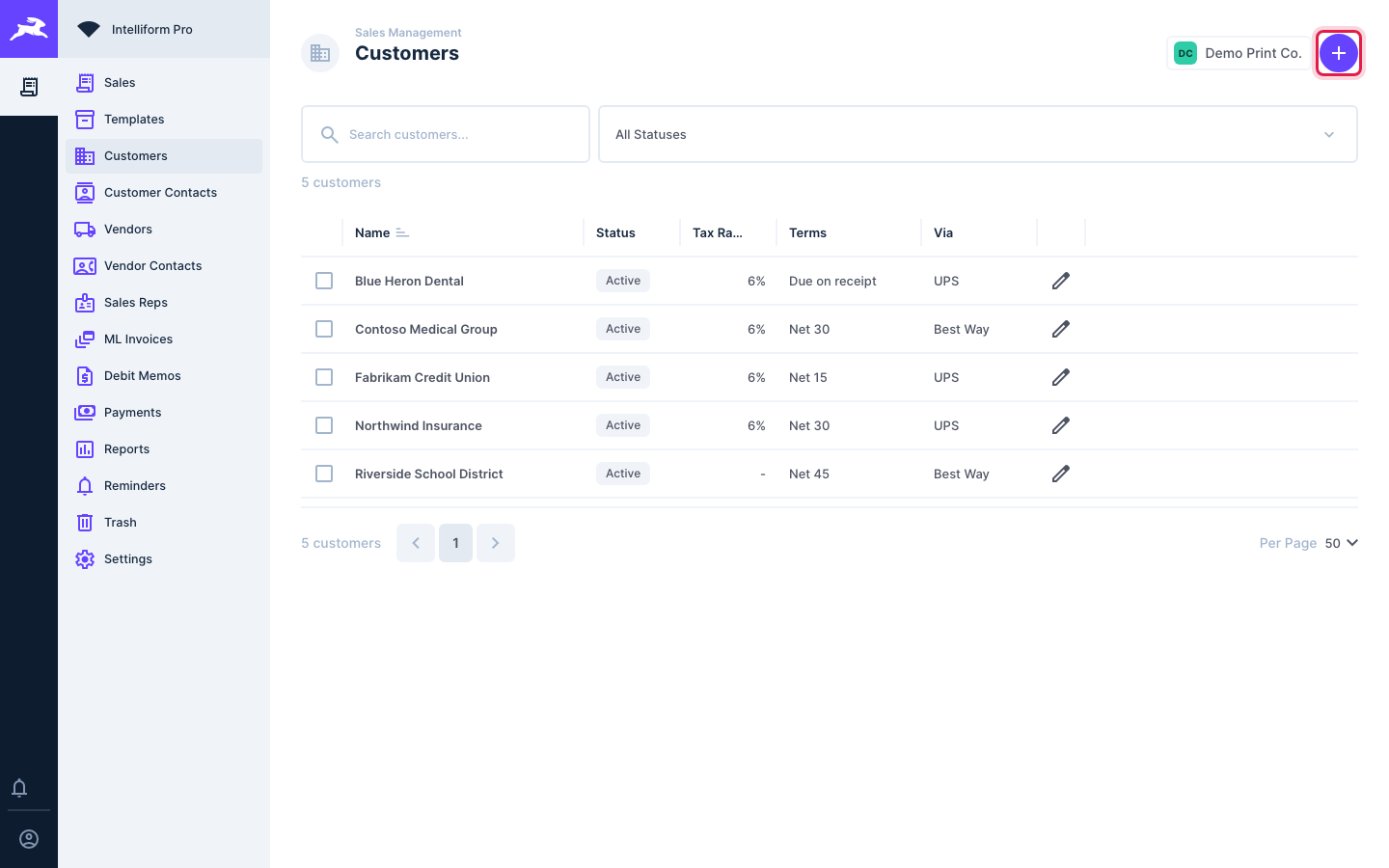
Click Customers in the menu, then the + button at the top right.
-
Under Basic Information, type the customer's Name (required), and any of Phone, Fax, Email and Website. Pick a Tax Item if the customer pays sales tax (see Tips).
-
Click the round check button at the top right to save. You go back to the Customers list.
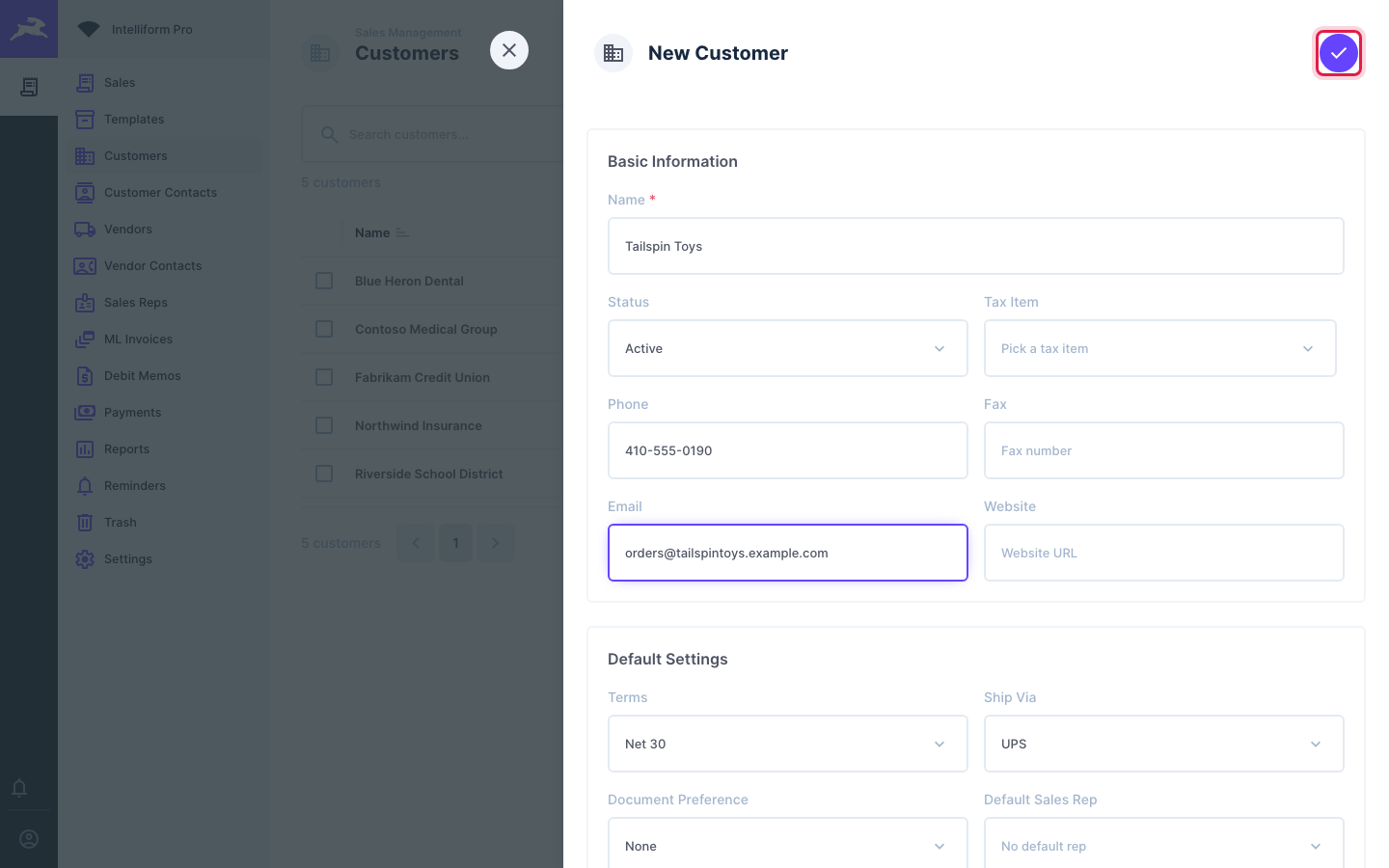
Contacts and addresses are added after the first save. Until then the screen says so:

Set the customer's defaults
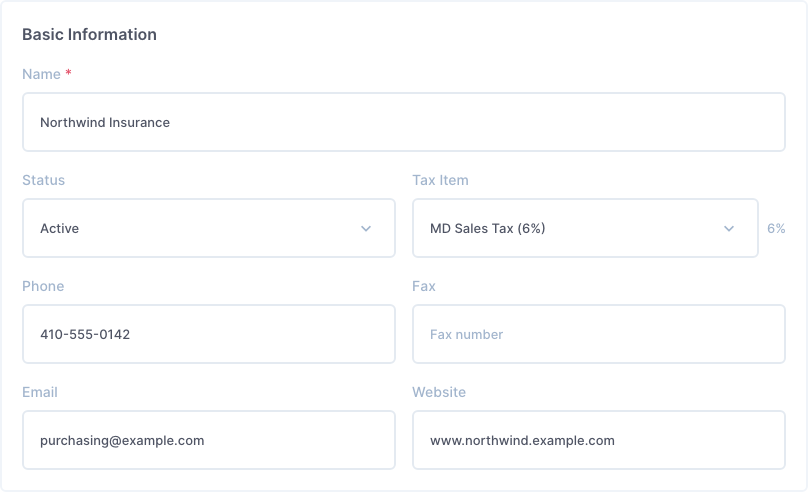
Open the customer again (click its pencil in the Customers list). Basic Information is at the top:
Under Default Settings choose what a new order for this customer starts with:
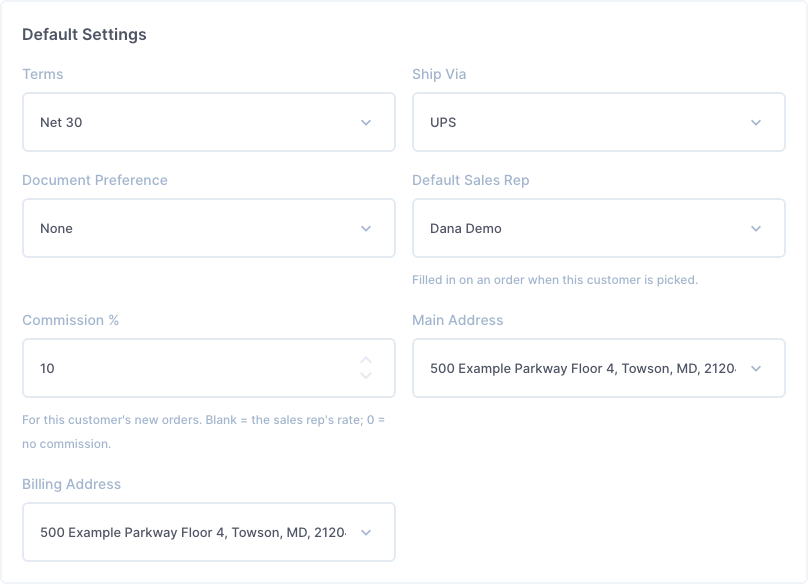
- Terms and Ship Via.
- Default Sales Rep: filled in on an order when you pick this customer.
- Commission %: for this customer's new orders. Leave it blank to use the sales rep's rate; 0 means no commission.
- Main Address and Billing Address: pick from the customer's addresses (below). The main address is the order's ship-to when you pick the customer; the billing address is the Bill To.
Click the round check button to save.
Add ship-to addresses
A customer can have as many addresses as you need: the main office, branches, warehouses.
-
In the customer, scroll to Addresses and click Add Address.
-
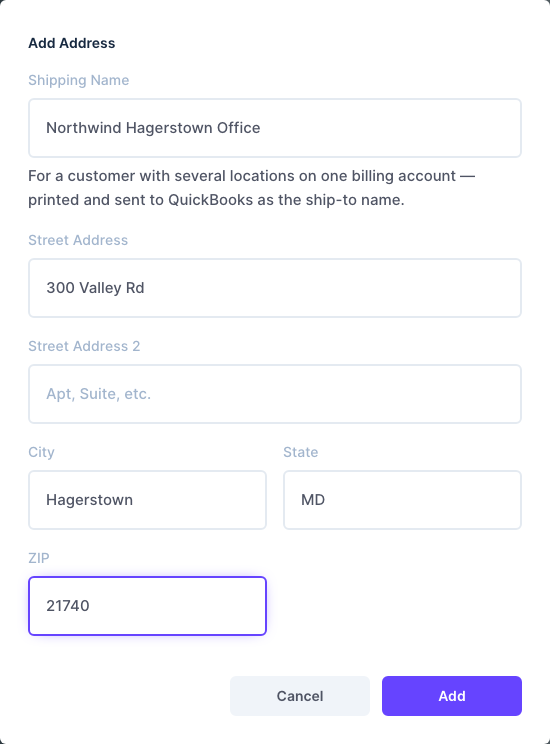
Fill in the address. Shipping Name is for a customer with several locations on one account: it prints, and goes to QuickBooks, as the ship-to name.
-
Click Add. The address is saved right away.
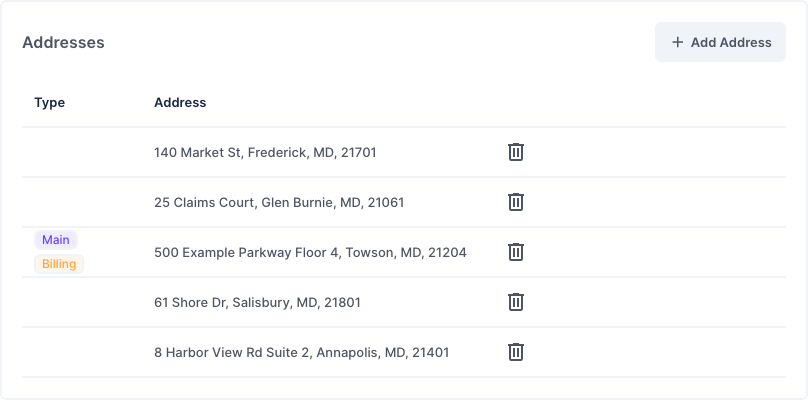
To change an address, click its row; to remove it, click the trash can.
Add contacts
-
In the customer, scroll to Contacts and click Add Contact.
-
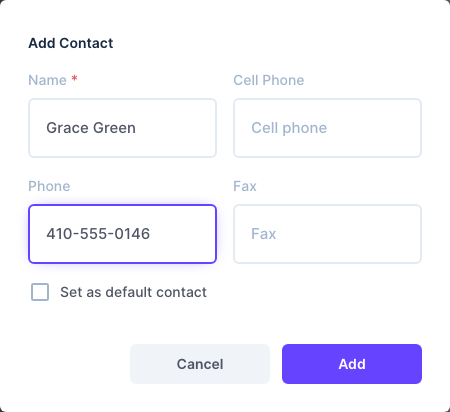
Type the Name (required) and phone numbers. Tick Set as default contact for the person who should appear on new orders.
-
Click Add.
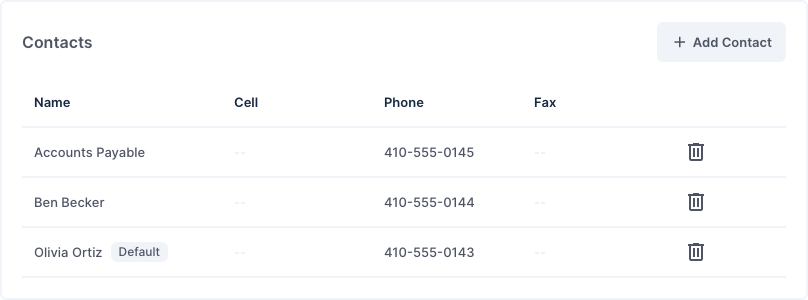
All of a customer's contacts are also listed under Customer Contacts in the menu.
Add a vendor
-
Click Vendors in the menu, then the + button.
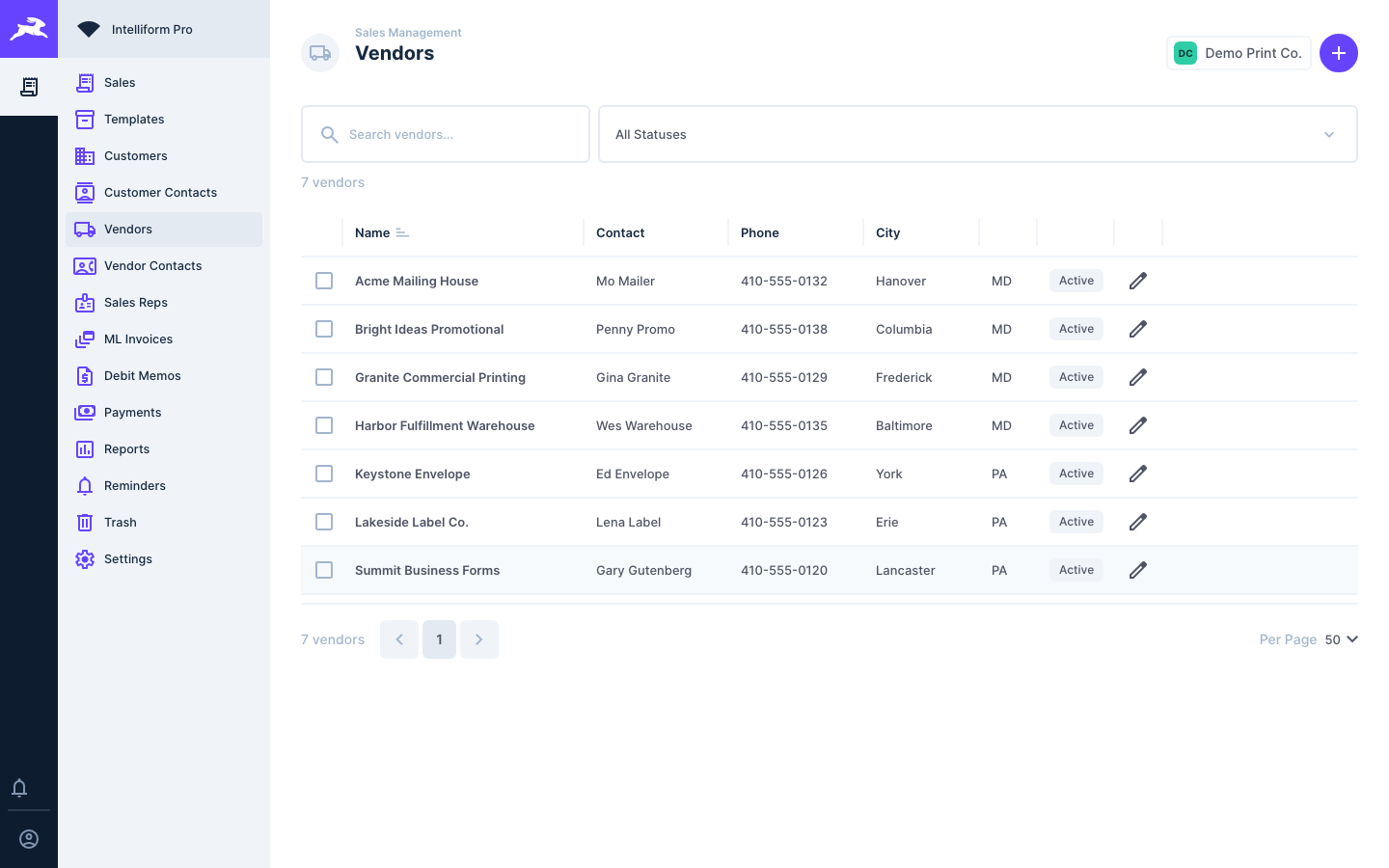
-
Fill in Basic Information (Name, Status, Vendor #, Account #), the Address and the Contact Information.
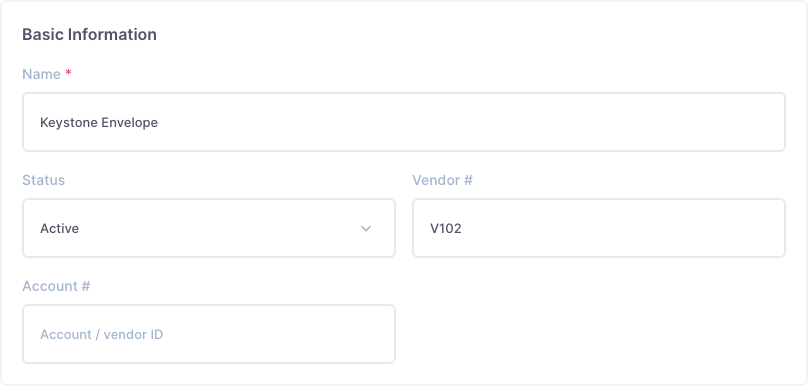
-
Under Purchasing, set the vendor's Terms, Ship Via and, for promotional products suppliers, the ASI #, PPAI # and SAGE #.
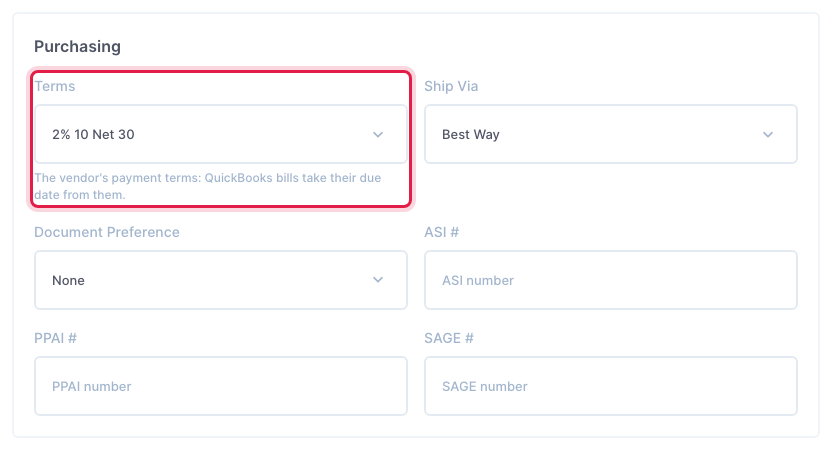
-
If you pay the vendor at a different address, fill in Pay To.
-
Click the round check button to save.
Vendor contacts work like customer contacts: open the saved vendor, click Add Contact, type the name (and title, phones, email), and click Add.
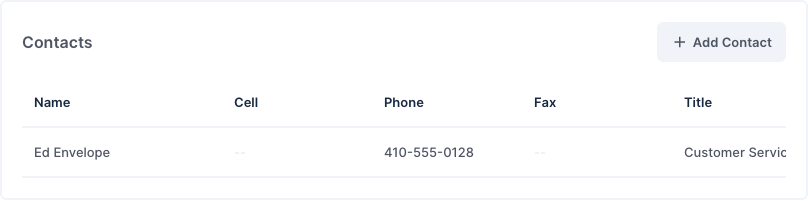
Tips
- Tax Item lists your company's sales tax items, with their rates. Picking one sets the customer's tax rate, and new orders for the customer start with it. You can still change the tax on any single order (for example, an out-of-state shipment).
- The vendor's Terms matter if you send vendor bills to QuickBooks: the bill's due date comes from them. See QuickBooks.
- Addresses used on split shipments are copied onto the shipment, so editing the customer's address later does not change a PO you already sent.
- Sync to QuickBooks on the customer screen is for companies connected to QuickBooks Online.