Quotes and RFQs
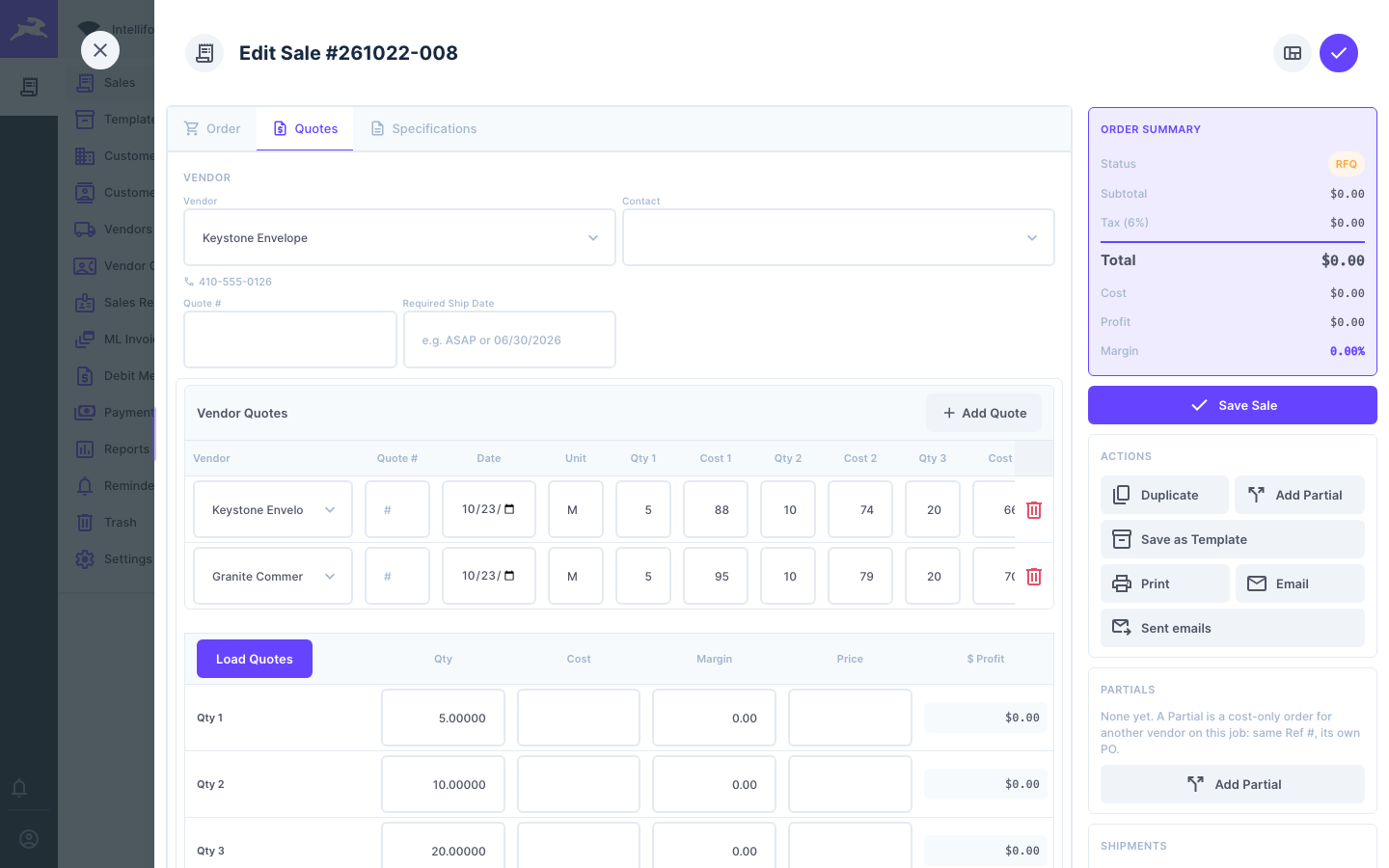
A typical job starts with an RFQ (request for quote) to one or more vendors, then a Quote to your customer with up to three quantity breaks. All of it happens on the order's Quotes tab.
1. Enter the job as an RFQ
Create the order as usual (see Creating an order) with the status RFQ, the description and the specifications. Then open its Quotes tab.
2. Send the RFQ to vendors
-
Click Print in the order's actions, choose Request for Quote, and click Generate.
-
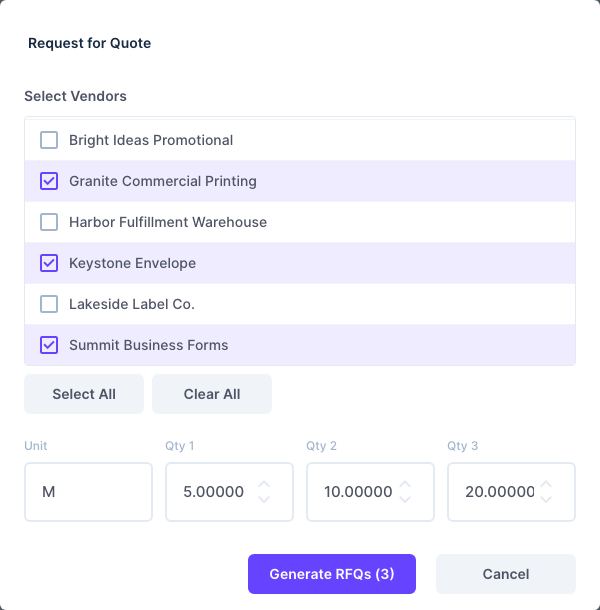
In the Request for Quote window, tick the vendors to ask (or Select All), and check the Unit and the three quantities (Qty 1, Qty 2, Qty 3).
-
Click Generate RFQs. Intelliform makes one RFQ per vendor and shows them in a preview. Use Email to send them, or Open in New Tab to print.

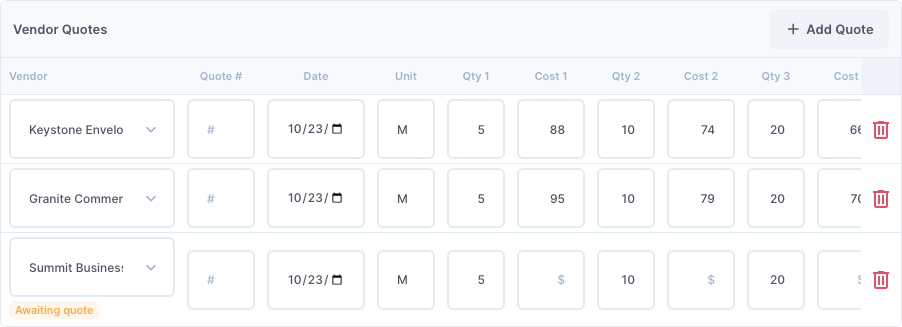
Each vendor you sent the RFQ to gets a row under Vendor Quotes. A vendor that has not answered yet is marked Awaiting quote.
3. Record the vendors' prices
When a vendor answers, type their Quote #, the Date, and the Cost for each quantity in their row. To add a vendor you did not send the RFQ to, click Add Quote. The trash can removes a row.
4. Load the best costs and price the quote
-
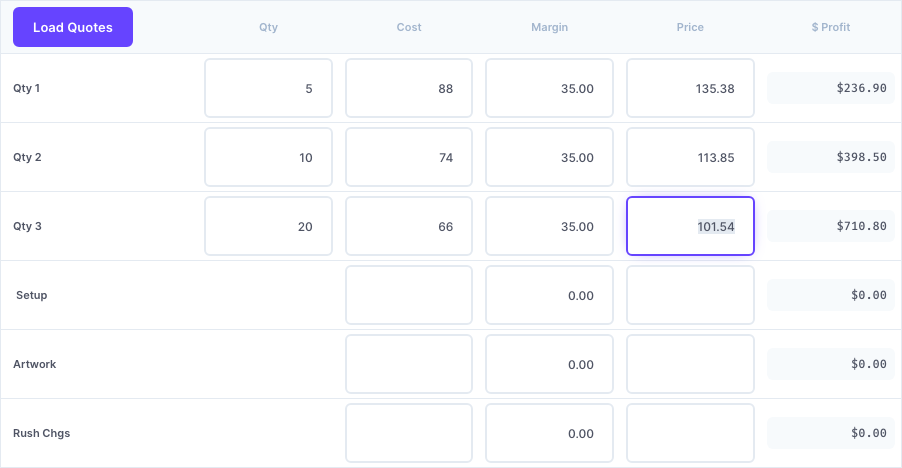
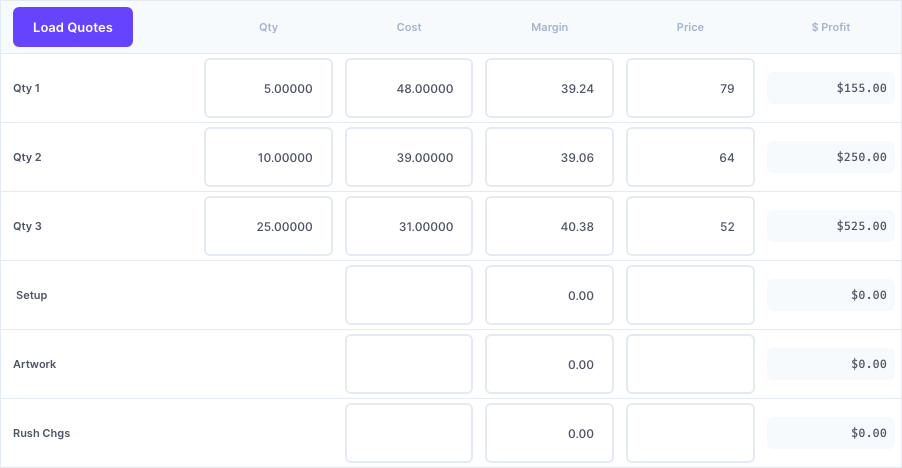
Click Load Quotes. For each quantity break, Intelliform takes the lowest cost from the vendor quotes. Rows still awaiting a quote are skipped.
-
For each quantity, type a Margin % or a Price. The $ Profit column shows what you make. Setup, Artwork and Rush charges have their own rows.
-
Change the Status to Quote and click Save Sale.
Here is a finished customer quote with three quantity breaks:
5. Send the quote to your customer
Anything you type in Customer Notes (at the bottom of the Quotes tab) prints on the quote, for example how long the prices are good for:

Then click Print or Email and choose Quote. See Printing and emailing documents.
6. When the customer orders
Open the order, put the quantity and price the customer chose on the Order tab, and change the status to Order.
Tips
- Printing or emailing a document can move the status for you: an RFQ printed as a Quote becomes a Quote, and a Quote printed as an Acknowledgement or Purchase Order becomes an Order. By default Intelliform asks first. Change this in Settings > Defaults > Automations.
- Sending a second RFQ to a vendor that already has a row updates that row's unit and quantities; the prices you typed are kept.
- RFQs show the job's split shipments, if it has any, so vendors can price the freight. See Split shipments.