Printing and emailing documents
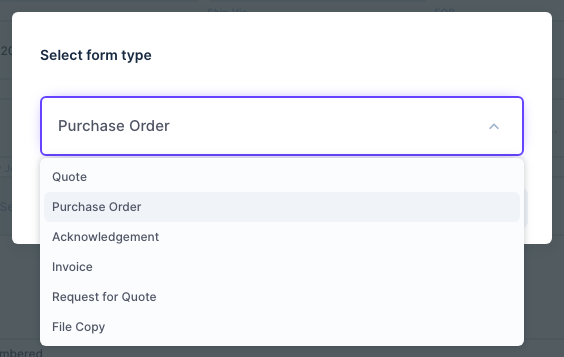
From any order you can print or email its documents:
| Document | Goes to | What it is |
|---|---|---|
| Quote | Customer | Your prices, up to three quantity breaks |
| Acknowledgement | Customer | Confirms the order |
| Invoice | Customer | The bill |
| Purchase Order (PO) | Vendor | What you are buying, with the specifications |
| Request for Quote (RFQ) | Vendor | Asks for prices, see Quotes and RFQs |
| File Copy | You | The job-jacket copy, with cost, price and margin on every line |
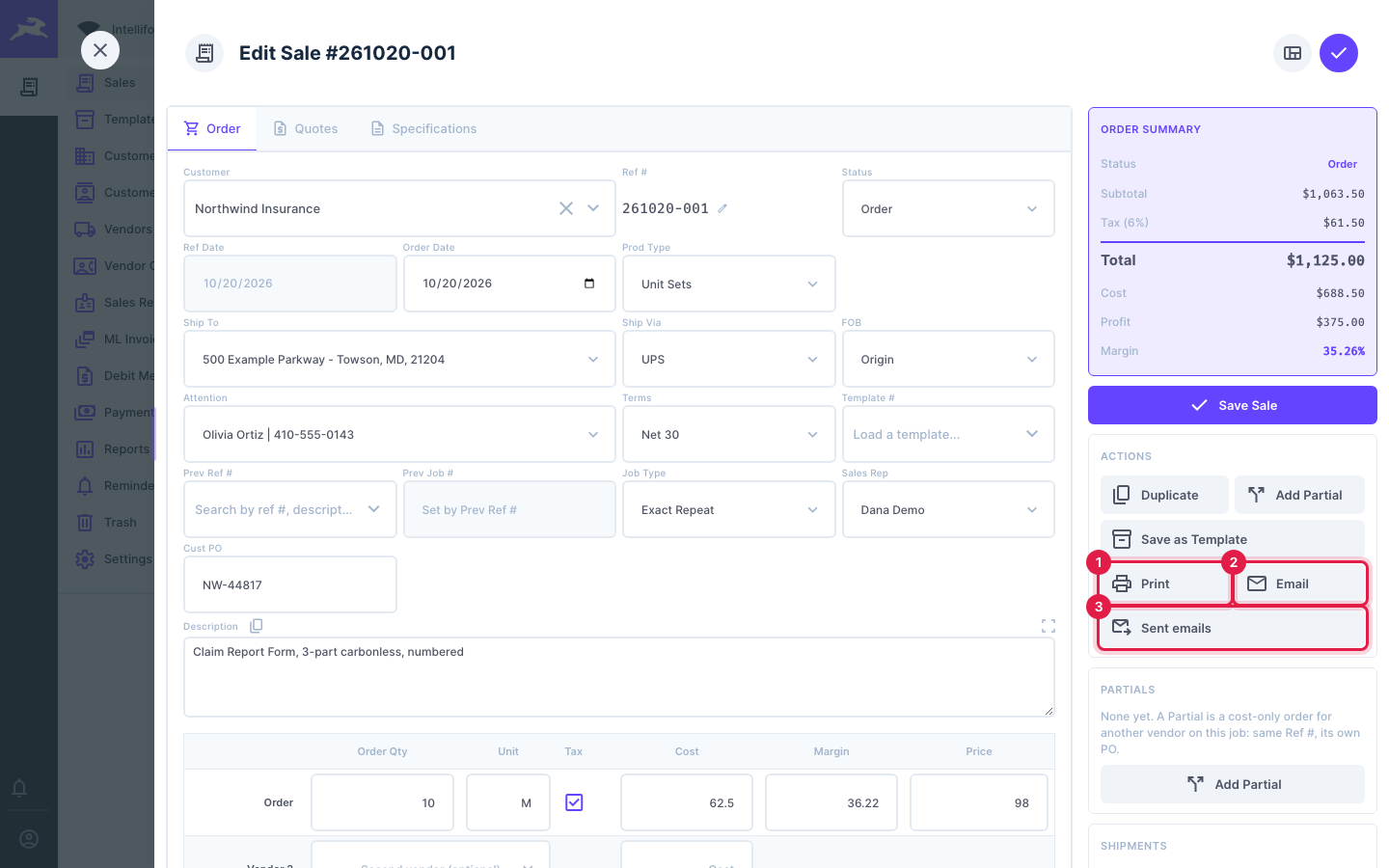
The buttons are in the order's actions: Print (1), Email (2) and Sent emails (3).
Print a document
-
Open the order and click Print.
-
Choose the document in Select form type.
-
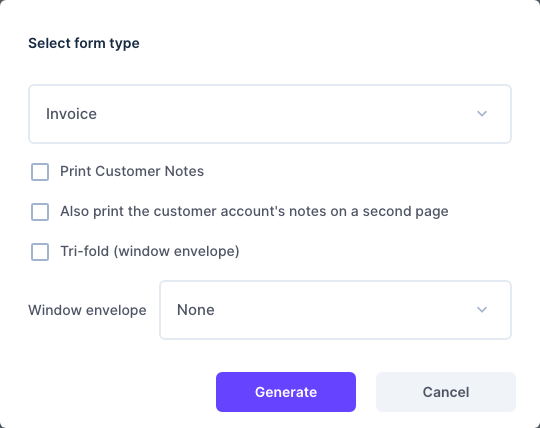
For an Invoice you have a few extra choices:
- Print Customer Notes: prints the order's Customer Notes box on the invoice. (Quotes and acknowledgements always print them.)
- Also print the customer account's notes on a second page.
- Tri-fold (window envelope) and Window envelope: lays the invoice out so the address shows in the window of the envelope you pick.
-
Click Generate. The document opens in a preview. Use Open in New Tab to print it from your browser, or Email to send it.

Email a document
-
Open the order and click Email.
-
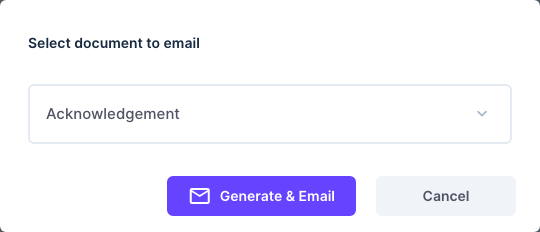
Choose the document and click Generate & Email.
-
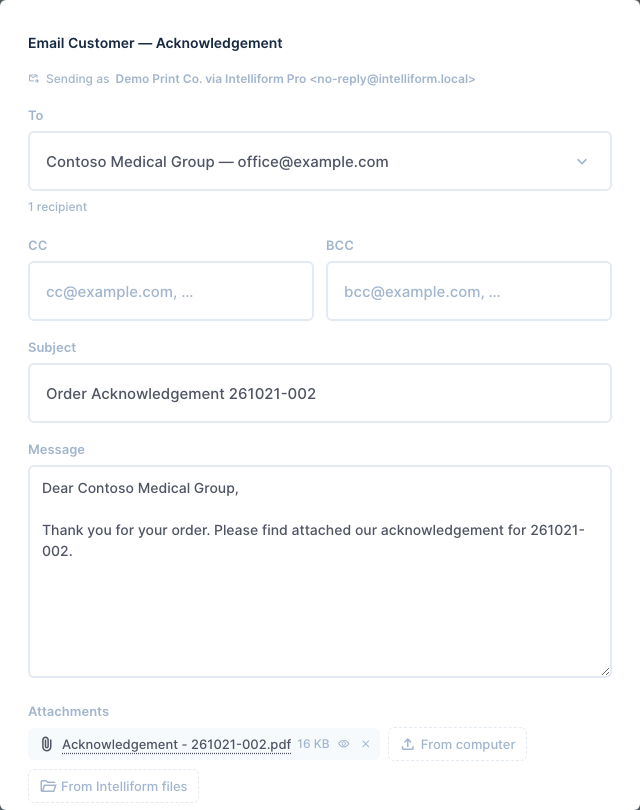
The email window opens with the PDF attached. Customer documents go to the customer, vendor documents (PO, RFQ) to the vendor. Check To, add CC or BCC, and change the Subject and Message if you like. You can attach more files From computer or From Intelliform files.
-
Click Send. A green bar confirms who it went to.

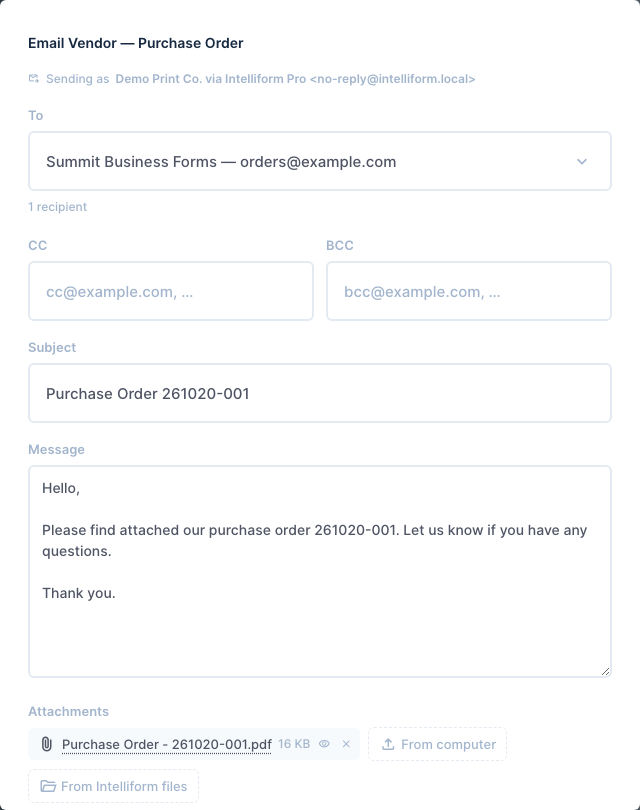
You can also email straight from the print preview: click Email there. A purchase order is addressed to the vendor:
See what was sent
Click Sent emails in the order's actions to see every email sent from the order, who it went to, and whether it was delivered.
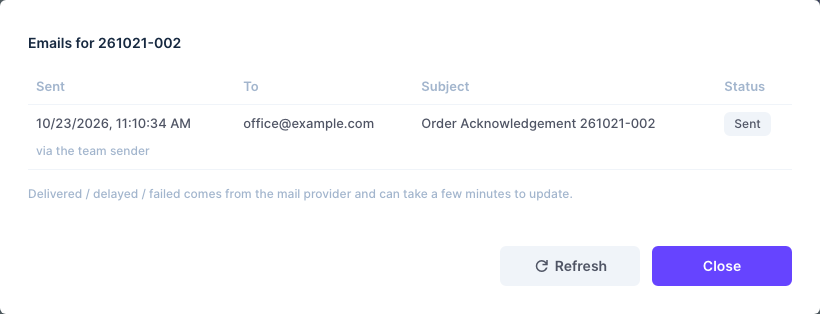
Delivered, delayed and failed come from the mail service and can take a few minutes to show. Click Refresh to check again.
Printing can update the status
Printing or emailing a document can move the order along. For example, printing an Acknowledgement for a Quote asks whether it should become an Order:
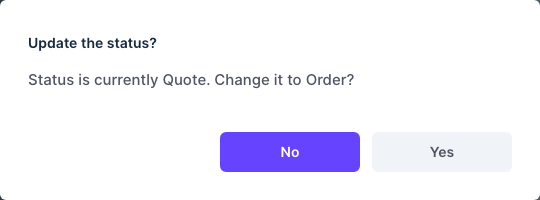
No is the default. The rules (Settings > Defaults > Automations), each set to Off, Ask first or Automatic:
| When you print or email | The status becomes |
|---|---|
| RFQ | RFQ (only from Dead) |
| Quote | Quote (from RFQ or Dead) |
| Acknowledgement or Purchase Order | Order (from RFQ, Quote or Dead), and a blank order date gets today |
| Invoice | Invoice (from RFQ, Quote, Order or Dead) |
Your logo and standard notes
In Settings > Print Settings:
-
Logo: prints at the top left of invoices, quotes, acknowledgements, purchase orders and multi-line invoices. Upload a PNG or JPG up to 1 MB; it takes effect right away.
-
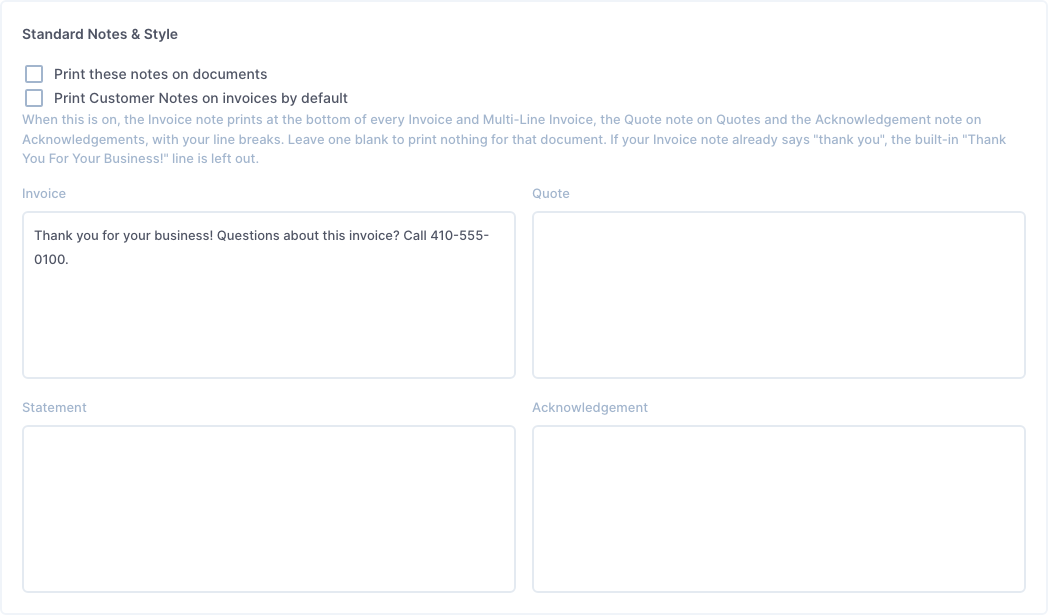
Standard Notes & Style: tick Print these notes on documents and type the note for each document (Invoice, Quote, Statement, Acknowledgement). Tick Print Customer Notes on invoices by default to have that box ticked every time you print an invoice.
Tips
- Intelliform keeps one copy of each printed document per order. Printing it again replaces that copy, unless it was already emailed: an emailed copy is kept as it was sent.
- The email text for each kind of document can be changed in Settings > Email > Email text.
- File Copy shows your costs and margins, so the Email button does not offer it. If you do need to send one, print it and use Email in its preview: the email starts addressed to you and warns you about the costs.
- A Partial prints only its Purchase Order, Request for Quote and File Copy: the customer's documents come from the main order.