Company settings
Settings holds everything that is the same for your whole company: your details and logo, what prints on your documents, how Ref #s are numbered, the defaults new customers and orders start with, and when Intelliform changes an order's status for you. This article goes through the General, Print Settings and Defaults tabs. Email and QuickBooks have their own articles: Setting up email and QuickBooks.
Open Settings and save your changes
- Click Settings in the menu. Pick a tab (1).
- Make your changes, then click the round Save button (the check mark) at the top right (2). Changes on the tabs are kept only when you click Save, except the logo and the Ship Via list, which save the moment you change them.
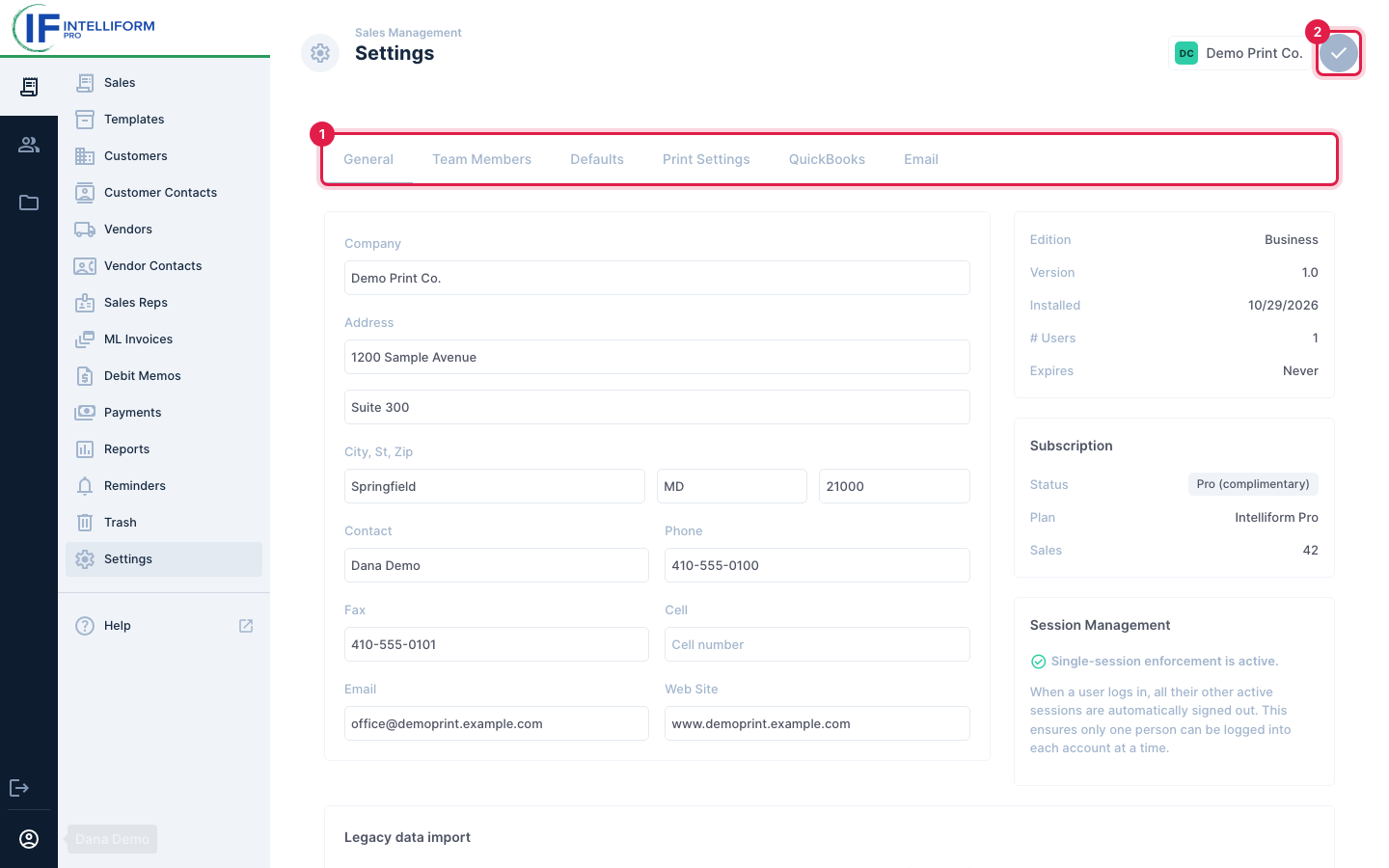
Settings opens on the tab you used last.
General: your company
The General tab has your company name, address, contact, phone, fax, cell, email and web site. They print at the top of your quotes, acknowledgements, invoices and POs, so keep them up to date.
On the right:
- # Users: how many people are on your team (see Team members and logins).
- Subscription: your plan and how many sales your company has (see Plans and billing).
At the bottom, Legacy data import is where you upload a backup from the old Intelliform (see Bring your data from the old Intelliform).
Print Settings: logo and printed notes
Logo
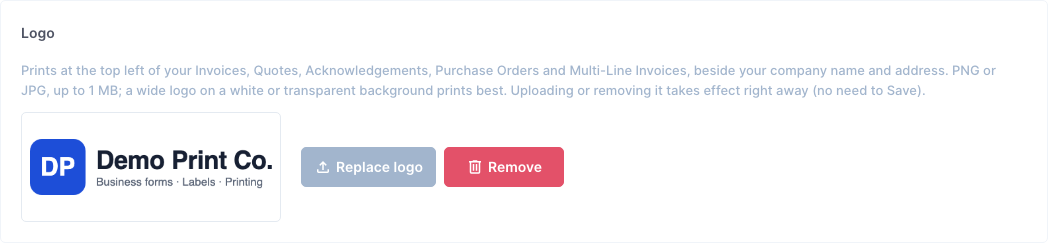
- Go to Settings > Print Settings.
- Under Logo, click Upload logo (or Replace logo) and pick a PNG or JPG file of up to 1 MB. A wide logo on a white or transparent background prints best.
- It is saved right away; there is no need to click Save. Remove takes it off.
The logo prints at the top left of your invoices, quotes, acknowledgements, purchase orders and multi-line invoices, beside your company name and address.
Have an SVG or another kind of image? Save it as a PNG first: Intelliform only takes PNG and JPG.
Invoice Options: window envelopes
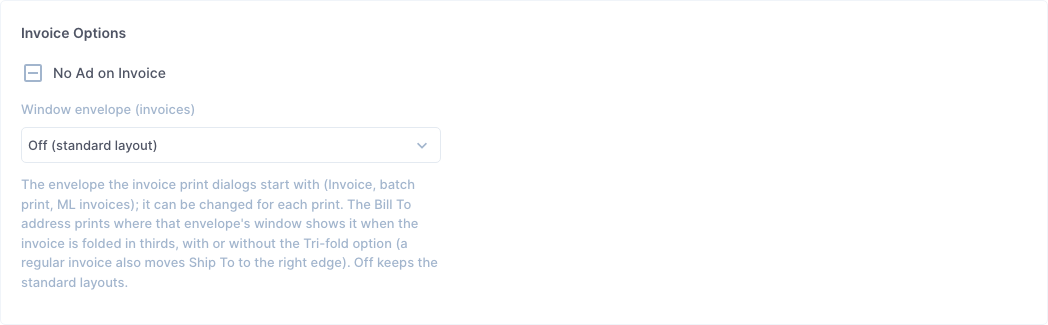
Window envelope (invoices) is the envelope your invoices start with when you print them (one invoice, a batch from the Sales list, or an ML invoice). The Bill To address then prints where that envelope's window shows it when the invoice is folded in thirds. Off keeps the standard layout. You can still change it each time you print.
Standard notes
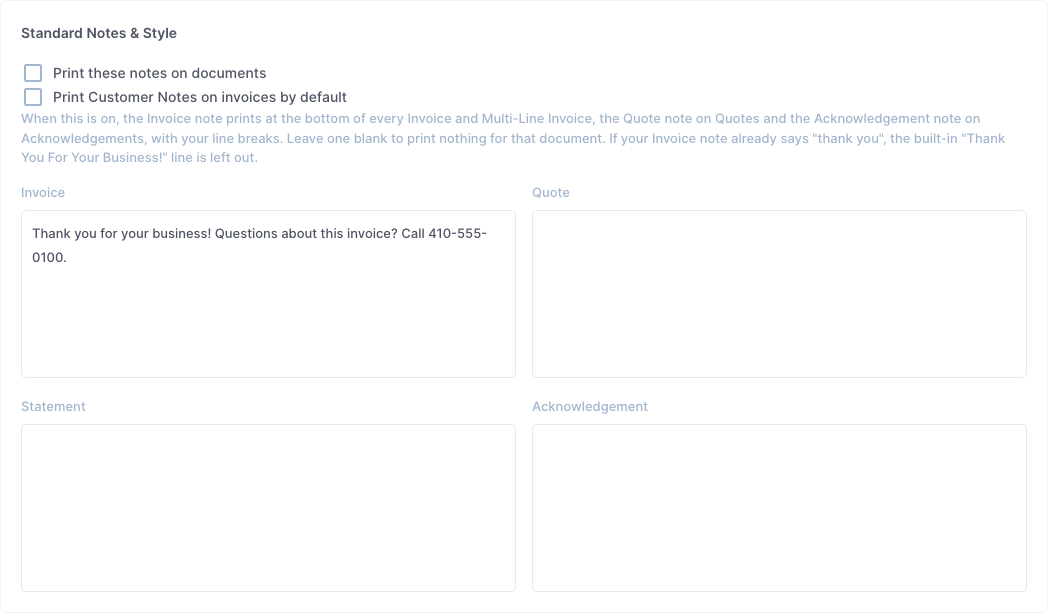
- Tick Print these notes on documents.
- Type a note for each document you want one on: Invoice (also on multi-line invoices), Quote, Statement and Acknowledgement. Your line breaks are kept. Leave a box empty to print nothing on that document.
- Click Save.
If your Invoice note already says "thank you", the usual "Thank You For Your Business!" line is left off so it is not printed twice.
Print Customer Notes on invoices by default ticks Print Customer Notes in the Invoice print and email window, so the order's Customer Notes (on its Quotes tab) print on the invoice. You can still untick it for one invoice. Quotes and acknowledgements always print the Customer Notes.
Reference # format and the next number
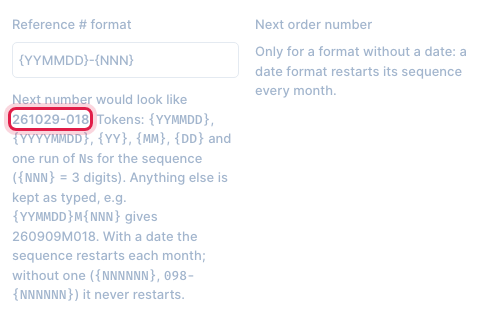
Every new order, quote and RFQ gets the next Ref # automatically when you save it. You choose what the numbers look like in Settings > Defaults > Sales Defaults > Reference # format, then click Save.
How a format is built
A format is ordinary text with a few codes in curly brackets:
| Code | Becomes | For an order dated 29 Oct 2026 |
|---|---|---|
{NNN}, {NNNNN} ... | the counting number | see below |
{YYMMDD} | year, month, day | 261029 |
{YYYYMMDD} | the same with a 4-digit year | 20261029 |
{YY}, {MM}, {DD} | the year, month or day on its own | 26, 10, 29 |
| anything else | printed exactly as you type it | A351-, -, M |
The number of Ns is the least number of digits the counting number has: it is filled with zeros
in front. {NNNN} gives 0458; {NNNNN} gives 35400. When the number outgrows the Ns it simply
gets longer: with {NNN}, the order after 999 is 1000.
A format needs exactly one run of Ns. Without one, Intelliform uses the standard {YYMMDD}-{NNN}.
The choices, with examples
| You want | Format | Next Ref # (example) | Does the number start over? |
|---|---|---|---|
| A plain number that keeps going up | {NNNNN} | after 35399 comes 35400 | Never |
| Letters or digits in front (a prefix) | A351-{NNNN} | after A351-0457 comes A351-0458 | Never |
| Letters behind the number (a suffix) | {NNNN}-B | after 0457-B comes 0458-B | Never |
| The date and a number (the standard, as in the old Intelliform) | {YYMMDD}-{NNN} | the 45th number in October 2026, on 29 Oct: 261029-045 | Every month: the first order on 1 Nov 2026 is 261101-001 |
| The year and a number | {YY}-{NNNN} | after 26-0412 comes 26-0413 | Every year |
How the next number is chosen:
- Without a date (a plain number, with or without a prefix or suffix), the next order gets the highest number already used in that same format, plus one. Ref #s in another format are ignored: if none of your Ref #s match the new format, it starts at 1, so set the Next order number (below).
- With a date, the number counts up within each month:
261029-045means the 45th number of October 2026, whatever the day. The date is the order's Ref Date. A format with only the year ({YY}) counts up through the whole year. - Numbers of orders in Trash are never handed out again, and ML invoices take their numbers from the same count, so an ML invoice and an order never get the same Ref #.
- Changing the format does not change the Ref # of orders you already have. Only new orders get the new format.
Next order number
Next order number appears next to the format only when the format has no date in it (a plain number, with or without a prefix or suffix). A date format starts over each month, so it has none.
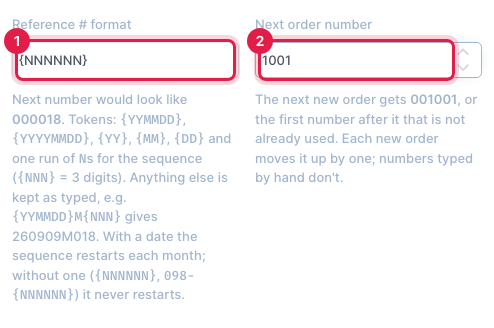
- Type the format, for example
{NNNNNN}(1). - In Next order number (2), type the number the next new order should get, for example
1001, so the next Ref # is001001. - Click Save.
What it does:
- The next new order gets that number, or, if it is already used, the first number after it that is free. Each new order then moves it up by one.
- A Ref # you type by hand on an order does not move it; Intelliform just skips that number when it gets there.
- Leave it blank to carry on after the highest number in use. Set it when you switch to a numbered format, or when old orders carry stray high numbers your real numbering never reached (otherwise the next order would jump past them).
Defaults for new customers and orders
Customer Defaults
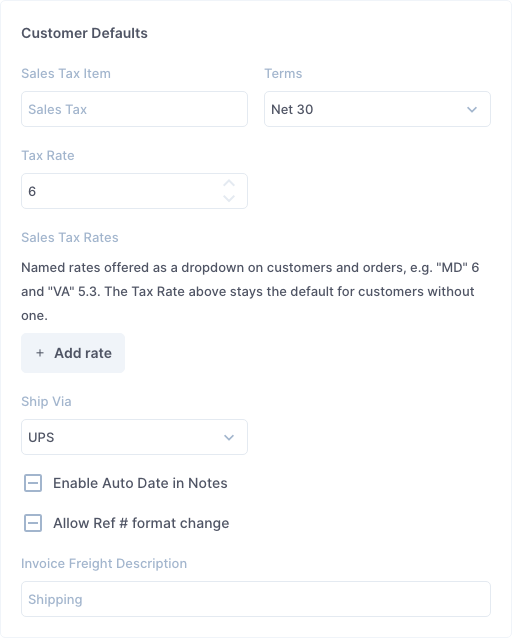
- Terms and Ship Via: what a new customer starts with. An order takes its terms and ship via from its customer, so change an existing customer on the customer itself.
- Tax Rate: the rate for customers who do not have their own.
- Sales Tax Rates: named rates (for example "MD" 6 and "VA" 5.3) offered as a drop-down on customers and orders. Click Add rate for each one.
- Sales Tax Item: the sales tax item a new customer starts with (used with QuickBooks).
- Invoice Freight Description: the name of the freight line on orders and invoices, such as "Shipping".
Ship Via list
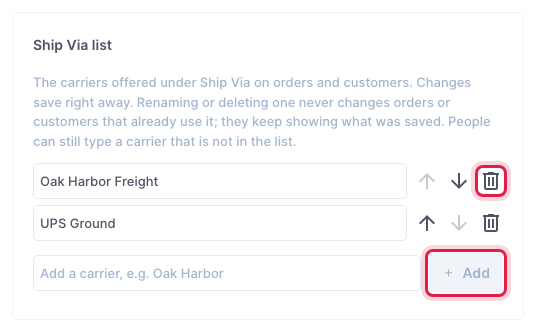
The carriers offered under Ship Via on orders and customers. Type a carrier in the last box and click Add. Rename one by typing over it, move it up or down the list with the arrows, or take it off with the bin. Changes save right away. Until you add one, orders offer Best Way, Federal Express, Pick-Up, UPS and US Mail. Renaming or deleting a carrier never changes orders or customers that already use it, and people can still type a carrier that is not in the list.
Sales Defaults
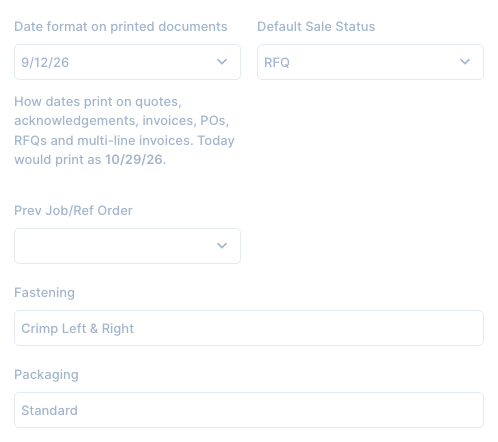
- Date format on printed documents: how dates print on quotes, acknowledgements, invoices, POs, RFQs and multi-line invoices. The note shows today's date in that format.
- Default Sale Status: the status a new order starts in (RFQ, Quote, Order, Invoice or Dead).
- Fastening and Packaging: filled in on new orders whose product type has those fields.
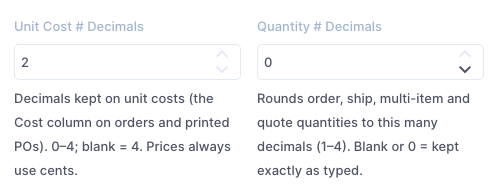
- Unit Cost # Decimals: how many decimals unit costs keep (the Cost column on orders and printed POs), 0 to 4. Blank means 4. Prices always use cents.
- Quantity # Decimals: rounds order, ship, multi-item and quote quantities to this many decimals. Blank or 0 keeps them exactly as typed.
Other Charges
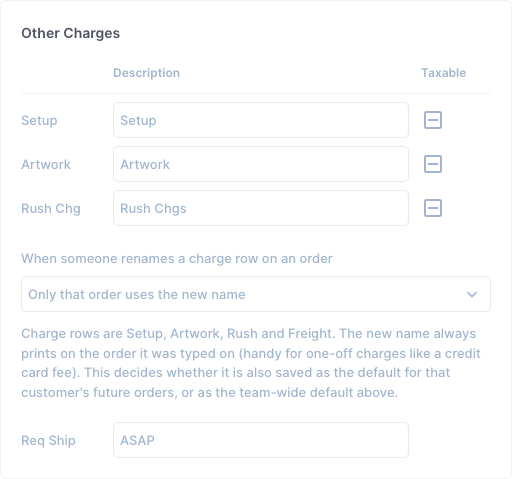
- Setup, Artwork and Rush Chg: the name each charge line has on new orders, and whether it is Taxable.
- When someone renames a charge row on an order: the new name always prints on that order (handy for a one-off charge such as a credit card fee). Choose whether it also becomes the default for that customer's future orders, or for the whole company.
- Req Ship: what new orders start with in Req Ship, such as "ASAP".
The Display box on this tab (highlighted fields, darker text, the order screen layout, extra list columns) is covered in Getting started.
Automatic status changes
When you print or email a document, or fill in certain dates, Intelliform can move the order to the next status for you, as the old Intelliform did. Each change can be Ask first (a Yes/No question, with No ready), Automatic or Off. Set them in Settings > Defaults > Automations, then click Save.
| Automation | What it does | Starts as |
|---|---|---|
| Print / email RFQ | A Dead order goes back to RFQ. | Ask first |
| Print / email Quote | An RFQ or Dead order becomes a Quote. | Ask first |
| Print / email Acknowledgement | An RFQ, Quote or Dead order becomes an Order (order date today if blank). | Ask first |
| Print / email Purchase Order | An RFQ, Quote or Dead order becomes an Order (order date today if blank). | Ask first |
| Print / email Invoice | An RFQ, Quote, Order or Dead order becomes an Invoice. | Ask first |
| Dates when the status changes | Order fills a blank order date; Invoice fills blank order, ship and invoice dates with today, and a blank ship qty with the order qty. | Automatic |
| Order / ship date sets the status | An order date moves an RFQ or Quote to Order; a ship date moves the order to Invoice. Clearing either date always asks before moving the status back. | Ask first |
| Invoice date sets Invoice | Entering an invoice date moves the order to Invoice (not a Dead order). | Automatic |
| Vendor invoice # sets Invoice | Entering a vendor invoice # moves the order to Invoice. | Automatic |
To turn one off, pick Off next to it and click Save. To be asked every time instead, pick Ask first.
These changes only happen in the order screen. Printing a batch from the Sales list never changes a status. An order whose status is locked (on an ML invoice, posted to QuickBooks, with payments, or a Partial) is never changed.
Tips
- Click Save before you leave Settings: changes on the tabs (except the logo and the Ship Via list) are lost otherwise.
- Changing a default never changes customers or orders you already have; it only applies to new ones.
- The subject and message of each kind of email are set in Settings > Email > Email text (see Setting up email).