Exact repeats: running a job again
Most forms and labels come back again and again: the same claim form, the same window envelopes, the same labels, with a new PO from the customer. Instead of typing the order again, copy the earlier one. There are two ways to do it, and both give the same result:
- Duplicate: from the earlier order (or its row in the Sales list), make a copy.
- Prev Ref #: start a new order, pick the customer, and pick the earlier order in Prev Ref #.
Either way, the new order gets its own Ref #, links back to the earlier order in Prev Ref #, and its Job Type is set to Exact Repeat.
Which one to use
| Use | When |
|---|---|
| Duplicate | You already have the earlier order in front of you, or you found it in the Sales list (see Finding orders). |
| Prev Ref # | You are already entering a new order for the customer and want to fill it from one of their earlier jobs. The list only shows that customer's orders of the same product type, so it is quick to pick from. |
Duplicate an order
-
Open the earlier order.
-
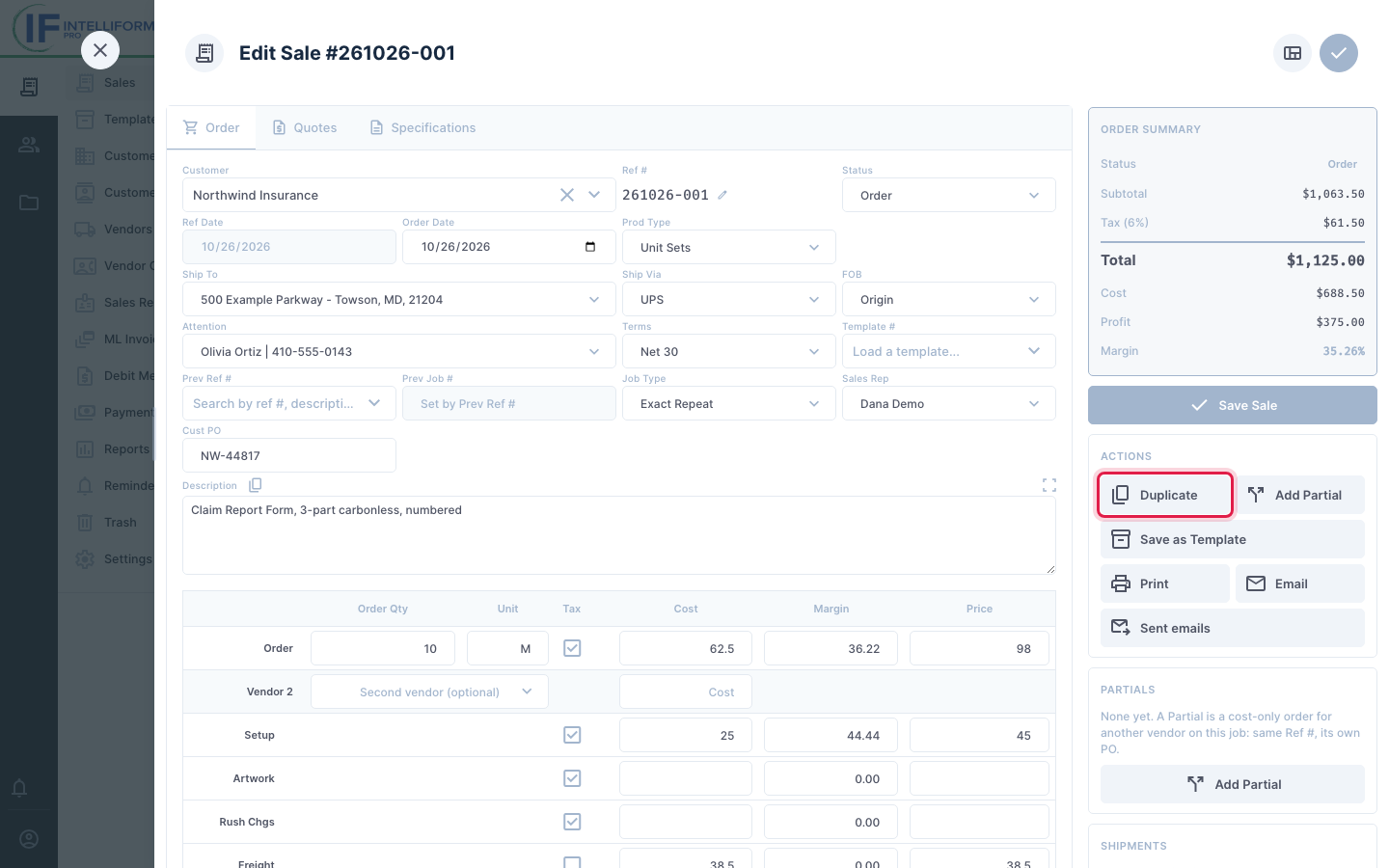
Click Duplicate in the order's actions.
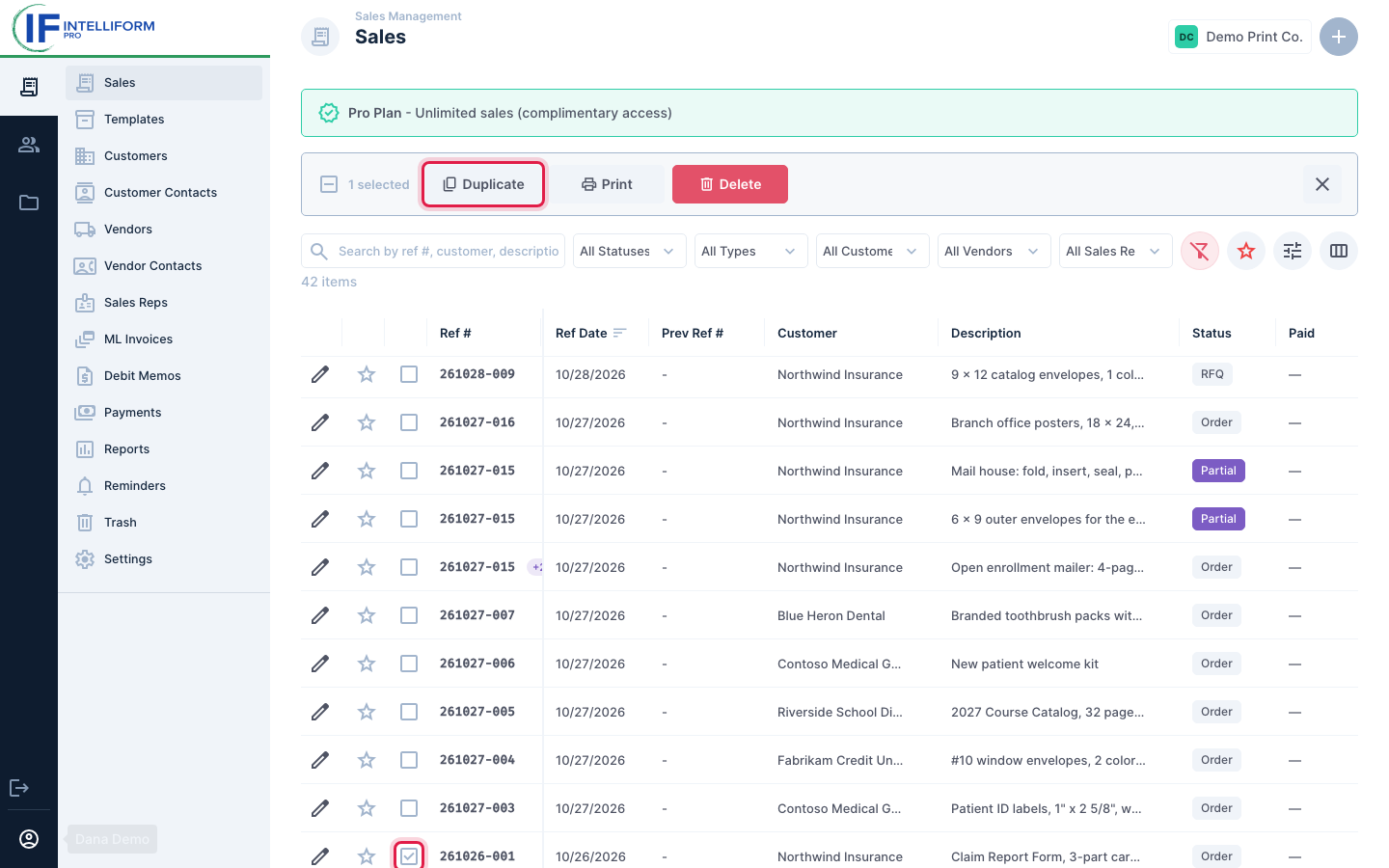
Or, in the Sales list, tick the box at the start of the order's row and click Duplicate in the bar that appears above the list:
-
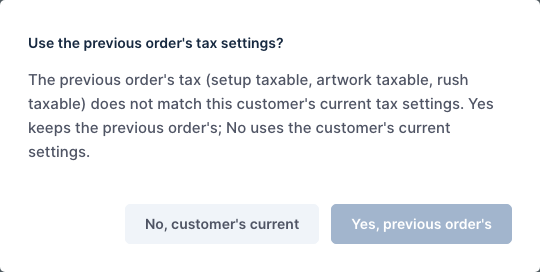
If the earlier order's tax does not match the customer's tax settings today, Intelliform asks which to use. Yes, previous order's keeps the tax exactly as it was billed last time; No, customer's current uses the customer's settings as they are now. Intelliform only asks when the two differ.
-
A New Sale opens with everything from the earlier order. Check the fields that start fresh:
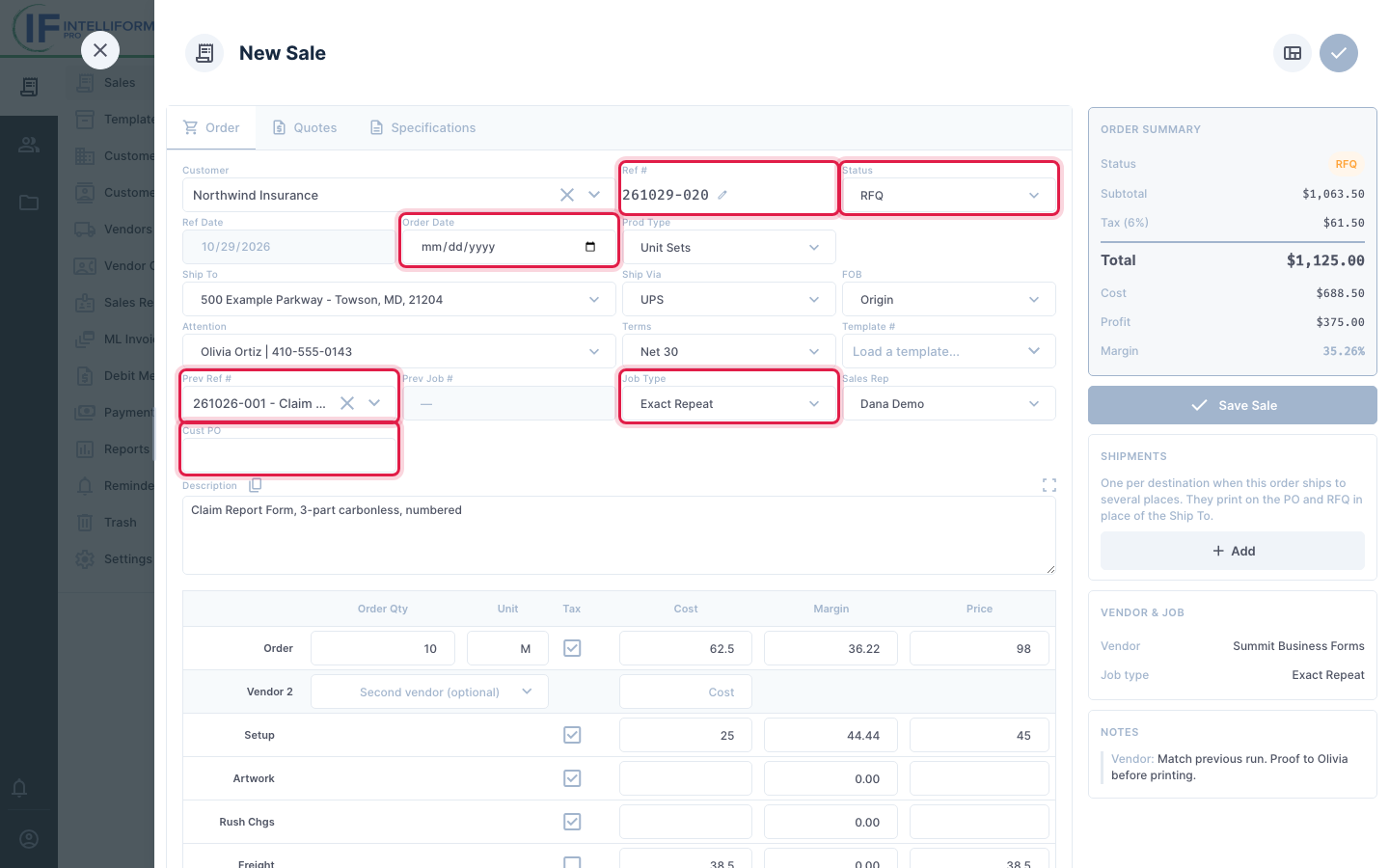
- Ref #: the next number, as for any new order.
- Status: your company's default status for new orders (RFQ for Demo Print Co.), not the old order's status.
- Order Date: blank. It fills in with today's date when the status becomes Order (unless your company turned that off).
- Prev Ref #: the earlier order's Ref #.
- Job Type: Exact Repeat.
- Cust PO: blank. Type the customer's new PO number.
-
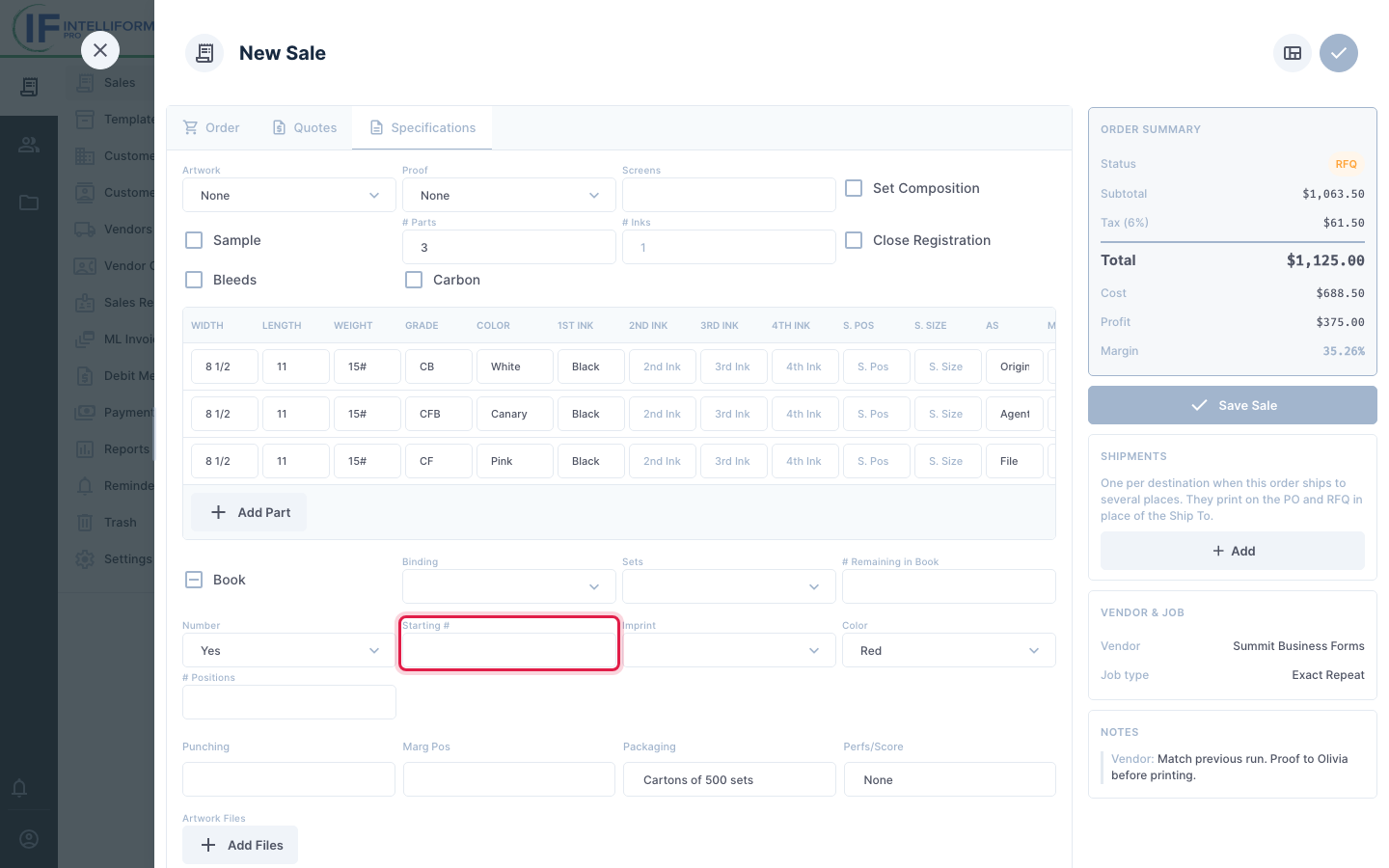
Check the Specifications tab. The specs are copied, except the numbering Starting # of a numbered form (Continuous, Cut Sheets, Unit Sets), which is blank so you can enter the next number for this run.
-
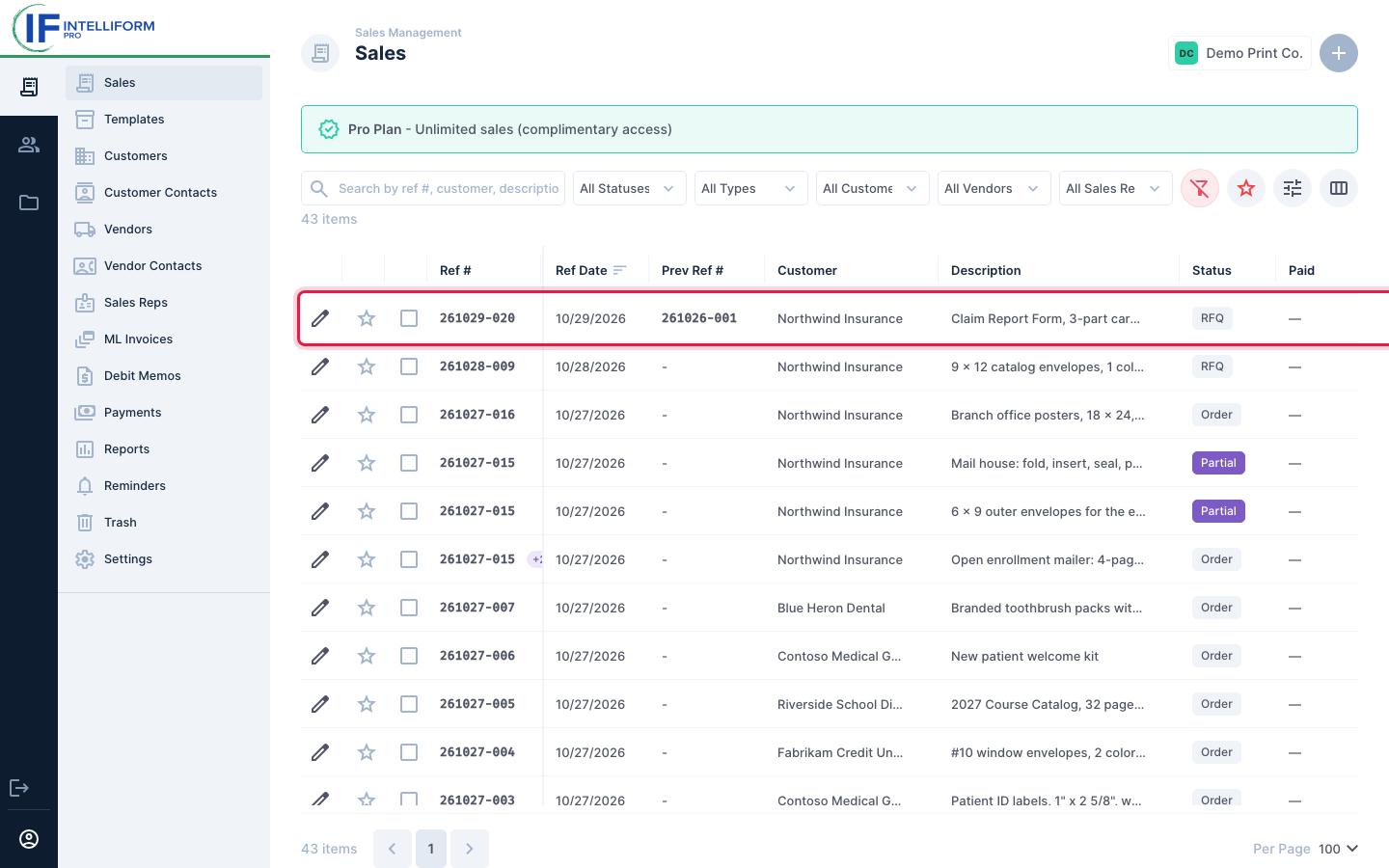
Change anything that is different this time (quantity, price, ship date) and click Save Sale. The new order is in the Sales list with the earlier Ref # in the Prev Ref # column:
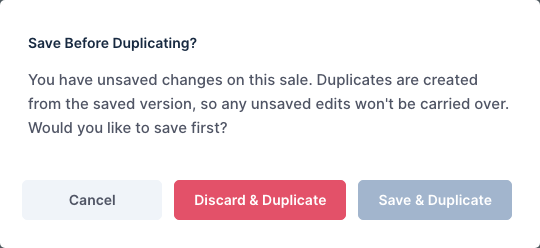
Duplicate copies the order as last saved. If you changed the earlier order and have not saved it, Intelliform asks first: Save & Duplicate saves your changes and copies them, Discard & Duplicate copies the saved order without your changes, Cancel goes back.
Repeat with Prev Ref # on a new order
-
On the Sales screen, click + and pick the product type (see Creating an order).
-
Pick the Customer. Prev Ref # stays greyed out until a customer is picked.
-
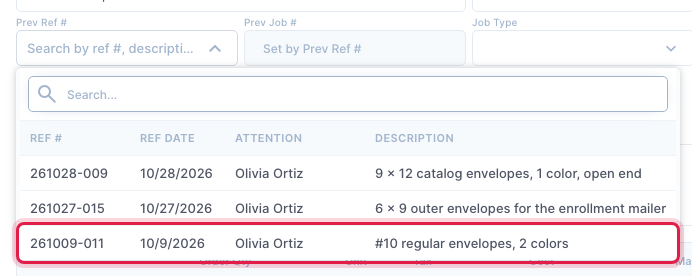
Click Prev Ref #. The list shows the customer's orders of the same product type, newest first, with their Ref #, Ref Date, Attention and Description. Type in Search to find an order by Ref #, description or attention name.
-
Click the order to repeat. If the tax question appears, answer it as in step 3 above.
-
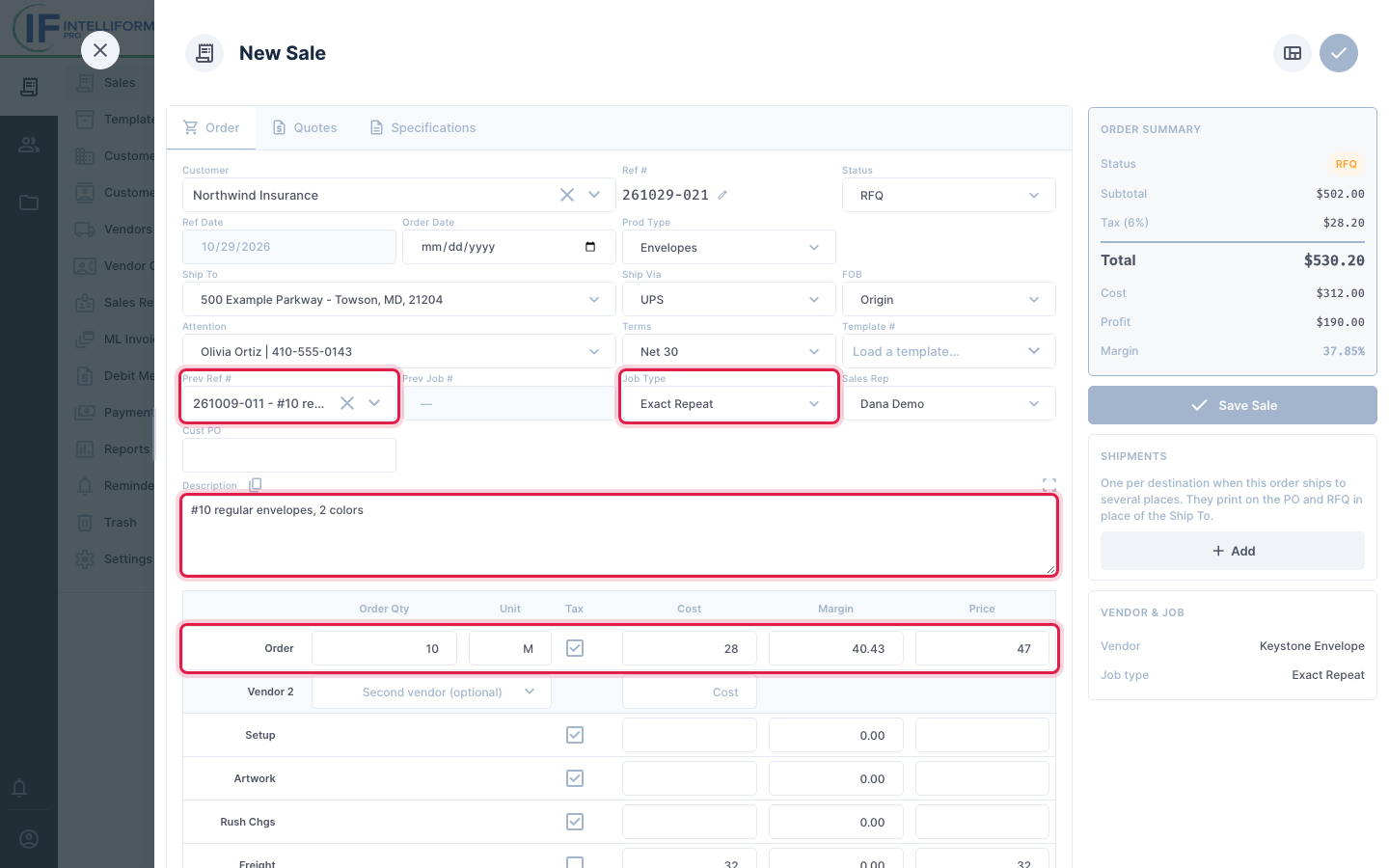
The order fills in from the earlier one: the description, quantities, cost and price, vendor and specifications. Job Type becomes Exact Repeat.
-
Enter the customer's new Cust PO, change what is different this time and click Save Sale.
Prev Job # next to it shows the earlier order's Job # from the old Intelliform, when it has one. You cannot type in it.
Job Type: what changed since last time
A repeat starts as Exact Repeat. If the customer changed something this time, change Job Type so the vendor and your records know it is not identical: for example Repeat-Spec Change when the specifications changed (paper, size, inks, packaging...). A job that is not a repeat at all is a New Order.
The Job Type prints on the purchase order, next to the product type, so the vendor sees it.
What is copied and what is not
| Copied from the earlier order | Starts fresh on the repeat |
|---|---|
| Customer, Ship To, Attention, Ship Via, Terms, FOB, Sales Rep | Ref # (the next number) and Ref Date (today) |
| Description, Order Qty, Unit, Cost, Price, Setup, Artwork, Rush and Freight | Status (your company's default) |
| Tax settings (or the customer's current ones, if you answer No) | Order Date, Ship Date and Invoice Date (blank) |
| Vendor, Vendor Notes and File Notes | Ship Qty (blank) |
| Specifications, except the numbering Starting # | Cust PO, the vendor's Quote # and the vendor's Invoice # (blank) |
| The parts of a Unit Sets or Continuous form | Vendor Quotes on the Quotes tab |
| Multi Item lines (each line's Ship Qty starts at its Order Qty) | Payments, QuickBooks details and the link to a Multi-Line Invoice |
| Split shipments: every destination, with its quantity | Follow-up reminder, Template # and the favorite star |
| The Qty 1, 2 and 3 price breaks on the Quotes tab | The link to a master order: a repeat of a Partial is a normal order |
Tips
- A repeat keeps the earlier order's product type: Duplicate copies it, and Prev Ref # only lists orders of the product type you picked.
- With one row ticked in the Sales list, the + button's Sale Type window also offers Duplicate Current at the top.
- Repeating a Partial makes a normal order, not a Partial. To add a Partial to a job, use Add Partial on its master order.
- For jobs you run often with a new customer each time, save a template instead: Save as Template in the order's actions, then Template # on a new order.
- Duplicate and Prev Ref # never change the earlier order.