Team members and logins
Everyone at your company who uses Intelliform Pro gets their own login and sees the same customers, vendors and orders. This article shows how to invite a coworker, remove someone who has left, what an extra user costs, and how logins work.
Only the company owner can invite and remove people (see The owner).
See who is on your team
-
Click Settings in the menu, then the Team Members tab.
-
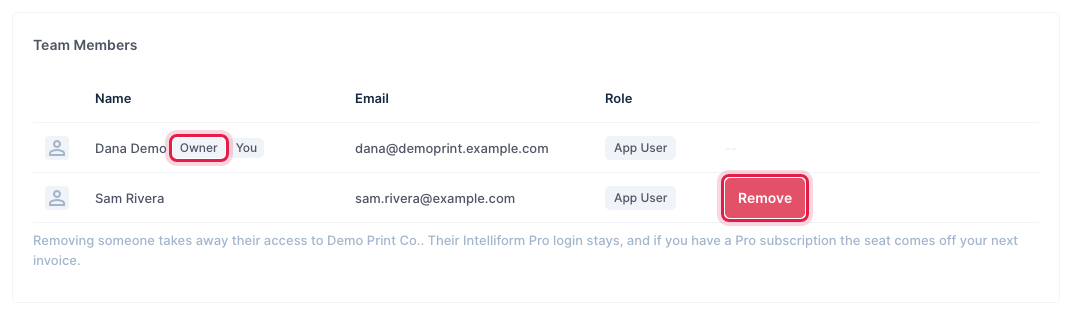
The Team Members list shows each person's name, email and role. The owner is marked Owner, and your own line is marked You.
Invite a coworker
-
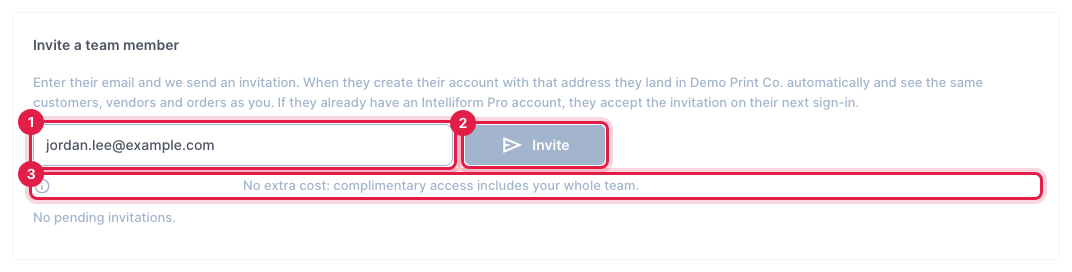
Under Invite a team member, type your coworker's email address (1) and click Invite (2). The line under the box (3) says what one more user costs your company (see What an extra user costs). In the picture it says "No extra cost" because Demo Print Co. has complimentary access.
-
Intelliform says Invitation sent to ... and the invitation is listed with the date it Expires. Invitations work for 14 days.

-
Your coworker gets an email, "Your name invited you to your company on Intelliform Pro", with a link:
- No Intelliform Pro account yet: the link opens the sign-up page with their email filled in. They choose a password and confirm their email address from the email we send them, and they land in your company.
- Already have an account (for example at another company): the next time they sign in, Intelliform asks You've been invited. They click Accept and switch.
Under the invitation:
- Resend sends the email again, with a fresh 14 days.
- Revoke cancels the invitation; the link stops working.
The invitation is for that email address. Your coworker must create their account (or sign in) with the same address.
Remove someone from the team
When someone leaves, remove them so they no longer see your company's data.
-
Go to Settings > Team Members.
-
Click Remove on their line.
-
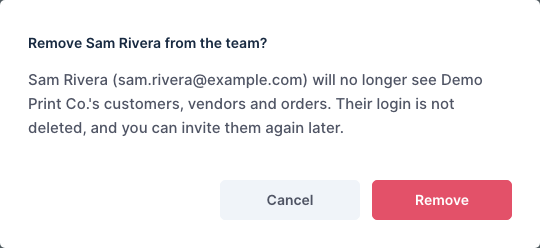
Read the message and click Remove.
What happens:
- They no longer see your customers, vendors and orders.
- Their login is not deleted (they may use it at another company), and you can invite them again later.
- Any invitation still waiting for their email address is cancelled.
- On a Pro subscription, their seat comes off your next invoice.
Nobody can remove themselves, and the owner cannot be removed.
What an extra user costs
| Your plan | Adding a user |
|---|---|
| Free | The Free plan includes 1 user. To add anyone, upgrade to Pro. The line under Invite says so, with an Upgrade to Pro button. |
| Pro, in the free trial | Nothing is charged during the trial. After the trial, each additional user is billed at the additional-user price. |
| Pro | Each additional user is billed at the additional-user price shown on the plan page (the Upgrade to Pro window). A user added partway through a billing period is charged only for the rest of that period, on your next invoice. |
You are billed for a user only once they accept the invitation, not when you send it. When you remove someone, the unused part of their seat comes back as a credit on your next invoice.
The line under the Invite button always shows what one more user costs for your company, with the price. See Plans and billing for the plans.
The owner
Each company has one owner: usually the person who set the company up. Only the owner can:
- invite people and remove them,
- subscribe to Pro and manage the subscription (card, invoices, cancelling). See Plans and billing.
Other team members see a note instead (for example "Only the company owner can send invitations", or "Ask owner to upgrade to Pro"). To make someone else the owner, email [email protected].
Logins
One person per login. Give every coworker their own login with an invitation; do not share one. Each person's login keeps their own settings, such as their Sales list columns and order screen layout.
Where you can be signed in. You can be signed in on one computer and one phone or tablet at the same time. Signing in on another computer signs you out on the first one.
If you are signed out while you are working, Intelliform shows Session Ended. Click Sign in (new tab), sign in there, then come back to the first tab and save again: nothing you typed is lost.
Your email, password and two-factor authentication
At the bottom of Settings, under the tabs:
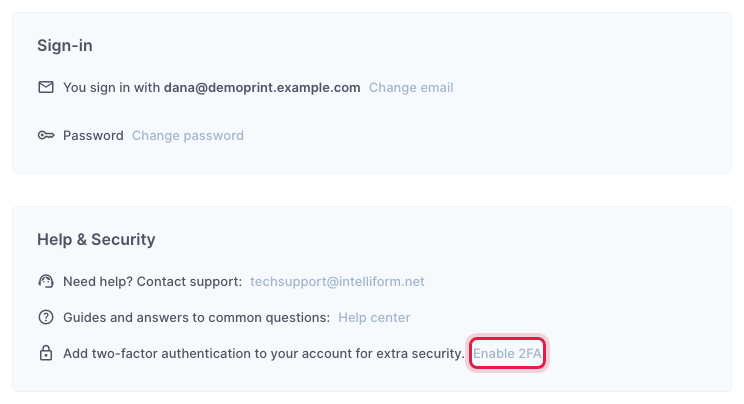
- Change email: type your new address and your current password. We email a confirmation link to the new address; your sign-in email changes only after you click it.
- Change password: changing your password signs you out on your other devices.
- Enable 2FA (two-factor authentication): adds a code from an authenticator app on your phone to your sign-in, for extra security.
More than one company
One login can belong to more than one company (for example, if you are invited by two). Switch between them with the company button at the top right of the screen.
Tips
- Invitations expire after 14 days. If your coworker missed it, click Resend.
- Not getting the email? Ask your coworker to check their spam folder, and check the address under Settings > Team Members.
- Someone who left the company should be removed, not just stop signing in: removing them is what stops their access and their seat.