Setting up email
Every email Intelliform sends (quotes, acknowledgements, invoices, POs, RFQs, statements) leaves through one of these, all set up in Settings > Email:
| Sends through | Recipients see | Copy in your Sent folder |
|---|---|---|
| Your mailbox: your own Google, Microsoft 365 or other email account | Your real address | Yes |
| A shared mailbox: a team address such as sales@ or orders@ | That address | Yes, in that mailbox |
| The team sender: for everyone without a mailbox, and for automated emails | Your company's address once it is set up, or "Your company via Intelliform" until then | No |
Connecting a mailbox is the most reliable choice: the email really comes from your address, the customer's replies come straight back to you, and you have a copy in your Sent folder.
Connect your Google or Microsoft 365 mailbox
-
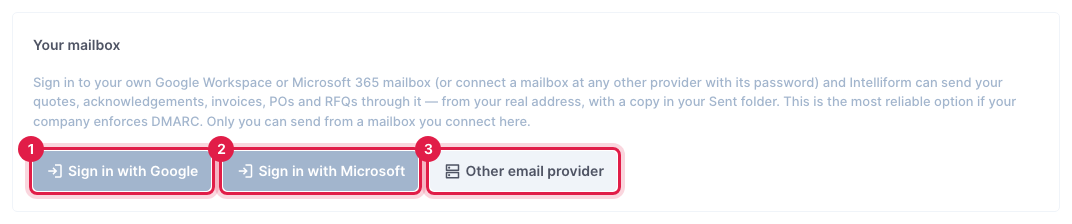
Go to Settings > Email. Under Your mailbox, click Sign in with Google (1) for Gmail or Google Workspace, or Sign in with Microsoft (2) for Microsoft 365 or Outlook.com. For any other provider, see the next section (3).
-
Sign in to your email account in the window that opens and allow Intelliform to send email for you. Intelliform asks for permission to send only; it can never read your mail.
-
You come back to Settings with the message Mailbox connected. Your address is listed under Your mailbox. No password is stored, and what you send lands in your Gmail Sent folder or your Outlook Sent Items.
A Microsoft 365 shared mailbox (one your team opens inside Outlook, with no password of its own) cannot be connected yet. Connect your own mailbox instead, or ask your Microsoft 365 admin to turn on sign-in for the shared mailbox.
Connect a mailbox at another provider
For mail hosted at Register.com, Network Solutions, Web.com, GoDaddy, Yahoo, iCloud or any provider with SMTP and IMAP. Intelliform signs in to your mailbox with its password, sends from it, and saves a copy in its Sent folder.
-
Under Your mailbox, click Other email provider.
-
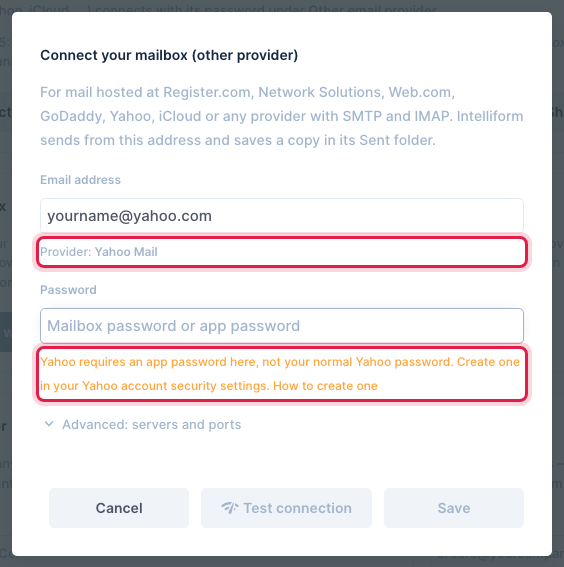
Type your full Email address and click into Password. Intelliform looks up your provider and fills in its mail servers for you (Provider: ... under the address).
-
Type the Password:
- Usually your mailbox password: the one you use to read this email (webmail or Outlook), not your Intelliform password.
- Some providers need an app password instead: Yahoo and iCloud always do, and Intelliform says so under the password with a How to create one link. Any provider with two-step sign-in on the account usually needs one too. An app password is a separate password you create in the provider's account security settings for one program.
-
Click Test connection. Intelliform signs in to send, and to the Sent folder, without sending or saving anything. Connection works. means you can click Save. If the test fails, the message says what went wrong: see Troubleshooting below.
-
Click Save. Your address is listed under Your mailbox.
Your password is stored encrypted. You can change it later with Edit next to the mailbox, or Disconnect the mailbox at any time.
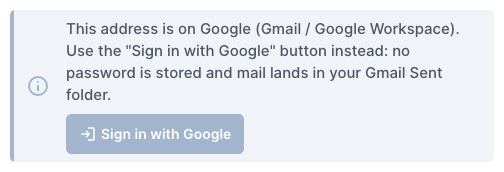
If you type a Gmail, Google Workspace, Microsoft 365 or Outlook.com address here, Intelliform tells you to use the sign-in button instead (no password is stored that way), and Test connection stays off:
Servers and ports
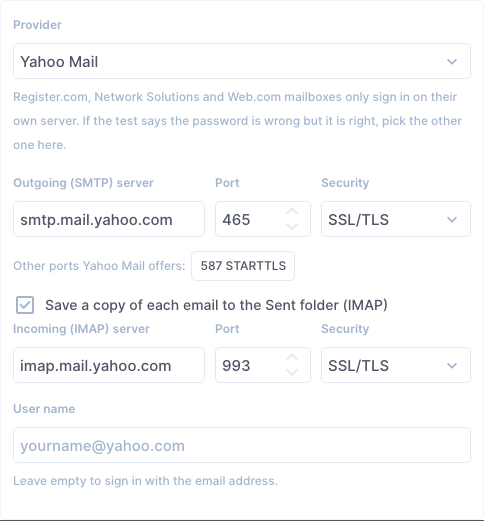
Intelliform fills these in for the providers it knows. Click Advanced: servers and ports to see or change them, for example when your provider's help page lists different servers:
| Setting | Use |
|---|---|
| Outgoing (SMTP) server | Port 465 with SSL/TLS, or port 587 with STARTTLS (2525 and 25 are also accepted) |
| Incoming (IMAP) server | Port 993 with SSL/TLS (143 with STARTTLS is also accepted) |
| User name | Usually your full email address. Leave it empty to sign in with the email address. |
- Port 995 (and 110) is POP, not IMAP, and is not accepted. Use your provider's IMAP server on port 993.
- Type the server's name (like
smtp.yourprovider.com), not an IP address. - Register.com, Network Solutions and Web.com mailboxes only sign in on their own servers. If the test says the password is wrong but you know it is right, pick the other one of the three in Provider.
- Some providers offer more than one port: they show under the server as buttons (for example 587 STARTTLS). Click one to use it.
Save a copy to the Sent folder
Save a copy of each email to the Sent folder (IMAP) is on unless you untick it. Intelliform then saves the exact email it sent to the mailbox's Sent folder on your mail server (or makes a Sent folder if there is none). If saving the copy fails, the email has still gone out, and Intelliform says Sent, but no copy was saved to the Sent folder with the reason, on the order's Sent emails too.
The copy is saved on the mail server. If Outlook on your computer is set up with POP, it only downloads new mail to that computer and never shows the server's Sent folder, so the copies Intelliform saves do not appear in Outlook (they are in your webmail's Sent folder).
- Quick fix: add your own address in BCC when you send, and the copy arrives in your inbox.
- Lasting fix: have Outlook switched from POP to IMAP. Ask your IT person or your email host to do it: with POP, older mail may be stored only on that computer, and it needs to be moved over with care.
Share a mailbox with the team
A shared mailbox (such as sales@ or orders@) can be picked as the From address by everyone on the team.
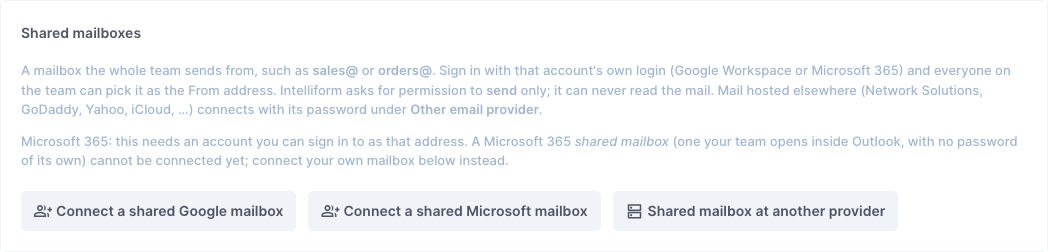
- Under Shared mailboxes, click Connect a shared Google mailbox, Connect a shared Microsoft mailbox, or Shared mailbox at another provider.
- Sign in with that mailbox's own login (not your personal one), or enter its address and password as above.
The mailbox shows who connected it. Anyone on the team can reconnect it if it ever stops working.
Which address an email comes from
When you have more than one choice (your own mailbox, shared mailboxes, the team sender), the email window has a From list. It starts on the default, and you can pick another address for each email.
Set the default in Settings > Email > Default From address (it shows once there is more than one address to pick from):
- Your own mailbox as the default applies to you only.
- A shared mailbox as the default becomes the default for everyone on the team who has not picked their own.
With no default picked, Intelliform uses your own mailbox if you have connected one, and otherwise the team sender. With only one choice, the email window just says Sending as and the address.
The team sender
The team sender sends for everyone who has not connected a mailbox, and sends the automated emails.
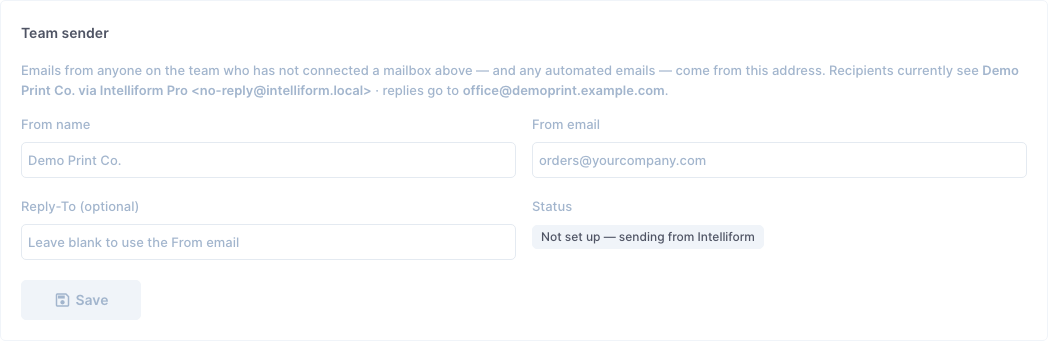
Until it is set up, emails come from Intelliform's own address with your company name in front ("Demo Print Co. via Intelliform Pro" in the picture), and replies go to your company email from Settings > General.
To send as your company:
- Type the From name (your company name if you leave it empty), the From email (for example [email protected]) and, if replies should go somewhere else, a Reply-To.
- Click Save. The Status says Saved — authenticate the domain below to send from it.
- Prove the address is yours, in one of two ways:
- Authenticate your domain (recommended, below): three DNS records, once, for every address at your domain.
- Confirm this one address: if you cannot change your DNS, open Can't edit DNS? Confirm this one address instead, click Send confirmation email, click the link in the email that arrives at the From address, then click Check status.
Until then, emails still go out from Intelliform's address, with your From email as the Reply-To, so replies reach you. Once the address is proved, the Status says Sending from your address — domain authenticated (or — single address confirmed), and recipients see your From name and From email.
A single confirmed address works, but without your domain's signature, so recipients whose companies check email strictly (DMARC) may still treat it with suspicion. Domain authentication avoids that.
Authenticate your domain
- Under Authenticate your domain, type your Email domain (for example yourcompany.com) and click Get DNS records.
- Intelliform lists three CNAME records (Type, Host and Value, each with a copy button). Add them at whoever hosts your domain's DNS (often your web host or domain registrar; your IT person can do it). Enter each Host exactly as shown. If your DNS panel adds your domain to the end by itself, leave off the trailing .yourcompany.com.
- Click Check DNS. The Status goes from Waiting on DNS to Authenticated. DNS changes can take up to an hour to show; click Check DNS again later if it says Not verified yet.
When a mailbox cannot send
If your mailbox cannot send an email from the email window (the password was changed, the sign-in expired, the provider is down), nothing is sent and Intelliform asks what to do: Couldn't send from your address, with the reason, and:
- Send from team sender: send this email from the team sender instead.
- Fix mailbox: go to Settings > Email to reconnect it.
- Cancel: send nothing.
Batch emails (statements, one RFQ per vendor, bulk mail) have nobody to ask, so the checkbox under each mailbox decides: If it can't send a batch email, send it from the team sender instead (ticked unless you untick it). When it is not ticked, those emails are not sent, and the result counts them as failed.
When a mailbox's password or sign-in stops working, it shows needs reconnecting in Settings > Email, with the reason. For a mailbox at another provider, click Reconnect and enter the new password; for Google or Microsoft, sign in again with the same account. Pause stops using a mailbox without removing it; Resume turns it back on.
Where sent emails are recorded
Every email sent from an order is listed in the order's Sent emails (see Printing and emailing): when it was sent and via which route (your Google mailbox, your Microsoft 365 mailbox, your mailbox (SMTP) or the team sender), who it went to, the subject and its status, with any note, such as a copy that could not be saved to the Sent folder or an email that went from the team sender because the mailbox could not send.
Troubleshooting
Test connection (and a failed send) says what went wrong. The message starts with the part that failed: Sending (SMTP):, Sent folder (IMAP): or Not connected:.

| The message says | What to do |
|---|---|
| The outgoing (SMTP) server refused the password. Check it, or create an app password if your provider requires one. (the server's code 535) | Type the mailbox password again: the one for this email account, not your Intelliform password. If your provider uses app passwords (Yahoo, iCloud, accounts with two-step sign-in), create one and use it. Register.com, Network Solutions and Web.com: pick the other one in Provider. |
| The incoming (IMAP) server refused the password... | The same, for the Sent folder sign-in. Check the User name too (usually the full email address). |
| ...its certificate is not valid for that name. | The server name does not match the server's certificate. This often happens with mail.yourcompany.com, which points at your email host's shared server. Use the server name from your email host's help page (for Network Solutions mail, for example, Intelliform uses netsol-smtp-oxcs.hostingplatform.com). |
| ...wrong security setting for this port or ...never answered | Match the security to the port: SSL/TLS on 465 and 993, STARTTLS on 587 and 143. |
| port 995 is not allowed (use 143, 993) | 995 is a POP port. Use your provider's IMAP server on port 993 with SSL/TLS. For SMTP use 465 or 587. |
| enter the server's host name, not an IP address | Type the server's name, like smtp.yourprovider.com. |
| The server name ... was not found. Check the spelling. | Check the server name against your provider's help page. |
| Couldn't reach server:port | The server did not answer on that port. Check the server and port; try the provider's other port. |
| The provider refuses sending as your address | The mailbox may only send as its own address. Connect the mailbox for the address you want to send from. |
| We couldn't recognise this provider. | Intelliform guessed smtp. and imap. plus your domain. Check the servers under Advanced against your provider's help page, then test. |
| This address is on Google / on Microsoft 365 / Outlook | Use Sign in with Google or Sign in with Microsoft instead of a password. |
Tips
- The subject and message each kind of email starts with are set in Settings > Email > Email text.
- Up to a set number of emails go out per batch through a mailbox at another provider; the email window says how many and suggests the team sender for bigger batches.
- A mailbox you connect under Your mailbox is yours only: others on the team see that it exists (under Others on your team), but cannot send from it.