Plans and billing
Intelliform Pro has two plans: Free, to try it out, and Pro, for running your business. This article explains what each includes, how to subscribe and add users, how to update your card or cancel, and what happens to your data if you go back to Free.
Only the company owner can subscribe and manage the subscription (see Team members and logins).
Free and Pro
| Free | Pro | |
|---|---|---|
| Sales (orders, quotes, RFQs, invoices) | 5 sales in total | Unlimited |
| Users | 1 | 1 included, plus each additional user at the additional-user price |
| Sales, customers and vendors | Yes | Yes |
| Reports and statements | No | Yes |
| Payments | No | Yes |
| Multi-line (ML) invoices | No | Yes |
| Debit memos | No | Yes |
| QuickBooks Online sync | No | Yes |
| Emailing documents | No | Yes |
The 5 sales on Free are in total, not per month. Orders in Trash and templates do not count.
On Free, the Pro parts of the menu carry a lock:
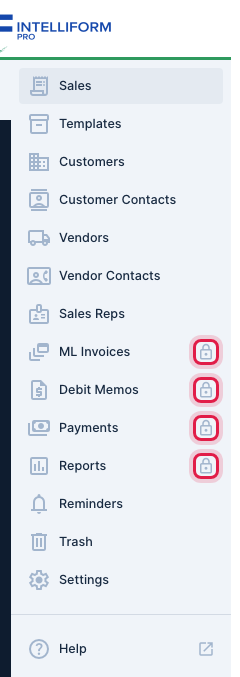
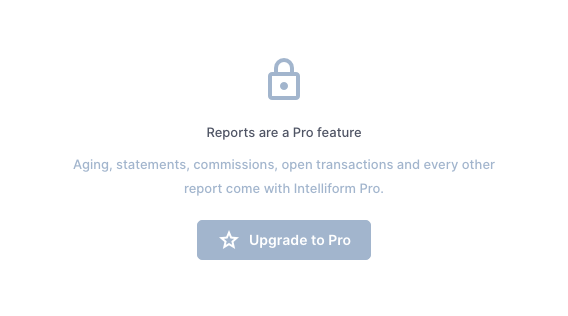
A locked screen shows what you are missing and an Upgrade to Pro button. That button, the + button of a locked feature, or creating a sale past the limit opens the Upgrade to Pro window, the plan page. For example, Reports on the Free plan:
The Upgrade to Pro window shows Free and Pro side by side with the current prices: the Pro price, how many users it includes, and the price per additional team member. If there is a monthly and a yearly price, buttons let you pick one.
The free trial
If the plan has a free trial, the Upgrade to Pro window says how long it is (for example "Try Pro free for ... days"), and the button reads Start free trial.
- The trial is for companies subscribing for the first time.
- You enter your card when you start the trial, but nothing is charged until the trial ends. Cancel before then and you are not charged.
- During the trial you have everything in Pro, and adding users costs nothing until the trial ends.
Subscribe to Pro
- Click Upgrade to Pro: on the bar above the Sales list, on a locked feature, or under Settings > Team Members.
- Pick the monthly or yearly price if both are offered, and click Start free trial (or Upgrade to Pro when there is no trial).
- You go to a secure Stripe payment page. Enter your card and your billing address (required: sales tax is worked out from it). You can add your company's tax ID.
- When you finish, you come back to Intelliform. The bar above the Sales list says Pro Plan.
Your subscription starts with one user for each person already on your team.
If you are not the owner, the window says Only your team owner can upgrade and names the owner.
Add or remove users
Your bill follows the number of people on your team:
- Each person who joins your team adds a user at the additional-user price shown on the plan page. A user added partway through a billing period is charged only for the rest of that period, as a line on your next invoice. Nothing is charged on the spot.
- Removing someone gives you a credit for the unused part of the period on your next invoice.
- During the free trial nothing is charged for users.
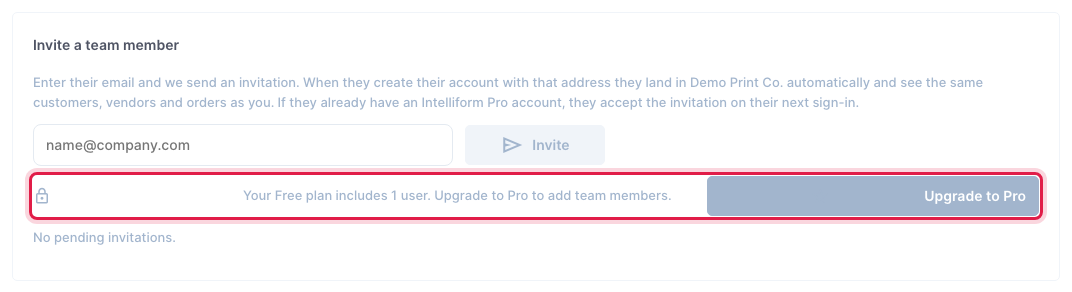
The line under the Invite button in Settings > Team Members always says what one more user costs your company. On the Free plan it says the plan includes 1 user, with an Upgrade to Pro button:
See Team members and logins for inviting and removing people.
Update your card, see invoices or cancel
- Go to Sales. On the bar above the list, click Manage Subscription (only the owner sees it).
- Stripe's billing page opens. There you can update your card, see and download your invoices, and cancel your subscription.
- Click the link back to Intelliform when you are done.
If a payment fails
The bar above the Sales list says Payment Past Due. Update your card under Manage Subscription. You keep Pro for 7 days after the paid period ended; the bar shows the date. After that your company is on the Free plan until the payment goes through.
What happens to your data on Free
If you cancel, or a payment stays unpaid, your company goes to the Free plan. Nothing is deleted.
- You can still open and look at all your orders, customers and vendors, and the payments, ML invoices and memos you already have (including those brought over from the old Intelliform).
- You cannot create new sales once you have 5 (most companies will already have more), or use the Pro features: reports and statements, recording payments, ML invoices, debit memos, QuickBooks Online sync and emailing documents.
- Only 1 user is included, so nobody new can join.
Subscribe again at any time with Upgrade to Pro and everything is back, with all your data.
Tips
- The bar above the Sales list always shows your plan: Free Plan with how many of your 5 sales are used, Pro Plan, Payment Past Due or Subscription Canceled.
- Settings > General > Subscription shows your plan and how many sales your company has.
- Questions about a charge? Email [email protected].