Finding orders on the Sales screen
The Sales screen lists every RFQ, quote, order and invoice your company has, newest first. Use the bar above the list to find the one you want: type in the search box, narrow the list with the filters, or sort it by any column.

- Search box: type part of a Ref #, customer, description, vendor, PO and more.
- Status: RFQ, Quote, Order, Invoice, ML Invoice, Dead, Partials or Templates.
- Type: the product type (Business Cards, Continuous, Labels, Unit Sets and so on).
- Customer.
- Vendor.
- Sales Rep (only when your company has sales reps set up).
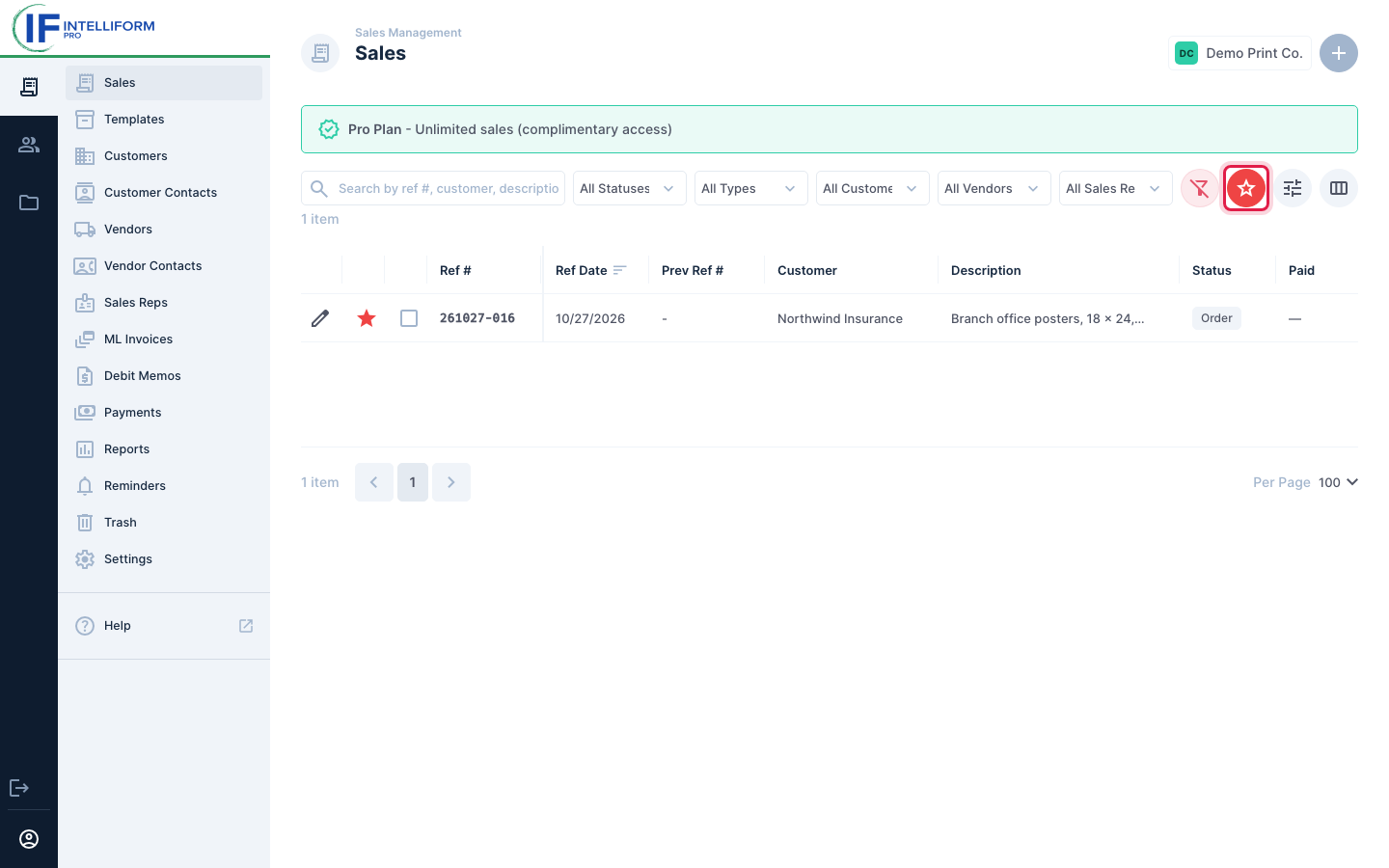
- Favorites only: show just the orders you starred.
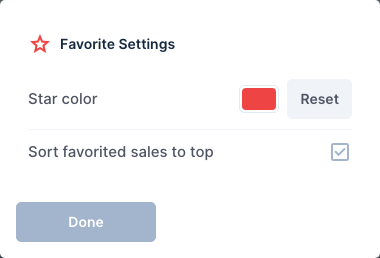
- Favorite settings.
- Configure Columns.
As soon as you type a search or set a filter, a red Clear all filters button appears in front of the star button (see Clear all filters).
The number under the search box (items) is how many orders match what you picked.
Search
-
Click the search box and type. The list updates as you type; you do not need to press Enter.
-
Type any part of the number or name. Capital letters do not matter.
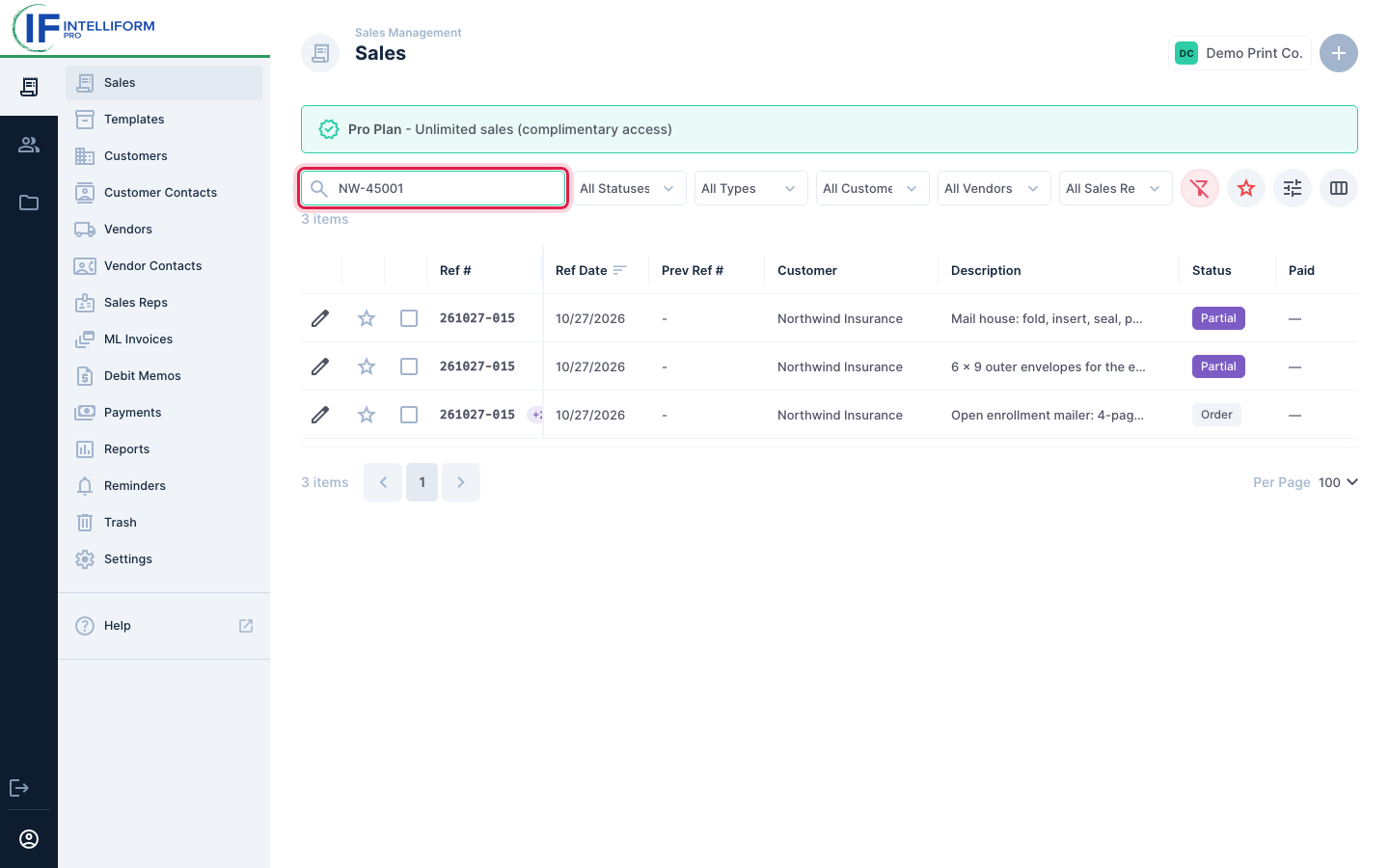
The search looks in all of these at once:
| Field | Example |
|---|---|
| Ref # | the last few digits of the Ref # |
| Customer name | north finds Northwind Insurance |
| Description | envelopes |
| Vendor name | keystone |
| Attention and Contact names | olivia |
| Cust PO (where internet orders keep their F/U #) | NW-45001 |
| Vendor Notes and File Notes | proof |
| Job # (from the old Intelliform) | 48213 |
In the picture, searching the customer's PO number finds the order and its two Partials, because they share the PO.
To clear the search, delete the text in the box, or click Clear all filters.
Filter the list
-
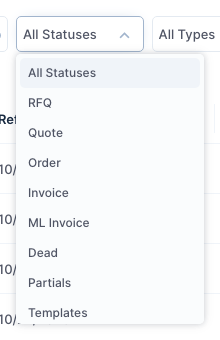
Click a filter, for example All Statuses, and pick a choice.
-
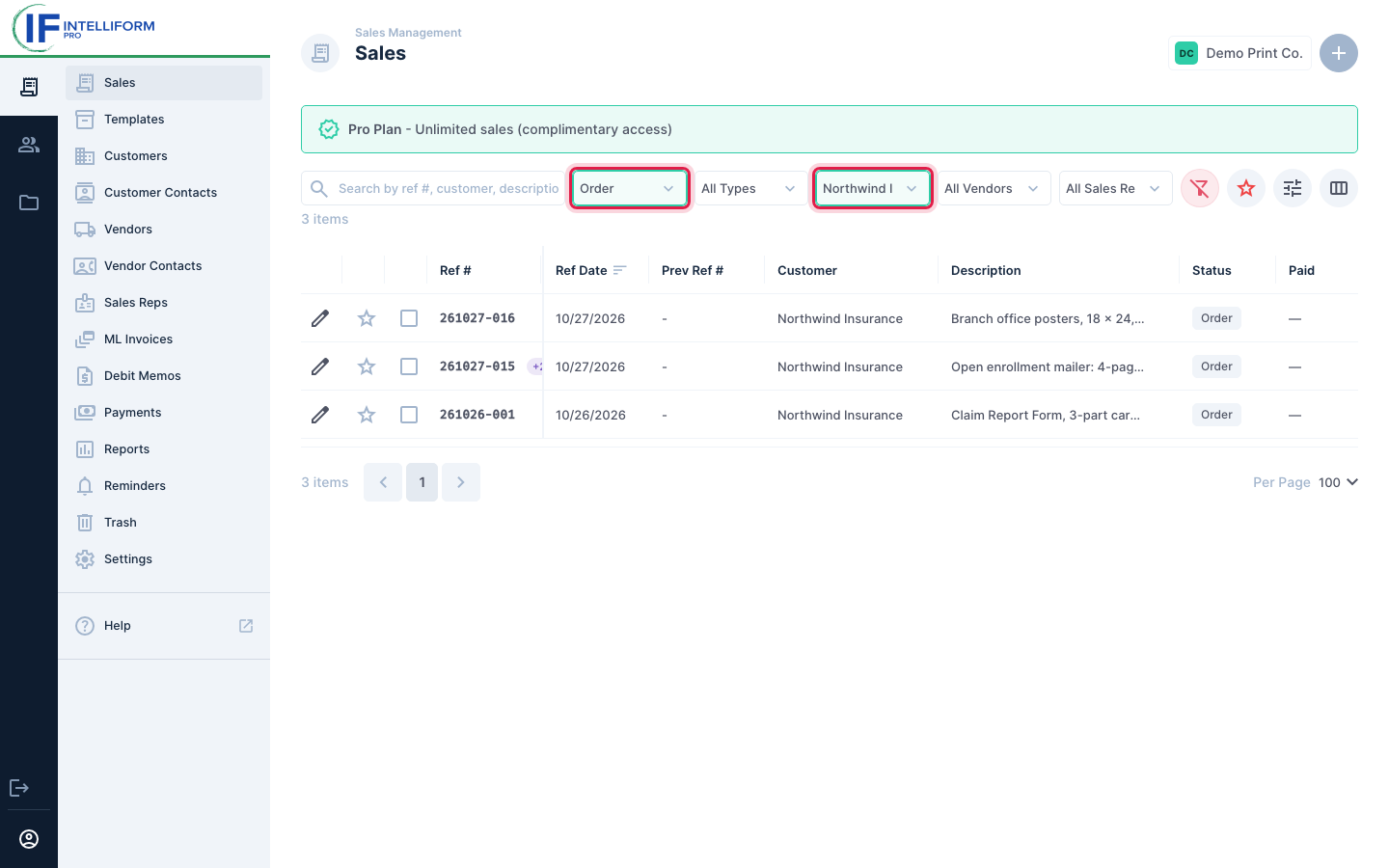
Pick more filters to narrow it further. Every filter you set must match, so Order and Northwind Insurance together show only Northwind's orders. Filters you have set turn green.
-
Filters work together with the search box too: filter by customer, then search for a word in the description.
What each filter offers:
- Status: RFQ, Quote, Order, Invoice, ML Invoice, Dead, Partials (only the cost-only Partials of multi-vendor jobs) and Templates. Templates never show in the list unless you pick Templates here. Partials show with everything else; pick Partials to see only them.
- Type: the product types, the same list you pick from when you start an order.
- Customer and Vendor: every customer and vendor of your company, A to Z.
- Sales Rep: shows only when your company has sales reps.
Long lists have a Search box at the top: type part of the name instead of scrolling.
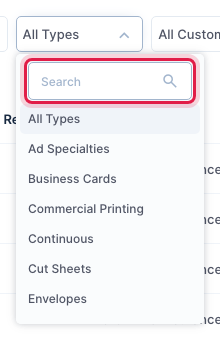
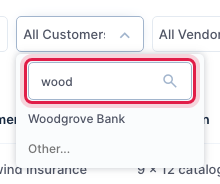
The Customer and Vendor lists have one too. Type any part of the name, in capitals or not, and
the list shrinks to the names that contain it; click the one you want. For example, wood finds
Woodgrove Bank:
and print finds every vendor with "print" anywhere in its name:
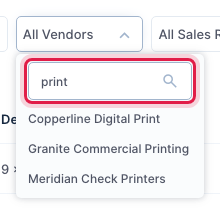
Delete the text to see the whole list again.
Clear all filters
The red funnel button (Clear all filters) appears in the bar only while a search or a filter is on (including Favorites only). With nothing set, it is not there.
Click it to empty the search box, put every filter back to All, and turn off Favorites only. The button then disappears again.

Your search and filters stay while you open and close orders. When you reload the page, or come back to Sales from another screen, the list starts over with no search and no filters.
Sort the list
The list starts sorted by Ref Date, newest first.
- Click a column header to sort by it, for example Customer (A to Z).
- Click the same header again to reverse it (Z to A, or oldest first for dates).
- The small lines next to the header show which column the list is sorted by.
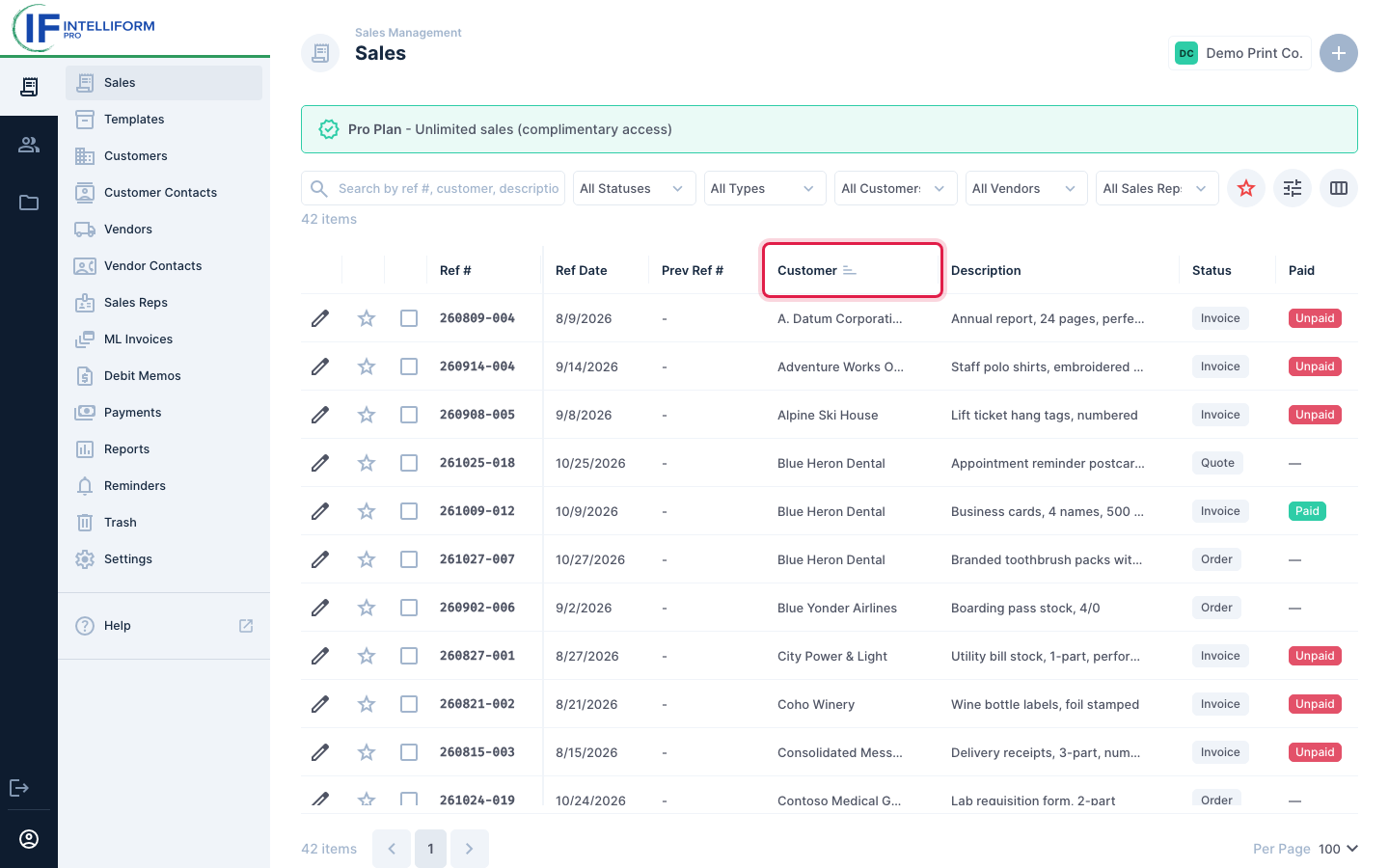
Every column can be sorted except Paid. Intelliform remembers your sort the next time you sign in. To go back to the usual order, click Ref Date until the newest orders are at the top.
Starred orders stay at the top whatever the sort, unless you turn that off in Favorite settings (below).
Star your favorites
Star the orders you keep coming back to, such as standing orders or jobs in progress.
-
Click the star at the start of a row. It fills in, and Intelliform says Added ... to favorites. The order moves to the top of the list.
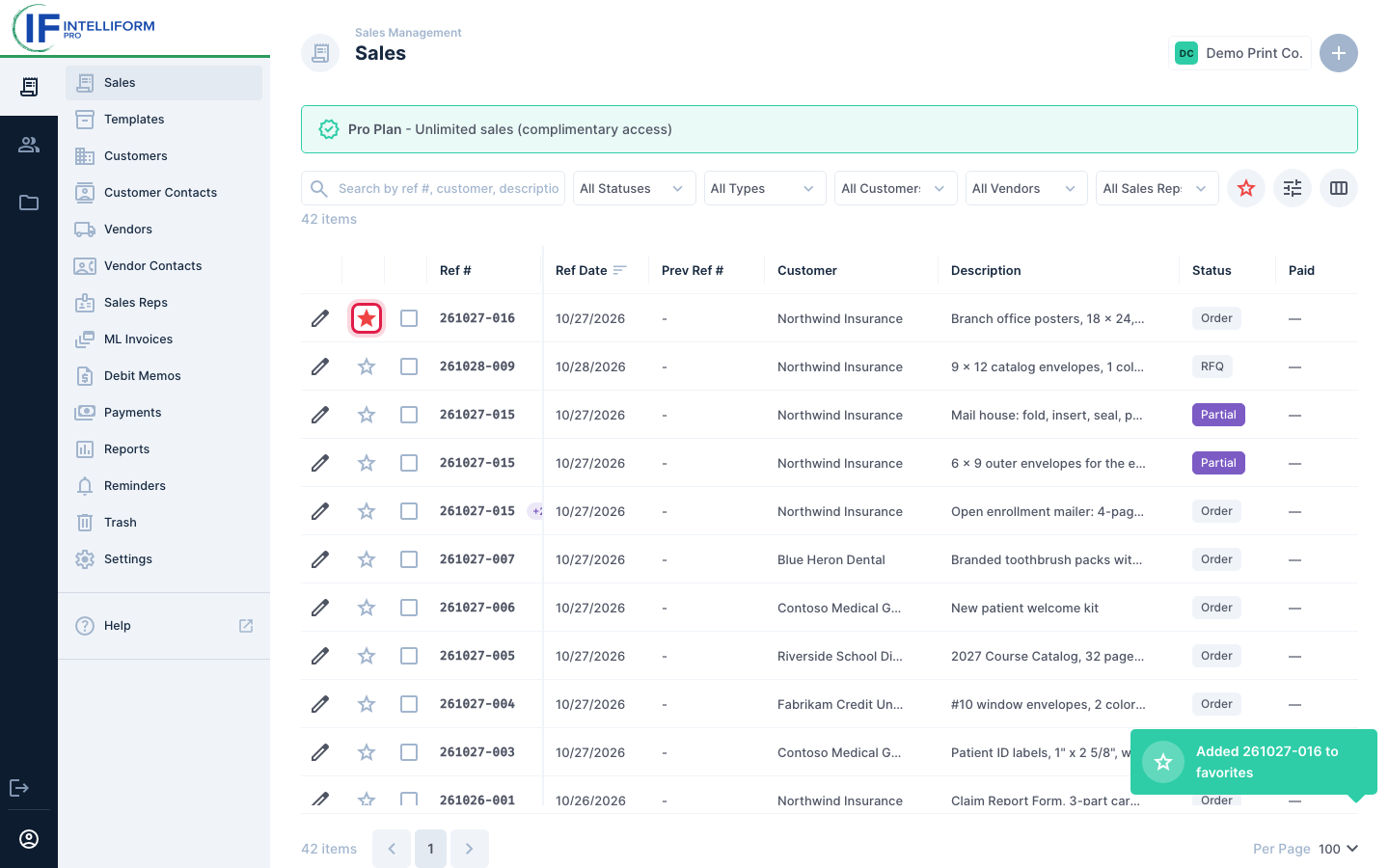
-
Click the star button in the bar (Show favorites only) to see only your starred orders. Click it again to see everything.
-
To remove a star, click it again.
The settings button next to it (Favorite settings) sets the Star color and whether starred orders Sort favorited sales to top:
Choose your columns
- Click Configure Columns (the last button in the bar).
- Tick the columns you want to see and untick the ones you don't. Drag a column by its handle to move it. Reset to Default puts the standard columns back.
- Click Done.
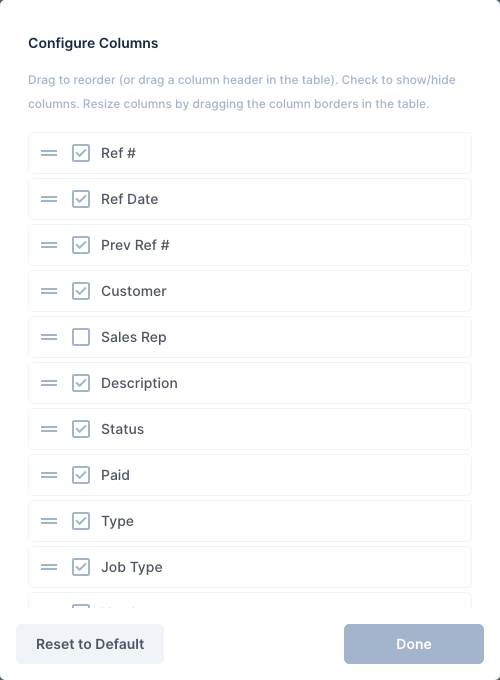
You can also drag a column header left or right in the list, and drag the border between two headers to make a column wider. Columns are your own: changing them does not change anyone else's list.
Page through the list
Under the list:
- The number of orders that match, and the page buttons (the arrows, or a page number).
- Per Page: show 25, 50, 100 (the usual) or 250 orders on a page. Intelliform remembers your choice.

In Split view
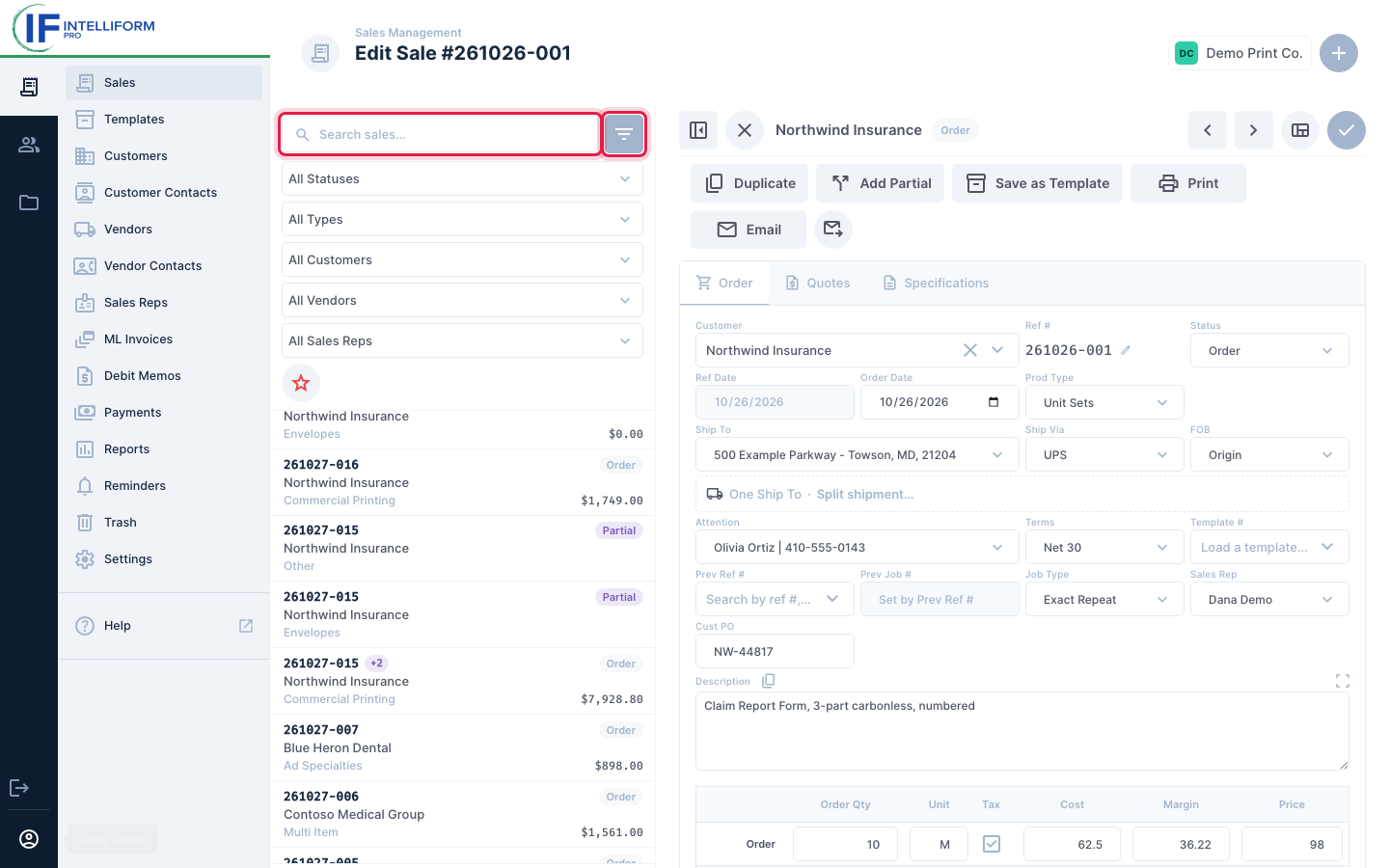
In the Split view layout (see Getting started), the short list beside the open order has its own search box. Click the filter button next to it to open the same filters; a number on the button shows how many are set.
Tips
- To open an order, click the pencil at the start of the row, or double-click the row.
- Point at a Ref #, customer or description in the list and click the copy icon to copy it.
- A +2 badge next to a Ref # means the order has two Partials.
- The Paid column shows Paid, Partial (partly paid) or Unpaid for invoices.
- Looking for a deleted order? Deleted orders are in Trash in the menu, not in the Sales list.
- To find an earlier job to run again, see Exact repeats: the Prev Ref # field has its own search.